7
M e th o d s fo r C o n n e c tin g a n d C o m m u n ic a tin g w ith E x te rn a l D e v ic e s
FZ4 User's Manual Controlling/Outputting through Serial Communication (Non-procedure) 441
Delimiter
●
[CR]
●
LF
●
CR+LF
Adjust to the PC communication specifications.
Timeout [s]
1 to 120
[5]
Set the time in which a timeout error will occur in seconds.
[Note 1]: If a speed of [38400 bps] or higher is selected, effective communication cannot be
guaranteed depending on the cable length because speeds of over 20 kbps are not defined in
RS-232C standards. In this case, set the communication speed at [19200 bps] or lower.
3.
Tap [OK].
The settings are confirmed and the Serial window closes.
Checking Communication Status (Non-procedure)
Check the communication status with connected external devices using the serial interface. You can
check whether wiring and communication settings have been performed correctly.
1.
On the Main screen, tap the [System] menu - [Communication] - [RS-232C/422:Normal].
The Serial window is displayed.
2.
Tap [Confirmation] to check the I/O status.
3.
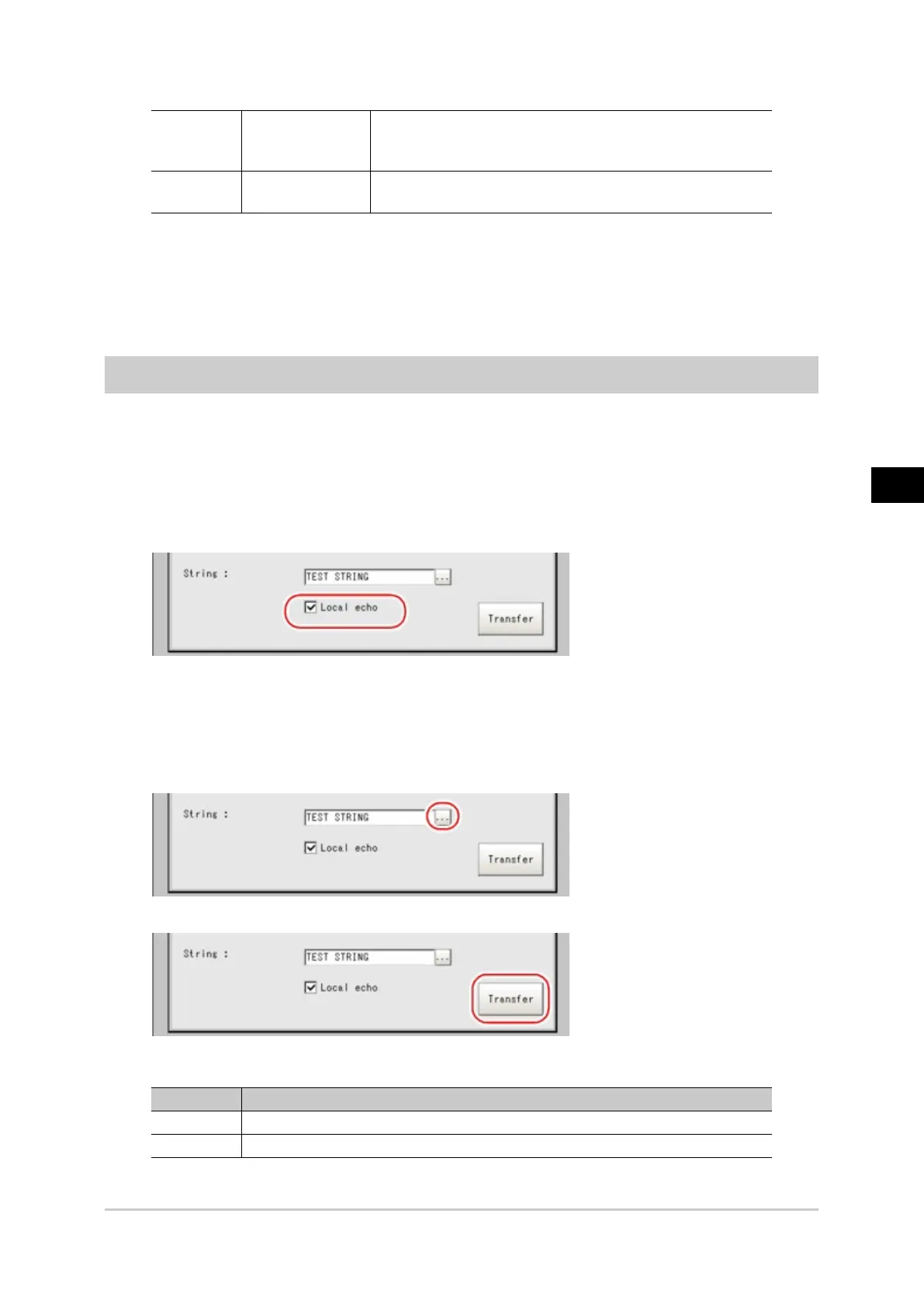
Check or uncheck the "Local echo" check box.
When it is checked, the transfer character string from the device is displayed in the Confirmation
window.
4.
Any character string can be input when editing the character string to be sent through "Transfer".
A character string with up to 12 characters can be entered.
5.
Tap [Transfer].
Contents of "String" are displayed on the window. Check that there are no problems.
ON Description
[Send] Character strings sent from external devices are displayed.
[Receive] Character strings received from external devices are displayed.
6.
Tap [OK].
Acesst 1.0 6251194



 To Next Page