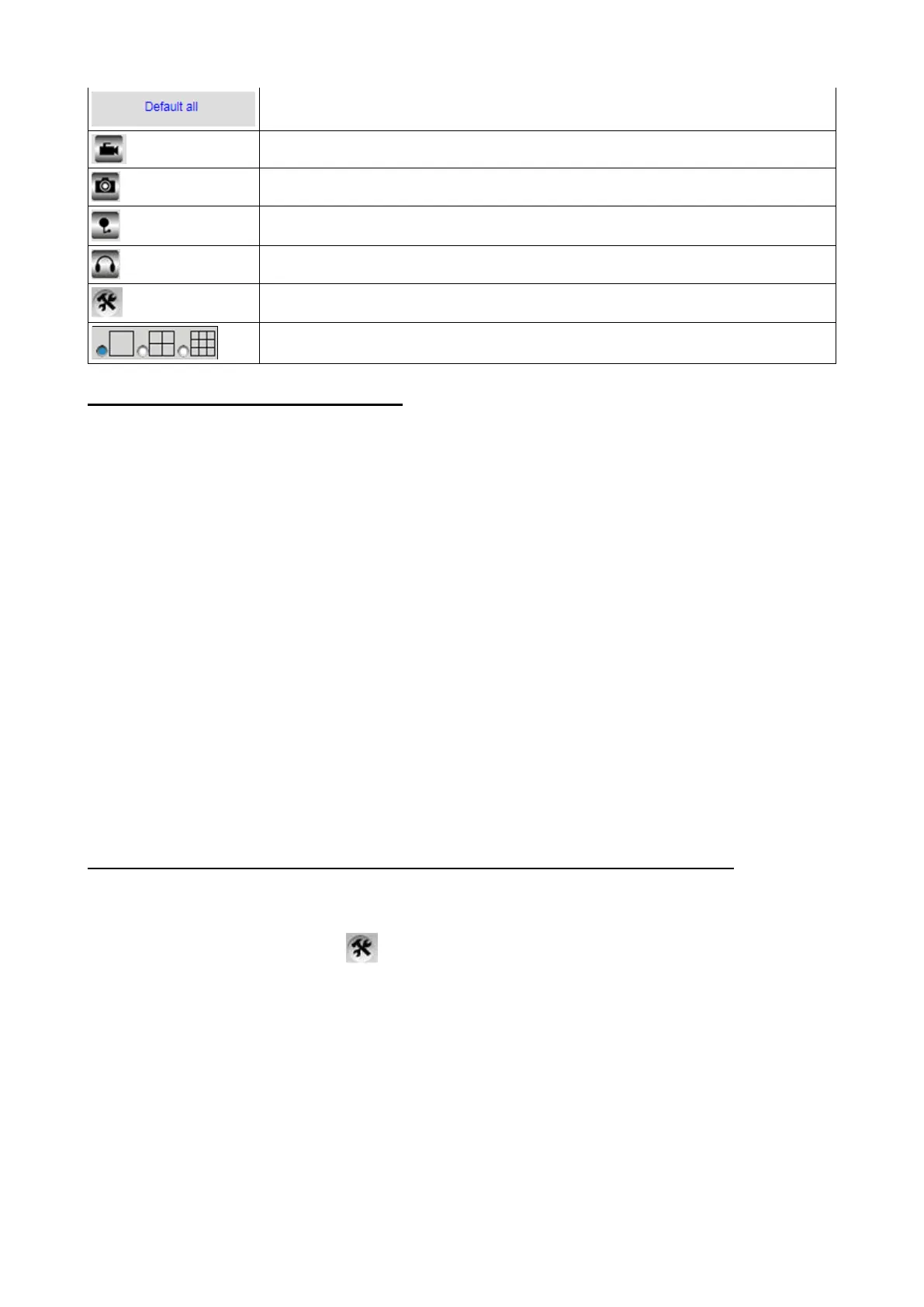
Reset main menu options to factory default
Main menu and device status
Single view/ quad screen view, 9-screen view available
3.3 Management Setting Instruction
Users are classified as: Administrator, Operator and Visitor
Visitor – only view available
Operator – available to set view (up, down, right, left), video screen's brightness,
contrast and other parameters.
Administrator – available to do all kind of operations including setting the device
advanced configurations.
Special functions only available for Administrator as below:
Alias setting
Date and time setting
User setting (up to 8 users available – classify users/ set up user name and
password)
UpnP setting
Device firmware upgrade
Restore factory settings (in case of no response when error occurred)
Reboot device
Back (return to monitor mode)
3.3-1 Multi-device settings (available only with Internet Explorer browser)
Allows to add camera in local network. The first device is considered as default device. In
order to add more devices:
Step 1. Login the camera, click >“Multi-device settings".
Step 2. Click "Refresh" button to see all cameras in network.
Step 3. Click "2nd Device" and select camera to add (at "Device List in Lan" field).
Http port will automatically be filled. User and password will be requested, then click “Add".
Max. 9 devices at the same time-line available, but only up to 4 devices can be viewed
through Smartphone. Repeat this process to add more cameras. Finally click “Submit”
button.


 To Next Page