2. Software Operation
2.1 Search IP address of Camera
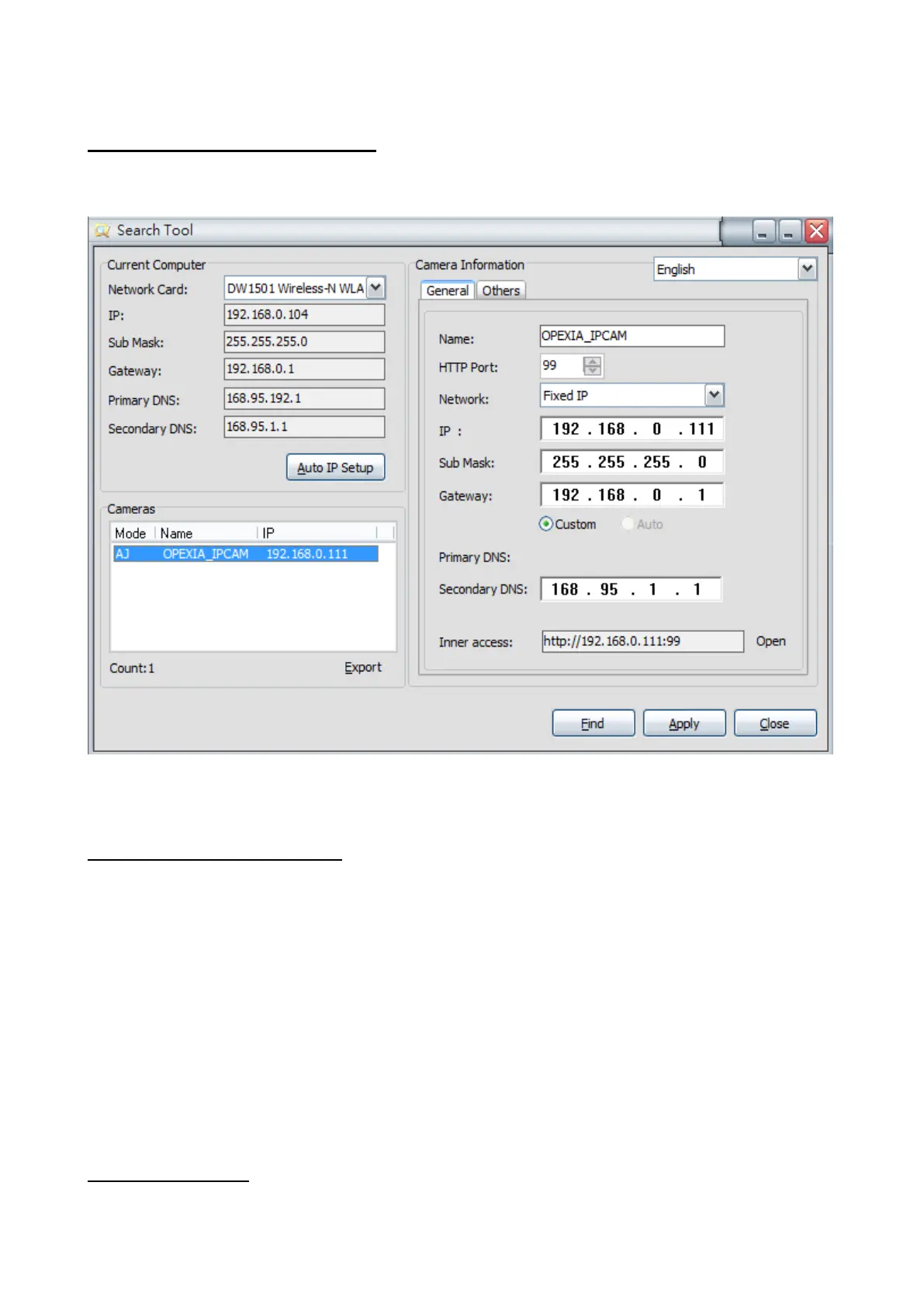
Once mounted properly, double click [Search Tool] and set up IP address (fig. 2.1-1).
fig. 2.1-1
NOTE: The software searches IP Servers automatically over LAN.
2.2 Configuration of Network
Network Configuration
1. Current Computer field indicates the computer's IP address information.
2. IP Cam information will be shown at Cameras field.
3. Click [Auto IP Setup] and a window will pop out. Please confirm accordingly.
4. In Camera Information field, choose 99 for [HTTP Port], and Fixed IP for [Network].
5. Make sure [Sub Mask] [Gateway] and [Secondary DNS] details are correct (same as
your router's or your current computer's). Otherwise, please change [IP] address by
clicking [Auto IP Setup].
6. Once confirmed the details above, click on [Apply]
3. Real-Time Video Demonstration
3.1 Camera Log-in
Access to the camera through IP Cam Tool or IE, Firefox, Safari, Google Chrome or other


 To Next Page