11
• Recording a video clip / Taking a still picture
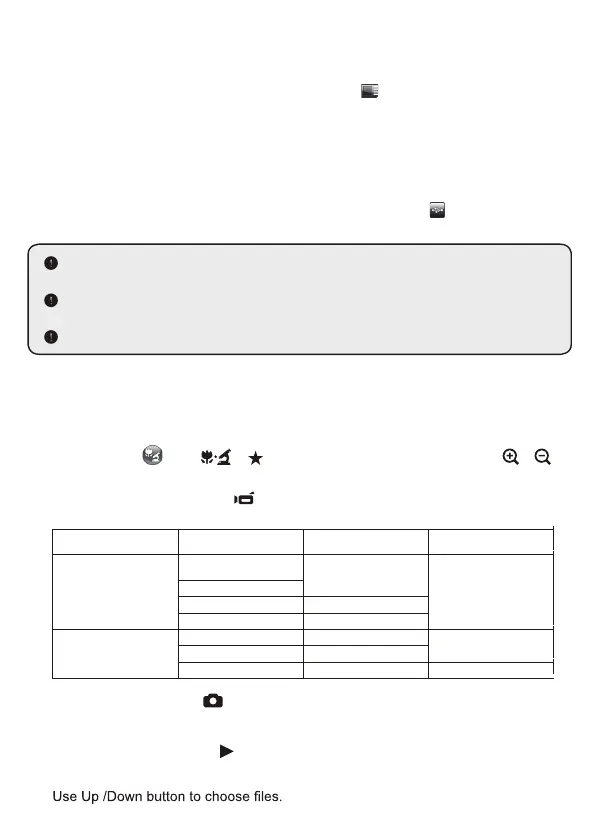
1. Set the capture or record resolution.
2. Choose the focus mode according to distance to object:
Normal mode for 3cm to ∞ @1X ; 30cm to ∞@17X.
Macro mode (
) or ( )( ) for 3cm to ∞. Use the Zoom button ( / )
to zoom in or zoom from the screen.
3. Press the Recording button (
) to start recording and press it again to stop
recording
Output Switch Resolution Setting Recording resolution Model
VGA
XGA
1024 x 768
DC552 / DC556
UXGA
720P 1280 x 720
WXGA 1280 x 800
HDMI
720P 1280 x 720
DC552 / DC556
1080P 1920 x 1080
4K 1920 x 1080 DC556
4. Press the Snap button ( ) to take a still picture.
• Playback
1. Press PLAYBACK button ( )
2. The last recorded picture or video clip will play.
3.
• Inserting and Ejecting a SD / SDHC card (Not supplied)
1. Insert a memory card (SD/SDHC) into the SD slot on the document camera.
• Inserting a USB flash drive (Not supplied)
1. Insert a USB flash drive into the USB port on the document camera.
2. When USB the flash drive is inserted successfully, the icon ( ) will appear on
screen and the internal memory or memory card will become inaccessible.
2. When the card is inserted successfully, the icon (
) will appear on screen and
the internal memory will become inaccessible.
3. To remove the card, push the card to release it and then pull it out gently.
When using a new memory card or USB flash drive, you are recommended to format it with
the device. Do not turn off the device while formatting the SD card or USB flash drive.
Even if your memory card or USB flash drive has been formatted on other devices, you may
have to reformat it with the device.
If no external storage devices are connected, all files will be saved in the built-in memory.


 To Next Page