8
Operation
Pairing iOS and Android devices with uSqueez 2 Smart
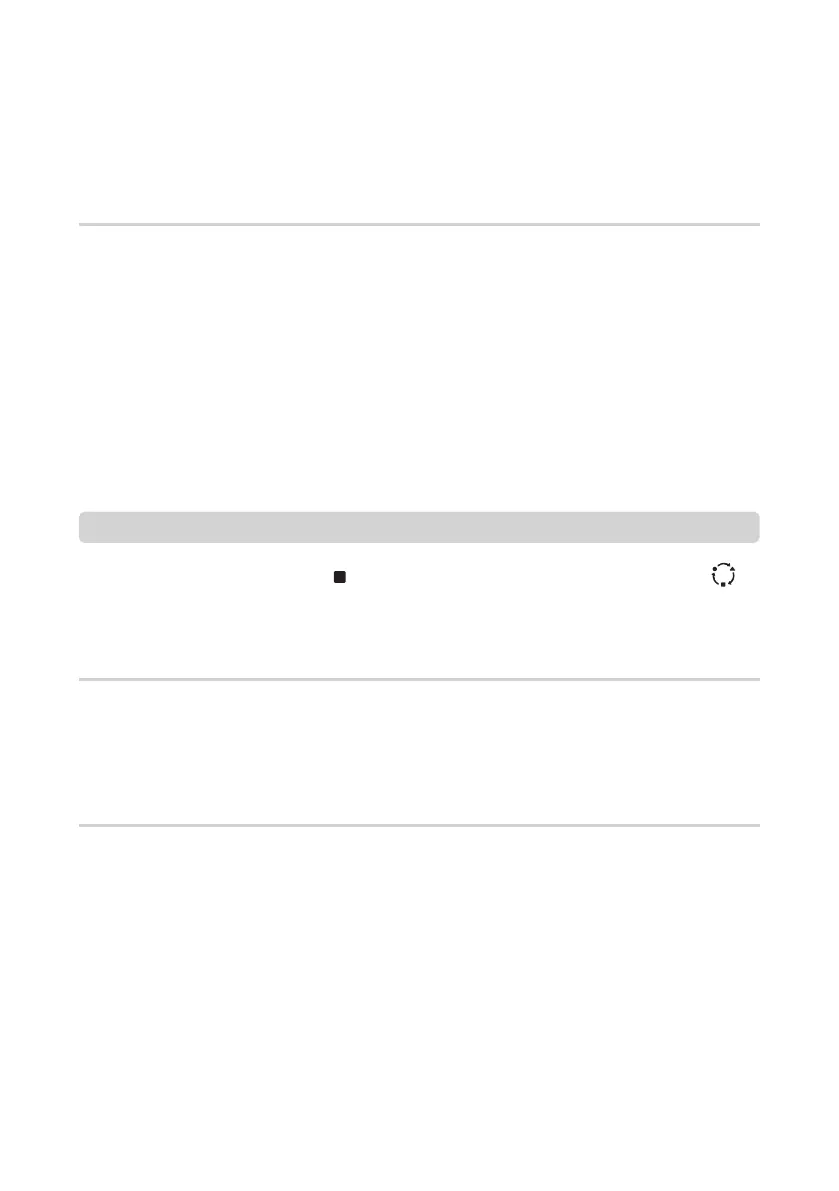
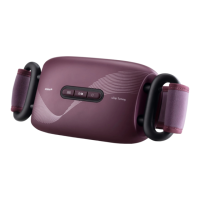
uSqueez 2 Smart can be operated by control panel or OSIM Smart DIY Massage Chair App.
• Ensure that the main switch on the uSqueez 2 Smart is turned on.
• Wi-Fi will be enabled once the main switch is turned on.
• Ensure that your router is turned on and within searchable range, uSqueez 2 Smart will
automatically connect to the 2.4GHz frequency band.
• On your smart device please select the same 2.4GHz frequency band of your router.
• Check if Wi-Fi LED indicator is lighted up on control panel.
• Tap on the OSIM Smart DIY Massage Chair App on your smart device.
• Follow the instructions on the App to connect to the product.
Functionality of OSIM Smart DIY Massage Chair App
User is able to access the following through the OSIM Smart DIY Massage Chair App.
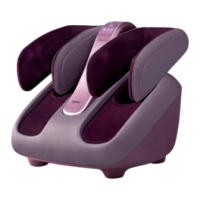
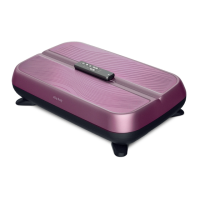
• Able to control uSqueez 2 Smart and uJolly 2 Smart together wirelessly using the App.
Compatibility of OSIM Smart DIY Massage Chair App
• Compatible with selected smart devices running on iOS version 11 and above or Android
version 8.0 and above.
• Due to variations in operating systems, non-compatibility could occur. We recommend
updating your phone’s operating system whenever a new version is available to enjoy the
new App features. The minimum phone operating system requirement are subject to change
without notice.
• All smart devices require a compatible wireless connectivity (Wi-Fi or cellular data networks).
• For updates on OSIM Smart DIY Massage Chair App, please visit the respective app stores.
• Notifications of app updates should not be disabled, and it is recommended that the user
installs all updates to ensure that the app will function correctly and is kept up to date.
Note
• To reset Wi-Fi, press & hold Stop [ ] button followed immediately with Auto Program [ ]
button for at least 5 seconds, and you should see the Wi-Fi blue light glow slowly.


 To Next Page