34 35
About Startup Handling Options Tinnitus Warnings More info
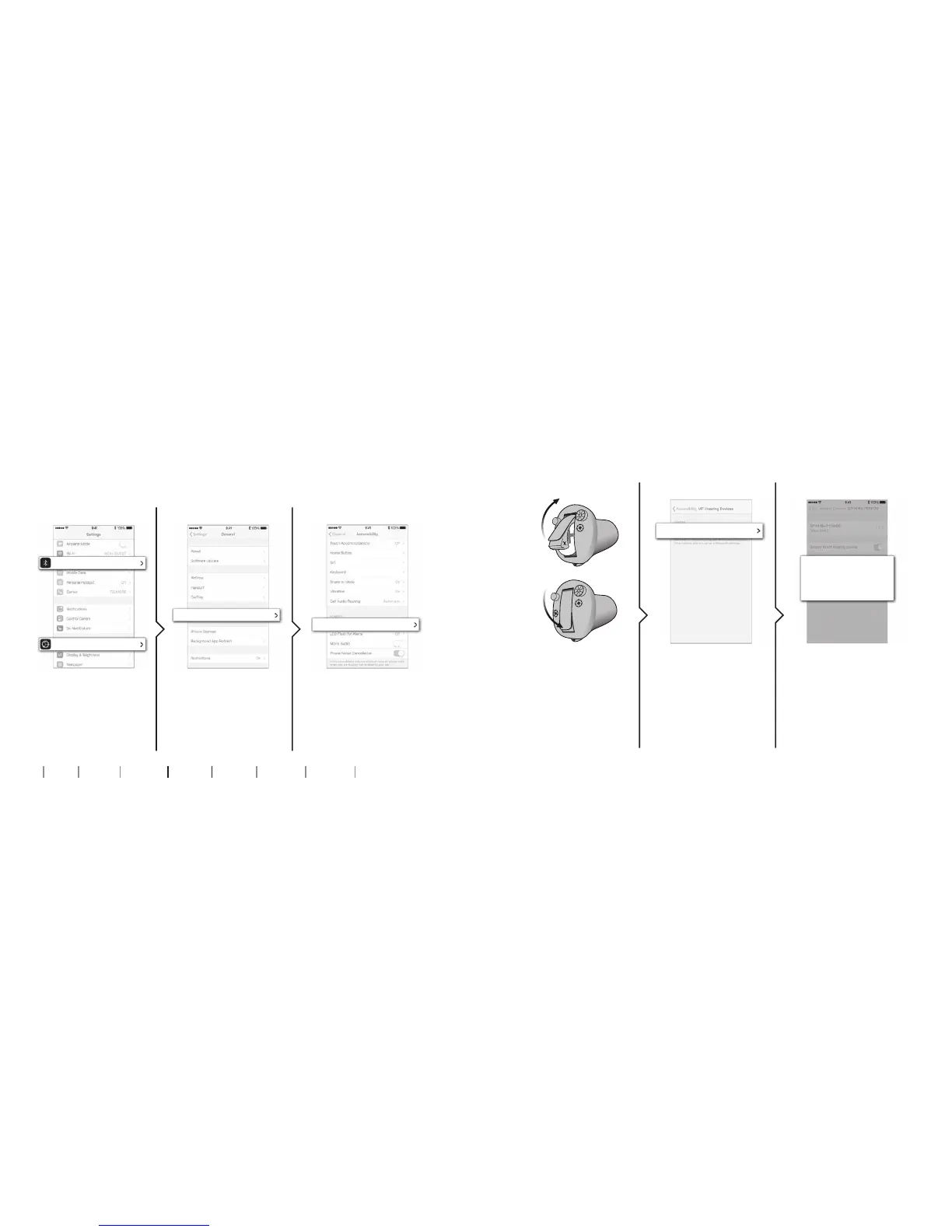
Pair hearing aids with iPhone
2. General
6. Conrm pairing
3. Accessibility1. Settings
5. Select
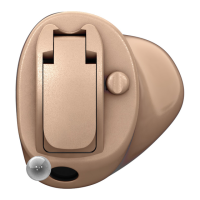
Open and close the
battery drawer on
both hearing aids,
and place them close
to your iPhone. The
hearing aids
remain in pairing
mode for 3 minutes.
Your iPhone will
detect the hearing
aids for pairing.
Detected devices will
appear in your iPhone
list. Choose your
hearing aids.
Conrm pairing. If you
have two hearing aids,
pairing conrmation is
needed for each
hearing aid.
Open your iPhone
and go to “Settings”.
Make sure Bluetooth
is on. Then choose
“General”.
On the “General”
screen, choose
“Accessibility”.
On the “Accessibility”
screen, choose
“MFi Hearing Devices”.
Bluetooth
General
Accessibility
MFi Hearing Devices
William’s Hearing Aids
Oticon Opn
Bluetooth Pairing
Request
“William’s Hearing Aids” would
like to pair with your iPhone
Cancel Pair
On
✓
4. Prepare
When you turn o your hearing aids or Apple® device, they will no longer be connected. To connect them again, turn on your hearing
aids by opening and closing the battery door. The hearing aids will then automatically reconnect to your Apple device.




 To Next Page