U.2 interface in Drive Bay A is PCIe x1 (770MB/s benchmarked
performance).
•
U.2 interface in Drive Bay B is PCIe x2 (1512MB/s benchmarked
performance).
•
Requires 2.5Gbs Ethernet compatible hardware components and cabling (Cat 5e
cable minimum, Cat 6 or later strongly recommended).
•
The cable type, i.e Cat5e, Cat 6a, is a silkscreen located physically on the
cable. Inspecting the cable will help you identify the cable type.
•
Use of HDMI display via thunderbolt port requires USB-C to HDMI adapter. (Sold
separately at
•
go.owc.com/nwt/usbchdmiadapter.
).
USB ports on the back of the OWC Gemini are backwards compatible with USB 3.0
and USB 2.0 devices.
•
Thunderbolt/Thunderbolt 2 device compatibility requires a certified Thunderbolt 3
(USB-C) to Thunderbolt 2 (mDP) adapter and a Thunderbolt 2 cable.
•
Compatibility and performance will be at Thunderbolt/Thunderbolt 2 speeds. (Sold
separately at
•
go.owc.com/apple/tb3tb2adapter
).
Experienced display support will vary among systems. Please consult the system
manufacture specifications to determine the maximum supported resolution, refresh
rate, color depth, and number of external displays over Thunderbolt.
•
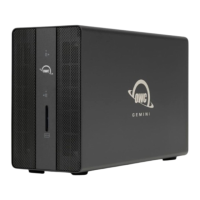
The OWC Gemini has (2) 40Gb/s Thunderbolt 3 ports with 27W Dynamic Power
Delivery. 27W of power is delivered to first connected system or device. 15W of power
is delivered to the second connected system or device.
•
1229MB/s write, and 1512MB/s read peak performance with 1 x 2.0TB Western
Digital U.2 SSD in OWC Gemini PCIe x2 bay connected to a 13-inch MacBook Pro
2016 (MacBookPro13,2) with 8GB RAM and 2.9GHz processor running AJA System
Test (4K-Full resolution, 16GB file size, 16 bit RGBA codec, single file test).
•
Support Resources
4.1 Troubleshooting




 To Next Page