STEP PARAMETERS
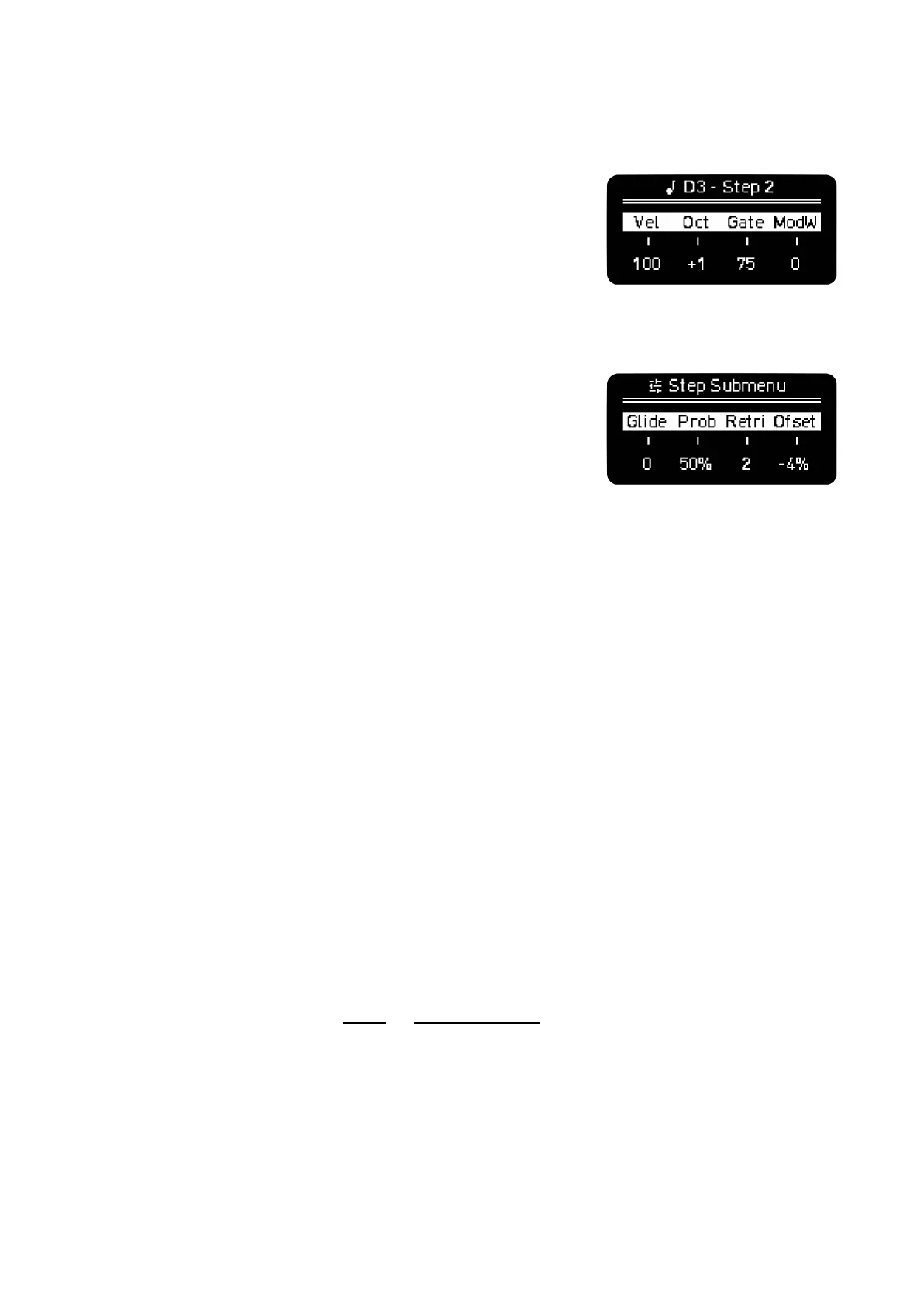
Hold one or more notes at the same time (active or not) to see their
step parameters and the note information. You can change with
each encoder the Velocity, Octave (a pad will light up on the edge
of the column as indication of decentralised octave),
Gate and the Mod defined in the section above, by default it sends
ModWheel.
- You can copy/paste parameters between steps.
With Step-Chord activated, holding a step will take you to the Step
Submenu.
In this screen you can modify the following parameters:
Glide, it sets the time of the pitch to change continuously between
two consecutive notes.
Trig, or how we call it Trigger Logic. There’s two behaviors:
- By default it’s set to 100%, that means that the step has a 100% chance of playing when
triggered. Turning the second encoder CCW lowers the probability of the step being triggered
at each pass of the transport bar.
- Turning the encoder CW will take you to A | B logic triggering. A and B are numbers in which
B sets the number of bars and A in which of those bars the note is triggered.
For example 3 | 4 means that the note will be triggered on the 3rd of each 4 bars.
This tool is handy to create longer patterns or launching samples every once in a while and not
in every loop.
Retrig, sets the times the note is triggered during the step duration, up to 5 times. For better
resolution change the Time Division of the Sequencer or Track.
When fully CCW you get to SKIP, if selected the step timing will be ignored by the transport bar, thus
making the sequence length shorter.
–––––––––––––––––––––
Use Skip to abruptly change the timing and feel of the pattern.
Randomize Skip steps to get different sequence lengths every bar by adding and removing notes,
in Retrig on Random Perform screen.
–––––––––––––––––––––
Offset, sets the time deviation of the note from -40% to 40% of the current time division. 25% is a
±
quarter deviation from the duration of the step.


 To Next Page