SWI-CP5
Universal Steering Wheel Control Retention Interface
Pacic Accessory Corporation
®
| Santa Ana, California 92705 | Ph. 866-931-8021 | support@pac-audio.com
©2013 Pacic Accessory Corporation
www.pac-audio.com
Pacific Accessory Corporation
Rev. 012014
TM
Steering Wheel Control Interface
Page 2
Alpine Clarion Fusion JVC Kenwood Other Pioneer Sony
RadioDipswitchSettings
Other‐Advent,BOYO,Dual,LightningAudio,Visteon,RockfordFosgat
App Mode
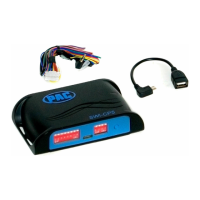
With this method, the CP5 can be connected to a smartphone, tablet or PC in which the application assigns the vehicle and SWC
button functionality. The dipswitches on the side of the interface must all be set to down which is the default position. When using
this method, it is not required to manually program the SWC buttons.
1. Visit www.pac-audio.com/controlpro/app to download your device specic application. (PC, Apple or Android)
2. Connect the CP5 to your device. If you are using a phone or tablet you must connect power to the CP5 and the supplied USB
adapter to the CP5. If you are using a PC, neither power or the supplied adapter is required. PLEASE NOTE: When using a
PC it may be necessary to update your Microsoft .NET Framework. If you require this update your PC will automatically notify
you. If you do not get a notication then you do not require the update.
3. Launch the application or software and follow the on screen prompts.
Manual Conguration Mode
With this method, the CP5 uses a pre-determined dipswitch conguration to assign the vehicle and SWC button functionality.
The dipswitches on the side of the interface must be manually set to the proper conguration by the user. These vehicle specic
dipswitch settings can be found by downloading your device specic application from www.pac-audio.com/controlpro/app. If you
wish to re-assign button functions or use short press/long press dual command functionality, please follow the button re-assignment
procedure outlined on page 5.
1. Please Visit www.pac-audio.com/controlpro/app to download your device specic application. (PC, Apple or Android)
2. Launch the application or software and nd your vehicle/radio combination.
3. Set the vehicle dipswitches according to the application.
4. Set the radio dipswitches according to the chart below.
5. Wire up the interface according to the installation instructions in the application.
Manual Programming Mode
With this method the SWC values must be manually programmed into the CP5 by using either the app or the programming button.
The vehicle dipswitches on the side of the interface must all be set to up. PLEASE NOTE: This mode is only compatible in
vehicles with both analog SWC and a discrete 12v Accessory wire. Vehicles with CAN-Bus buttons cannot be manually
programmed.
1. Visit www.pac-audio.com/controlpro/app to download your device specic application.
2. Launch the application and nd the installation instructions for your vehicle.
3. Set the radio dipswitches according to the chart below.
4. Wire up the interface according to the installation instructions in the application.
5. Connect the CP5 to the vehicle
6. You can now either connect the CP5 to a device and use the app to program the SWC values or follow the programming
instructions on the next page.
Conguring/Programming
Installation
Please visit www.pac-audio.com/controlpro/App to download the smartphone or PC application that provides
vehicle specic wiring and conguration processes. We recommend that all wiring connections be soldered
to ensure a sturdy and reliable connection.


 To Next Page