PageFlip Dragonfly User Guide 4.5 Pedal Mode Selection
4.5 Pedal Mode Selection
The PageFlip Dragonfly emulates a standard keyboard and works with
any software that uses keyboard strokes to navigate through digital files
or launch app functions. For added versatility, the user may select among
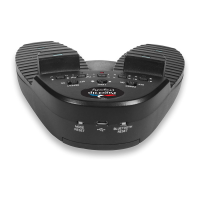
five preset pedal modes, as shown in Table 2. Simply press a button
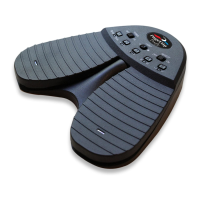
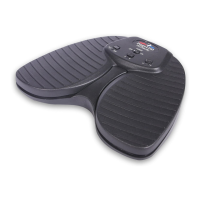
(Fig. 3) to change the mode. A flashing LED confir ms the mode selec-
tion. The bottom two icons around each mode button designate the pedal
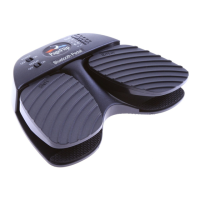
modes for the primary (larger) left and right pedals. The top two icons
around each mode button designate the pedal modes for the secondary
(smaller) left and right pedals that sit on top of the primary pedals. The
functions of these two sets of pedals are described in the two tables below.
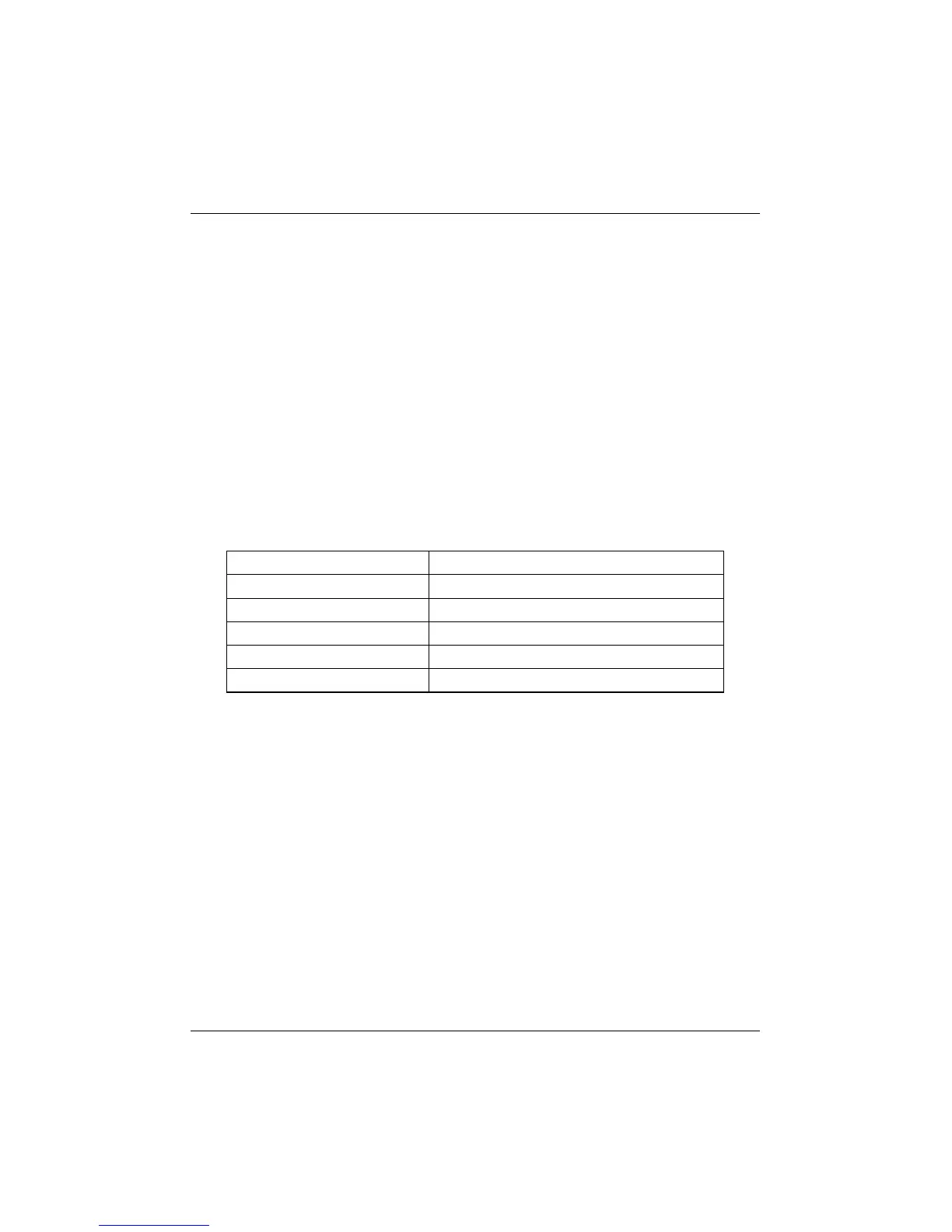
Primary Pedal Modes Function
Stop/Play Stop and play/pause app functions
Stop/Play Stop and play/pause app functions
Up/Down Arrow Turn page or move cursor
Up/Down Arrow Turn page or move cursor
Space/Enter Press Space bar or Return key
Table 1: Five preset primary pedal modes and their functions.
Select the mode that achieves your intended goals. Results may
vary based on the software. For instance, some software applications
use PageUp/PageDown to advance between pages/screens, and use the
arrow keys to move the cursor between characters or rows. Other pro-
grams accept the PageUp/PageDown or arrow keys interchangeably. Im-
age viewers typically respond to Left/Right arrow but not Up/Down arrow.
Experiment with the different modes and see which works best for your
application. These options are made available to enhance pedal versatil-
ity by making it responsive to the widest array of software.
PageFlip, Inc. 15 www.pageflip.com


 To Next Page