14 15
Power using the included power adapter
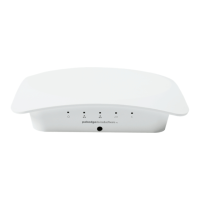
The Wireless Access Point should now be up and running with its default settings. It does not need
to be congured to be functional. To make changes to the SSID and security settings, you need to
access the WK-1-C using a web browser.
Smartphone
Panel
Laptop
Laptop
Tablet
Power
Outlet
AC Adapter
Step 1: Login
There are two options to log in to the unit:
Option 1:
Connect a computer to the WK-1-C through an Ethernet cable. Enter 192.168.1.250 into the
address bar of your web browser. You should see a login page. In the username box, type pakedge.
In the password box, type pakedgea and click Login.
Conguring the Hardware
WK-1
NOTE: If your computer is not set to the default IP scheme of the WK-1-C (192.168.1.X), you must
rst congure the TCP/IP settings on your computer to log in to the WK-1-C through a web
browser.


 To Next Page
 Loading...