E
N
G
L
I
S
H
18
CQ-DF802W
33
E
N
G
L
I
S
H
17
CQ-DF802W
32
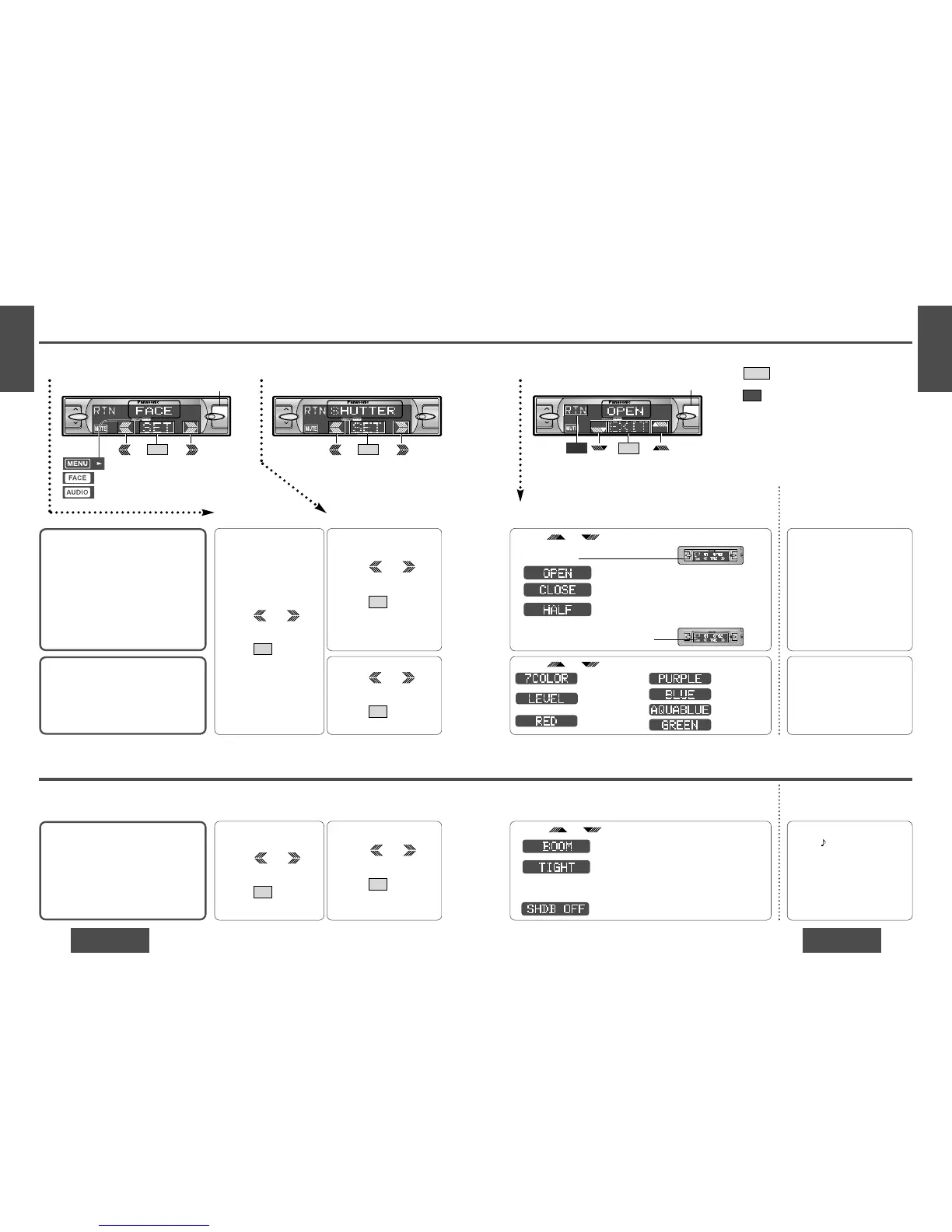
Front Panel Settings [FACE]
Front Panel Brightness
The brightness of the screen can be ad-
justed to the desired level so that it will fit
in with the equipment inside the car and
the front panel buttons.
Default: OPEN
Setting range: OPEN, HALF, CLOSE
Color Change
You can change the color of the [VOL "
#] [MENU] [BAND] buttons.
Default: 7COLOR
Variety: 5 kinds, LEVEL, 7COLOR
12Menu Submenu
1 Press [MENU].
2 Press /
[%] or [$] to select
“FACE”.
3 Press /[SET] to set.
SET
1 Press /
[%] or [$] to select
“SHUTTER”.
2 Press /[SET] to set.
SET
1 Press /
[%] or [$] to select
“COLOR”.
2 Press /[SET] to set.
SET
Press /["] or [#] to change setting.
3 Setting
Press /["] or [#] to change setting.
Press /["] or [#] to change setting.
Audio and Sound Settings [AUDIO]
S·HDB (Super High
Definition Bass)
Especially for rock music, the bass-sound
will be more powerful.
Default: S·HDB OFF
Setting range: S·HDB OFF, BOOM, TIGHT
12Menu Submenu
1 Press [MENU].
2 Press /
[%] or [$] to select
“AUDIO”.
3 Press /[SET] to set.
SET
1 Press /
[%] or [$] to select
“S·HDB”.
2 Press /[SET] to set.
SET
: Lights during menu play setting.
: Lights during FACE mode.
: Lights during AUDIO mode.
: The bass sounds of the speakers are strongly
emphasized. “(” lights.
: The bass sounds of the speakers are moder-
ately emphasized. “(” lights.
(The sounds of the subwoofer can be heard
clearly.)
: S·HDB is non-active.
Direct setting on the re-
mote control unit when the
menu is not displayed
Press (S·HDB) to change
setting.
(When you press a button,
the screen on the left is dis-
played for 2 seconds.)
Note:
≥ Press /[MENU]/[MENU], [DISP] (display) to
return to the regular mode.
≥ Press /[RET] (RETURN) to return to the previ-
ous display.
RTN
EXIT
: 5 kinds (below),
white and yellow
: Changes according
to the volume level.
: Red
: Purple
: Blue
: Aqua blue
: Green
Direct setting on the re-
mote control unit when the
menu is not displayed
Press and hold [FACE] for
more than 2 seconds to
change setting.
(When you press a button,
the screen on the left is dis-
played for 2 seconds.)
Press [FACE] to change set-
ting.
(When you press a button,
the screen on the left is dis-
played for 2 seconds.)
VOL
MENU
MOSFET
50W
X
4
SET
(Submenu)
VOL
MENU
SET
MOSFET
50W
X
4
[MENU]
(Menu)
BAND
APM/
;
/
1
BAND
APM/
;
/
1
112
1
223
MOSFET
50W
X
4
VOL
MENU
EXIT
MOSFET
50W
X
4
[MENU]
RTN
(Setting)
BAND
APM/
;
/
1
1 Menu 2 Submenu 3 Setting
: Bright (brighter than “HALF”)
: The entire front panel darkens and the illuminated
colors inside the panel change in appearance.
: Bright
The brightness of the entire front
panel changes.
(See page 36 for information on changing
the brightness of just the display area.)
on
VOL
MENU
OPEN
BAND
APM/
;
/
1
MOSFET
50W
X
4
on
VOL
MENU
OPEN
BAND
APM/
;
/
1



 To Next Page