- 83 -
Advanced (Recording pictures)
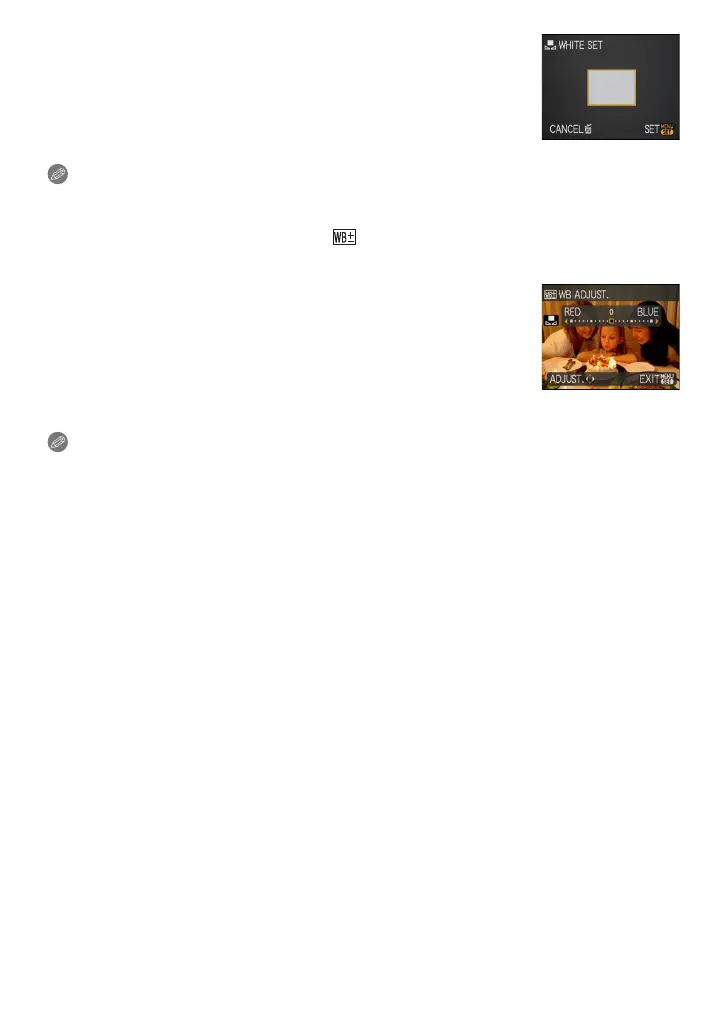
Setting the white balance manually
1 Select [Ó] and then press [MENU/SET].
2 Aim the camera at a sheet of white paper etc. so that the
frame in the centre is filled by the white object only and then
press [MENU/SET].
3 After setting, select [Ò].
Note
•
The white balance setting is memorised even if the camera is turned off. (However, the white
balance setting for a scene mode returns to [AWB] when the scene mode is changed.)
∫ Finely adjusting the white balance [ ]
Use this to set the white balance manually.
•
Set the white balance to [V]/[Ð]/[
î
]/[Ñ]/[Ò].
1 Press 3 [È] several times until [WB ADJUST.] appears
and then press
2/1 to adjust the white balance.
2 [RED]: Press when the hue is bluish.
1 [BLUE]:Press when the hue is reddish.
•
Select [0] to return to the original white balance.
2 Press [MENU/SET] to finish.
•
You can also press the shutter button halfway to finish.
• The white balance icon on the screen turns red or blue.
Note
•
You can finely adjust the white balance independently for each white balance item.
• The white balance fine adjustment setting is reflected in the picture when using the flash.
• The white balance fine adjustment setting is memorised even if the camera is turned off.
• The white balance fine adjustment level in [Ò] returns to [0] when you reset the white balance
using [Ó].
• In the [UNDERWATER] in scene mode, the white balance is fixed at [AWB], but it can be finely
adjusted.











 To Next Page