EasyManua.ls Logo

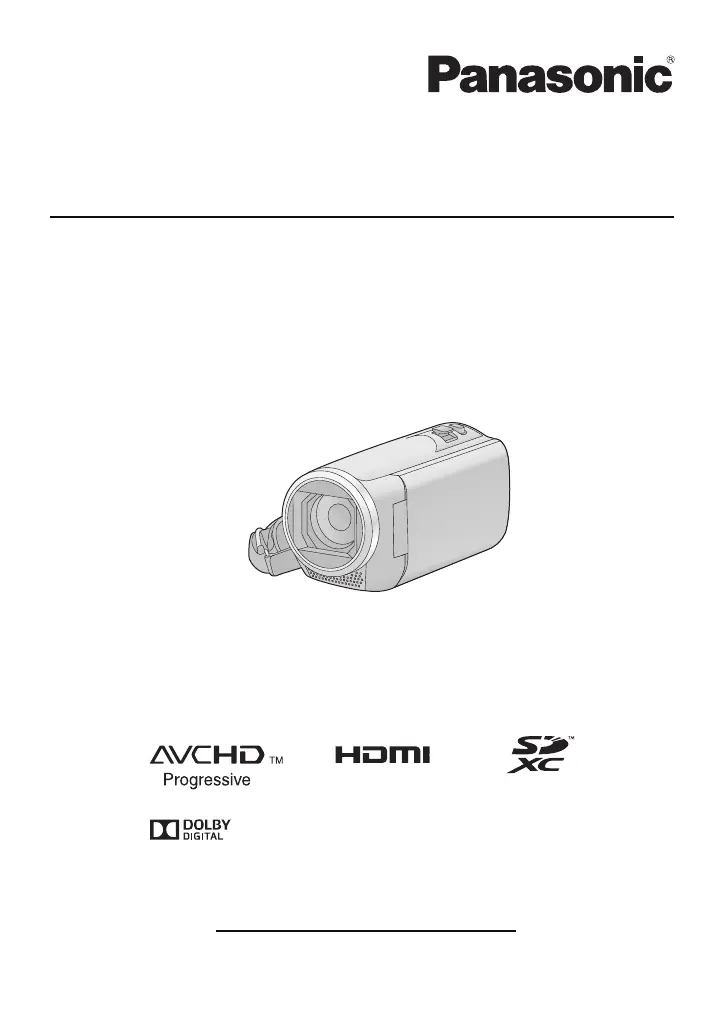
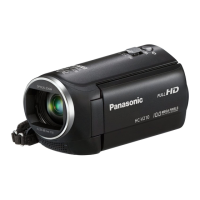
Panasonic HC-V180 - User Manual

Panasonic HC-V180
140 pages
Print Icon
To Next Page IconTo Next Page
Loading...
Owners Manual
High Definition Video Camera
Model No.
HC-V180
Please read these instructions carefully before using this product,
and save this manual for future use.
SQW0490
until
2015/12/8
Register online at http://shop.panasonic.com/support (U.S. customers only)

Table of Contents

Other manuals for Panasonic HC-V180

Questions and Answers

  • M
    Micheal BurnettSep 14, 2025
    How to fix the auto focus on my Panasonic HC-V180 Camcorder?
    • K
      Karen LyonsSep 14, 2025
      Switch to Intelligent Auto Mode or Intelligent Auto Plus Mode. If you are trying to record a scene which is hard to bring into focus in Auto Focus Mode, use the Manual Focus Mode to adjust the focus.
  • A
    ashleyserranoAug 25, 2025
    Why is there no image or sound when Panasonic HC-V180 is connected to TV?
    • C
      Clifford CunninghamAug 25, 2025
      If you've connected your Panasonic Camcorder to a TV but aren't getting any images or sound, or the images appear squeezed, first, check your TV's operating instructions and select the channel that corresponds to the input you're using for the connection. Also, adjust the [TV ASPECT] setting on your camcorder to match the aspect ratio of your TV. Note that during playback mode, audio is output from the TV, not the camcorder, and sound levels should be adjusted on the TV itself.
  • J
    jade23Aug 25, 2025
    What to do if Panasonic Camcorder is not detected by PC via USB?
    • B
      Brian PearsonAug 26, 2025
      If your Panasonic Camcorder isn't being detected by your PC when connected via USB, re-insert the SD card into the camcorder and reconnect the supplied USB cable. Try a different USB terminal on your PC. Verify the operating environment. After restarting the PC and turning on the camcorder again, reconnect the USB cable.
  • M
    matthew80Aug 26, 2025
    What to do if my Panasonic Camcorder displays 'ERROR OCCURRED. PLEASE TURN UNIT OFF, THEN TURN ON AGAIN.'?
    • J
      Jason SellersAug 27, 2025
      This message indicates that the unit has automatically detected an error. Try restarting your Panasonic Camcorder by turning it off and then on again. If the error message continues to appear after restarting, the unit may need repair. In this case, detach the power and consult the dealer from whom you purchased the unit. Do not attempt to repair the camcorder yourself.
  • B
    Brandon CarterSep 15, 2025
    What does 'ENVIRONMENT TOO DARK, OR LENS COVER CLOSED.' mean on my Panasonic Camcorder?
    • S
      Stephanie BellSep 15, 2025
      Before turning on the unit, open the lens cover. This message may also be displayed when recording in a very dark location.
  • B
    Brett FosterSep 23, 2025
    Why does my Panasonic Camcorder image have color changes or horizontal bars?
    • M
      Michael JonesSep 23, 2025
      If you notice color or brightness changes or horizontal bars in the image of your Panasonic Camcorder, or if the LCD monitor flickers indoors, it's likely due to recording under fluorescent, mercury, or sodium light. This isn't a malfunction. When recording motion pictures, use Intelligent Auto Mode/Intelligent Auto Plus Mode, or set the shutter speed to 1/60 in areas with 60 Hz power, or 1/100 in areas with 50 Hz power. This issue will not affect recorded images in Still Picture Recording Mode.
  • M
    Michael OrtegaSep 7, 2025
    Why can't I copy files from Panasonic HC-V180 Camcorder SD card via USB?
    • D
      Danielle LaneSep 7, 2025
      If you cannot copy scenes from the SD card of your Panasonic Camcorder when connecting to other equipment with the USB cable, the other equipment might not have recognized the SD card. Try unplugging the USB cable and reconnecting it.
  • R
    Roy GillSep 8, 2025
    Why is Panasonic Camcorder not detected by other devices via USB?
    • M
      Melvin KennedySep 8, 2025
      If your Panasonic Camcorder is not detected by other devices when connected via USB cable and using only the battery, reconnect using the AC adapter.
  • C
    Cameron TownsendSep 2, 2025
    Why does my Panasonic HC-V180 stop recording by itself?
    • J
      Jeffery LongSep 2, 2025
      If your Panasonic Camcorder stops recording unexpectedly, ensure you are using an SD card suitable for motion picture recording. The recordable time may be reduced due to the data writing speed or repeated recording and deletion. Try formatting the SD card using the camcorder. Also, if [AGS] is set to [ON], record in the normal horizontal position or set [AGS] to [OFF].
  • S
    Sarah KingAug 31, 2025
    What to do if Panasonic Camcorder displays 'Error occurred' message?
    • E
      Elizabeth ZavalaAug 31, 2025
      If your Panasonic Camcorder displays the message “ERROR OCCURRED. PLEASE TURN UNIT OFF, THEN TURN ON AGAIN,” it means the unit has detected an error. Try restarting the unit by turning it off and then on again. If the error persists after restarting, it indicates a need for repair. Disconnect the power and consult the dealer from whom you purchased the unit. Do not attempt to repair the unit yourself.

Summary

Getting Started

Camera Setup and Basic Controls

Camera Parts and Power

Identifies camera parts, power supply, and battery charging.

SD Card Usage and Mode Selection

Covers SD card operations, recording modes, and touch screen use.

Basic Recording and Playback

Recording Motion and Still Pictures

Step-by-step guides for recording motion and still pictures.

Playback and Menu Navigation

How to play back content and navigate menus/settings.

Advanced Recording Features

Zoom and Stabilization

Explains zoom operations and image stabilizer functions.

Recording Modes and Manual Settings

Covers various recording modes and manual adjustments.

Advanced Playback Features

Data Transfer and PC Integration

Panasonic HC-V180 Specifications

General IconGeneral
Sensor typeMOS BSI
Total megapixels2.51 MP
Optical sensor size1/5.8 \
Effective megapixels (image)2.2 MP
Digital zoom500 x
Optical zoom50 x
Image stabilizerYes
Focal length range2.06 - 103 mm
Image stabilizer typeHybrid Image Stabilization (HIS)
Maximum aperture number4.2
Minimum aperture number1.8
Focal length (35mm film equivalent)28 - 1740 mm
3D-
Camcorder typeHandheld camcorder
Minimum illumination1 lx
Supported aspect ratios3:2, 4:3, 16:9
On Screen Display (OSD) languagesARA, CHI (SIMPL), CHI (TR), ENG, HIN, PER, THA
Focus adjustmentAuto/Manual
Shutter speed (photo)1/2 - 1/2000 s
Camcorder media typeMemory card
Disc types supportedNo
Compatible memory cardsSD, SDHC, SDXC
Internal storage capacity- GB
Video resolutions960 x 540, 1280 x 720, 1920 x 1080 pixels
Supported video modes720p, 1080i, 1080p
Video formats supportedAVCHD, H.264, MP4, MPEG4
Maximum video resolution1920 x 1080 pixels
Charging sourceAC, Battery
Battery capacity1940 mAh
Battery life (max)- h
Video recording time1.25 h
Audio systemDolby Digital 2.0
Image formats supportedJPEG
Maximum image resolution4224 x 2376 pixels
Still image resolution(s)4224 x 2376, 1920 x 1080, 3408 x 2272, 1728 x 1152, 3136 x 2352, 640 x 480
Display diagonal2.7 \
USB 2.0 ports quantityUSB 2.0 ports have a data transmission speed of 480 Mbps, and are backwards compatible with USB 1.1 ports. You can connect all kinds of peripheral devices to them.
Mini HDMI ports quantity1
USB 3.2 Gen 1 (3.1 Gen 1) Type-A ports quantity0
Cables includedMini-HDMI, USB
Product colorBlack
Weight and Dimensions IconWeight and Dimensions
Depth116 mm
Width53 mm
Height59 mm
Weight211 g

Related product manuals