EasyManua.ls Logo

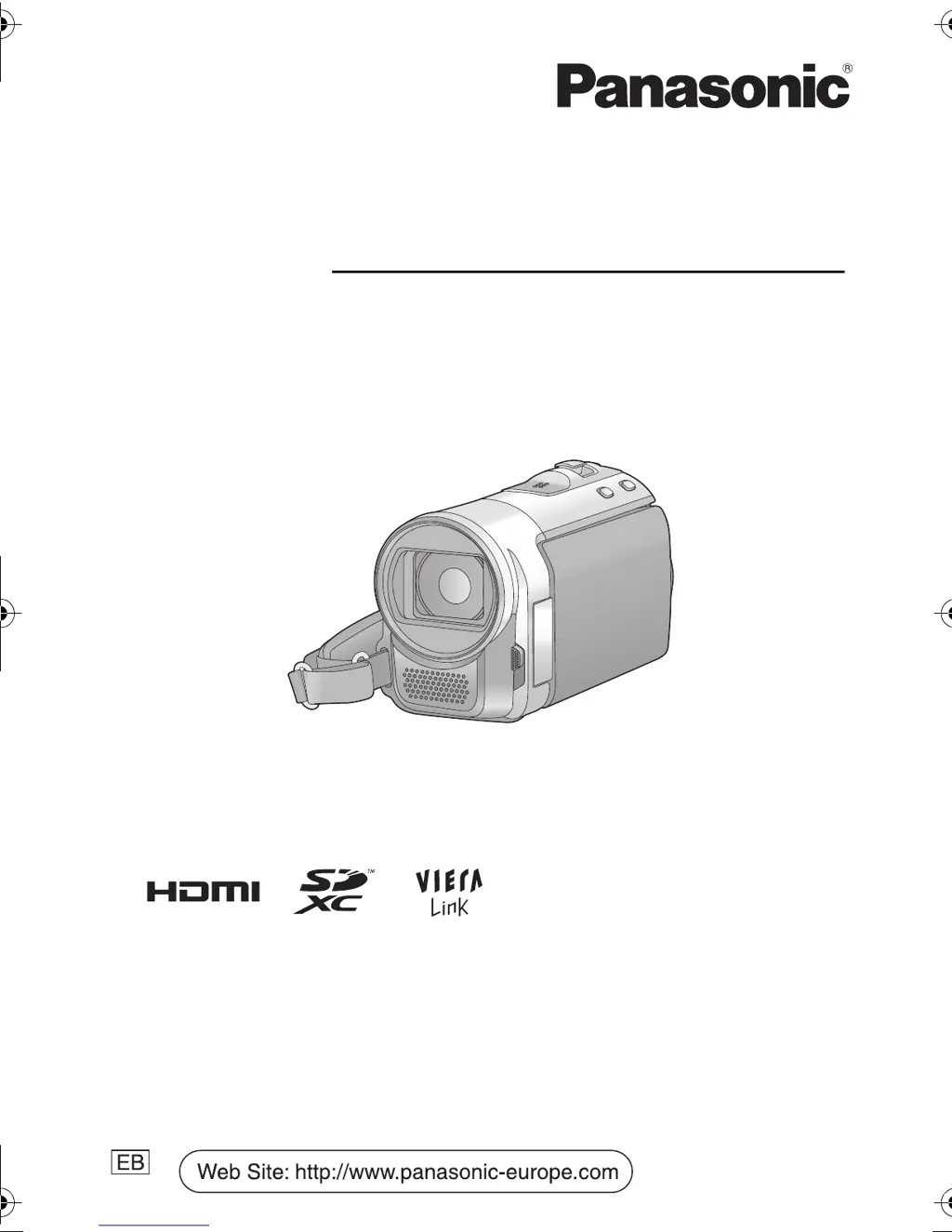
Panasonic HC-V10 - User Manual

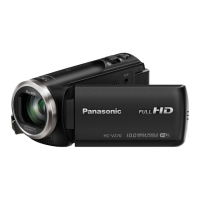
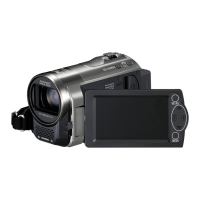
Panasonic HC-V10
100 pages
Print Icon
To Next Page IconTo Next Page
Loading...
Operating Instructions
Digital Video Camera
Model No. HC-V10
Before use, please read these instructions completely.
VQT4C38
until
2012/2/10
Model number suffix “EB” denotes UK model.
HC-V10EB_VQT4C38_mst.book 1 ージ 012年1月24日 火曜日 午前9時35

Table of Contents

Questions and Answers

  • N
    Nicole RamosAug 19, 2025
    What to do if Panasonic HC-V10 is on but not working?
    • F
      Frank ClarkSep 12, 2025
      If your Panasonic Camcorder is on but not operating correctly, remove the battery or AC adapter, wait about 1 minute, and then reconnect it. After another minute, turn the unit on again. Note that doing this while the media is being accessed may damage the data.
  • J
    John DavenportAug 21, 2025
    Why does my Panasonic Camcorder turn off automatically?
    • E
      ewuAug 21, 2025
      If your Panasonic Camcorder turns off automatically, especially when you turn off the TV using the TV remote, it might be due to the VIERA Link feature. If you're not using VIERA Link, disable it in the settings by setting [VIERA Link] to [OFF].
  • M
    Madeline DelgadoAug 23, 2025
    Why is there no sound or picture from my Panasonic Camcorder on the TV?
    • M
      Mark VasquezAug 23, 2025
      If you're not getting video or audio output from your Panasonic Camcorder when connected to the TV, or if the images appear squeezed, ensure you've selected the correct channel on your TV that matches the input used for the connection. Also, adjust the [TV ASPECT] setting on your camcorder to match the TV's aspect ratio. Check the unit's settings based on the type of cable you are using to connect to the TV. Remember, no audio will play on the TV during recording mode, and volume adjustments must be made on the TV itself.
  • D
    Danielle FosterAug 26, 2025
    Why does my Panasonic HC-V10 keep stopping recording?
    • T
      thompsonmarvinAug 26, 2025
      If your Panasonic Camcorder stops recording unexpectedly, ensure you are using an SD card suitable for motion picture recording. The recordable time may be reduced due to data writing speed deterioration or repeated recording and deletion; try formatting the SD card using the unit. Also, if [AGS] is [ON], record in the normal horizontal position or set [AGS] to [OFF].
  • M
    martinpaulAug 27, 2025
    What to do if Panasonic HC-V10 Camcorder is not detected by PC via USB?
    • J
      Julie MontoyaAug 27, 2025
      If your Panasonic Camcorder is not detected by your PC when connected via USB, try re-inserting the SD card into the unit and reconnecting the supplied USB cable. You can also try selecting another USB terminal on the PC. Check the operating environment of your PC. Connect the supplied USB cable again after restarting both the PC and the camcorder.
  • V
    Valerie GarciaAug 29, 2025
    Why can't I playback scenes on my Panasonic HC-V10 Camcorder?
    • J
      Jennifer GarnerAug 29, 2025
      If scenes or still pictures cannot be played back on your Panasonic Camcorder, it could be because the thumbnails are displayed as . Motion pictures recorded with other devices may also be incompatible.
  • J
    Joseph PettySep 1, 2025
    What to do if Panasonic Camcorder displays 'Error occurred' message?
    • N
      Nicholas WattsSep 1, 2025
      If your Panasonic Camcorder displays the error message “ERROR OCCURRED. PLEASE TURN UNIT OFF, THEN TURN ON AGAIN,” restart the unit by turning it off and then on again. If the error persists after restarting, it may require professional repair. Detach the power and consult the dealer from whom you purchased the unit. Do not attempt to repair it yourself.
  • M
    Michael BridgesSep 3, 2025
    How to fix VIERA Link not working on Panasonic Camcorder?
    • G
      George ParkSep 3, 2025
      If VIERA Link is not functioning with your Panasonic Camcorder, ensure you are using a HDMI mini cable (optional) for connection. Also, verify that the [VIERA Link] setting is set to [ON]. Try turning the unit off and then back on. If the TV input doesn't switch automatically, use the TV remote to manually switch the input. Finally, check the VIERA Link settings on the connected device and refer to its operating instructions for further assistance.
  • S
    Sarah LongSep 5, 2025
    How to fix Panasonic Camcorder auto focus?
    • M
      Mary RyanSep 5, 2025
      If the Auto Focus function on your Panasonic Camcorder is not working, switch to Intelligent Auto Mode. If you're recording a scene that's hard to focus in Auto Focus Mode, use the Manual Focus Mode to adjust the focus.
  • A
    Amanda ValenciaSep 7, 2025
    What to do if Panasonic HC-V10 Camcorder doesn't recognize SD card?
    • Z
      Zachary PriceSep 7, 2025
      If your Panasonic Camcorder doesn't recognize the SD card, and the card was formatted on a PC, use the camcorder to format the SD card.

Summary

Information for Your Safety

Battery Safety Precautions

Warnings and advice on battery handling, risks of fire, explosion, and disposal.

General Usage Cautions

Advice on avoiding electromagnetic interference, proper cleaning, and environmental precautions.

Camera Preparation

Accessories and Main Parts

Lists included accessories and details camera buttons, terminals, and components.

Power, Charging, and Setup

Battery insertion, charging, SD card usage, and initial date/time settings.

Turning On;Off and Mode Selection

How to power the unit on/off using the power button or LCD, and switch between modes.

Basic Operations

Recording Motion and Still Pictures

Step-by-step instructions for capturing motion pictures and still images.

Motion;Still Picture Playback

How to select and play back recorded motion pictures and still images.

Using the Menu and Setup

How to navigate the menu screen and use the setup options for customization.

Advanced Recording Features

Zoom and Image Stabilization

How to use the zoom function and the optical image stabilizer for better shots.

Manual Recording Settings

Adjusting White Balance, Shutter Speed, Iris, and Focus manually.

Advanced Playback and Viewing

Playback Operations and Editing

Controls for playback, creating stills from video, deleting, and protecting files.

Watching Content on TV

Connecting the camera to a TV via HDMI or AV for viewing recorded content.

PC Connectivity and Software

HD Writer HE 1.0 Software Usage

Capabilities for copying, editing, and managing media using the PC software.

PC Connection and Installation

Step-by-step guide for installing software and connecting the camera to a PC.

Troubleshooting and Specifications

Troubleshooting Common Issues

Solutions for problems related to power, recording, and general unit operation.

Technical Specifications

Detailed technical data of the camera, including power, formats, and optics.

Panasonic HC-V10 Specifications

General IconGeneral
Sensor typeMOS
Total megapixels1.5 MP
Optical sensor size1/5.8 \
Effective megapixels (image)0.56 MP
Digital zoom3500 x
Optical zoom63 x
Image stabilizerYes
Focal length range1.50 - 94.5 mm
Interchangeable lensNo
Maximum aperture number5.7
Minimum aperture number1.9
Focal length (35mm film equivalent)31.6 - 2261.5 mm
Camera file systemDCF 2.0, Exif 2.2
Camcorder media typeMemory card
Compatible memory cardsSD, SDHC, SDXC
Internal storage capacity0 GB
Focus adjustmentAuto/Manual
Display diagonal2.7 \
Display resolution (numeric)230400 pixels
Viewfinder typeNot available
Camcorder typeHandheld camcorder
Minimum illumination1 lx
On Screen Display (OSD) languagesCZE, DEU, ENG, ESP, FRE, ITA, POL, TUR
Product colorBlack, Red, Silver
Video resolutions640 x 480, 960 x 540, 1280 x 720 pixels
Supported video modes480p, 720p
Video formats supportedH.264, MP4
Maximum video resolution1280 x 720 pixels
Image formats supportedJPG
Still image resolution(s)640 x 480, 1280 x 720
Audio formats supportedAAC
USB 2.0 ports quantity1
Component video (YPbPr/YCbCr) out0
Battery voltage3.6 V
Battery life (max)- h
Cables includedAC, AV, USB
Bundled softwareHD Writer AE 4.0
Power consumption (typical)2.7 W
Camera shutter speed1/25 - 1/8000 s
Weight and Dimensions IconWeight and Dimensions
Depth64.5 mm
Width109.5 mm
Height55 mm
Weight212 g

Related product manuals