EasyManua.ls Logo

Panasonic KX-TG6611E - User Manual

Panasonic KX-TG6611E
48 pages
Print Icon
To Next Page IconTo Next Page
Loading...
Thank you for purchasing a Panasonic product.
Please read these operating instructions before using the unit and save them for
future reference.
This unit is compatible with Caller ID. You must subscribe to the appropriate service
offered by your service provider/telephone company.
Before initial use, see “Getting Started”
on page 11.
Please access our online customer survey:
http://panasonic.net/pcc/tel/q
Operating Instructions
Model No. KX-TG6621E
KX-TG6622E
Digital Cordless Answering System
Model No. KX-TG6611E
KX-TG6612E
KX-TG6613E
Digital Cordless Phone
KX-TG6623E
KX-TG6624E
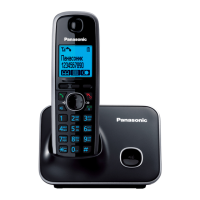
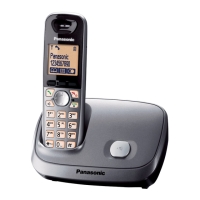
Model shown is KX-TG6611.
TG6611-6621E(e).book Page 1 Tuesday, December 7, 2010 2:00 PM

Questions and Answers

  • T
    Todd JonesSep 23, 2025
    What to do if liquid entered my Panasonic Cordless Telephone?
    • W
      William BrownSep 23, 2025
      If liquid or other form of moisture has entered the handset/base unit of your Panasonic Cordless Telephone, disconnect the AC adaptor and telephone line cord from the base unit. Remove the batteries from the handset and leave to dry for at least 3 days. After the handset/base unit are completely dry, reconnect the AC adaptor and telephone line cord. Insert the batteries and charge fully before use. If the unit does not work properly, contact an authorised service centre.
  • L
    Linda ClarkAug 23, 2025
    What to do if my Panasonic Cordless Telephone does not work?
    • J
      Joshua LewisAug 23, 2025
      If your Panasonic Cordless Telephone is not working, ensure the batteries are installed correctly and fully charged. Check all connections. Try unplugging the base unit’s AC adaptor to reset the unit, turn off the handset, reconnect the adaptor, and turn on the handset again. Also, ensure the handset is registered to the base unit.
  • B
    brownstephanieAug 25, 2025
    Why can't I hear a dial tone on my Panasonic KX-TG6611E?
    • M
      Miguel HerreraAug 25, 2025
      If you cannot hear a dial tone on your Panasonic Cordless Telephone, ensure you are using the supplied telephone line cord. Check that the base unit’s AC adaptor or telephone line cord is connected properly. If the issue persists, disconnect the base unit from the telephone line and connect the line to a known working telephone to determine if the problem is with the unit or your service provider.
  • M
    Monique TannerAug 27, 2025
    Why is my Panasonic Cordless Telephone beeping and the battery icon flashing?
    • H
      Harry PalmerAug 27, 2025
      If the handset of your Panasonic Cordless Telephone beeps and/or the battery icon flashes, it indicates that the battery charge is low. Fully charge the batteries.
  • E
    eorozcoAug 27, 2025
    Why is the base unit of my Panasonic KX-TG6611E Cordless Telephone not ringing?
    • C
      catherine80Aug 27, 2025
      If the base unit of your Panasonic Cordless Telephone does not ring, check if the ringer volume is turned off and adjust it.
  • S
    Sophia HernandezSep 18, 2025
    Why is the phonebook name not fully displayed on my Panasonic KX-TG6611E Cordless Telephone during a call?
    • S
      scottjamesSep 18, 2025
      If the name stored in the phonebook is not fully displayed while an outside call is being received on your Panasonic Cordless Telephone, edit the phonebook entry name to fit in 1 line of text.
  • M
    Megan LarsonSep 15, 2025
    Why can't I register a handset to the base unit of my Panasonic KX-TG6611E?
    • M
      Mary ClaySep 15, 2025
      If you cannot register a handset to a base unit of your Panasonic Cordless Telephone, it may be because the maximum number of handsets (6) is already registered. Cancel unused handset registrations from the base unit. You may have also entered the wrong PIN.
  • C
    Christian JonesSep 16, 2025
    Why has the time shifted on my Panasonic KX-TG6611E?
    • M
      Melissa BrewerSep 17, 2025
      If the time on your Panasonic Cordless Telephone has shifted, it may be due to incorrect time information from incoming Caller ID. Set the time adjustment to “Manual” (off).
  • R
    romanelizabethSep 6, 2025
    Why is caller information slow to display on my Panasonic KX-TG6611E Cordless Telephone?
    • L
      Lisa WolfSep 6, 2025
      Caller information on your Panasonic Cordless Telephone may display slowly because, depending on your service provider, the unit may display the caller’s information at the 2nd ring or later. Moving closer to the base unit may also help.
  • N
    nacevedoSep 4, 2025
    Why is caller information not displayed on my Panasonic KX-TG6611E?
    • J
      Justin GutierrezSep 4, 2025
      If caller information is not displayed on your Panasonic Cordless Telephone, ensure you subscribe to a Caller ID service. If the unit is connected to additional telephone equipment, remove it and plug the unit directly into the wall jack. If you use a DSL/ADSL service, connect a DSL/ADSL filter between the base unit and the telephone line jack. Also, other telephone equipment may be interfering with the unit, so disconnect it and try again.

Summary

Product Overview and Initial Information

Introduction: Model Composition and Features

Model Composition Details

Details the different models and their included base units and handsets, along with part numbers and quantities.

Feature Differences Overview

Compares features like answering system and intercom availability across different product series.

Introduction: Accessories

Supplied Accessory Information

Lists supplied accessories such as AC adaptors, cords, batteries, and handset covers.

Additional and Replacement Accessories

Provides information on ordering additional or replacement accessories like rechargeable batteries and DECT repeaters.

Introduction: System Expansion and Support

Expanding Your Phone System

Explains how to expand the phone system by registering optional handsets, up to a maximum of six.

Sales and Support Contacts

Provides contact details for customer communication, website, and direct sales information for accessories.

Introduction: General Information and Reference

General Information and Reference

Details network compatibility, contact for problems, declaration of conformity, and authorized representative.

Important Safety Guidelines

For Your Safety: Warnings

Covers crucial safety warnings regarding power connection, installation, and general product usage to prevent injury.

Operating Safeguards and Medical Precautions

Provides guidelines on safe operation, cleaning, and consulting medical device manufacturers regarding RF shielding.

Installation and Location Cautions

Warns about installing during storms, in wet locations, and using caution with telephone lines and outlets.

Important Safety Guidelines

Important Safety Instructions

Details essential safety precautions for reducing risks of fire, electric shock, and injury, including usage near water and during storms.

Best Performance and Environmental Tips

Offers advice on optimal base unit placement and keeping the product away from electrical noise and direct sunlight.

Important Safety Guidelines

Routine Care, Disposal, and Recycling

Provides guidance on cleaning, product disposal, and recycling of old equipment and batteries according to EU directives.

Product Specifications

Technical Specifications Overview

Lists technical details including standard, frequency range, RF transmission power, power source, consumption, and operating conditions.

Getting Started: Initial Setup

Connecting the Base Unit

Details how to connect the AC adaptor and telephone line cord to the base unit, including correct and incorrect configurations.

Getting Started: Battery and Setup Notes

Battery Installation and Charging Procedures

Provides instructions for installing and charging Ni-MH batteries, including important notes and warnings.

Setup Notes and Power Failure Handling

Offers guidance on connections, power failure procedures, and battery installation notes for optimal setup.

Getting Started: Controls and Display

Battery Level Indicators and Base Unit Controls

Explains battery level indicators and details the controls for both base unit models.

Getting Started: Controls and Display

Handset Controls and Display Information

Details handset buttons, navigator keys, soft keys, and explains various items displayed on the handset screen.

Getting Started: Controls and Display

Base Unit Display Icons and Handset Soft Key Functions

Explains base unit display icons and the functions of handset soft keys for various operations.

Getting Started: Settings and Modes

Powering On;Off, Initial Settings, and Eco Mode

Covers turning the unit on/off, initial settings, display language, and the one-touch eco mode feature.

Getting Started: Setup and Mounting

Charger and Wall Mounting Instructions

Provides instructions for connecting the charger and mounting the base unit on a wall.

Making and Answering Calls

Making Calls, Speakerphone, and Redial

Details how to make calls, use the speakerphone, adjust volume, and manage redial lists and pauses.

Answering Calls, Auto Talk, and Ringer Volume

Explains how to answer calls, use the auto-talk feature, adjust ringer volume, and temporarily turn off the ringer.

Making and Answering Calls

Call Features: Hold, Mute, and Recall

Describes how to use call hold, mute function, and the recall/flash feature for PBX systems and services.

Call Waiting, Equalizer, and Call Share

Explains features for call waiting, handset equalizer for clearer sound, and call sharing.

Making and Answering Calls

Handset Key Lock Operation

Details how to lock and unlock the handset keypad to prevent unauthorized use or changes.

Phonebook Management

Handset Phonebook Operations

Covers adding, finding, calling, editing, erasing, and searching phonebook entries.

Chain Dial Feature for On-Call Dialing

Explains how to dial phone numbers from the phonebook while on an active call, useful for access codes.

Phonebook Management

Copying Phonebook Entries Between Handsets

Instructions on how to copy individual or all phonebook entries between compatible handsets.

Programming Features

Accessing Programmable Settings

Details two methods for accessing programmable settings: menu scrolling and direct command codes.

Menu Tree and Command Code Tables

Provides a table of menu options, sub-menus, settings, command codes, and reference page numbers for programming.

Programming Features

Customizing Settings and Ringer Options

Covers programming for general settings, time, intercom, ringer volume, ringtone, night mode, and call barring.

Programming Features

Initial Setup and Advanced Configuration

Details initial setup options including ringer settings, time, handset name, eco setup, display, keytones, and security features like privacy mode and PIN.

Programming Features

Repeater Mode, Registration, Language, and Alarm

Covers repeater mode setup, handset registration/cancellation, language settings, and programming the alarm function.

Programming Features

Night Mode and Ring Delay Settings

Explains how to set night mode, change its start/end times, set ring delay, and change handset names.

Incoming Call Barring Setup

Details how to block unwanted calls by setting up incoming call barring, specifically for Caller ID subscribers.

Programming Features

Call Restriction, PIN Management, and Unit Registration

Covers storing unwanted callers, setting call restrictions, managing the base unit PIN, and registering units.

Programming Features

Handset Registration and Range Extension

Details the process of registering and deregistering handsets, and explains how to increase base unit range with a DECT repeater.

Caller ID Service

Using Caller ID Features and Managing Caller List

Explains how Caller ID service works, displaying caller information, missed calls, and managing the caller list.

Calling Back and Editing Caller Information

Details viewing the caller list, calling back numbers, and editing caller information before making a call.

Caller ID Service

Caller Information Management and Phonebook Storage

Covers erasing selected or all caller information and storing caller details directly into the phonebook.

Answering System Operations

Answering System Overview and Call Screening

Introduces the answering system, its memory capacity, and how to turn it on/off and use call screening.

Answering System Operations

Greeting Messages and Message Playback

Details recording and playing greeting messages, using pre-recorded options, and managing messages on the base unit.

Answering System Operation and Message Erasure

Explains how to operate the answering system during playback and erase all recorded messages.

Answering System Operations

Handset Message Playback and Remote Operation Setup

Covers listening to messages on the handset, calling back callers, and setting up remote operation with an access code.

Remote Access Code and Message Erasure

Explains the remote access code requirement and how to erase all messages remotely.

Answering System Operations

Remote Operation Commands and Answering System Settings

Details remote operation commands, voice guidance, turning the system on remotely, and setting the number of rings.

Answering System Operations

Greeting Only Message Setting

Explains how to set the unit to play a greeting message without recording caller messages.

Voice Mail Service Guide

Understanding Voice Mail Service Interaction

Explains voice mail as an alternative to the unit's answering system and notes on message indication and service provider interaction.

Intercom and Locator Features

Intercom Calls and Handset Locator Functionality

Details how to make, answer, and transfer intercom calls, and how to locate a misplaced handset.

Call Transfer and Conference Call Procedures

Explains how to transfer outside calls or establish conference calls with an outside party.

Useful Information: Character Entry

Character Entry and Mode Selection

Explains how to enter characters using dial keys and describes various character entry modes like Alphabet, Numeric, and Greek.

Useful Information: Character Entry

Extended Character Tables for Data Entry

Provides character tables for Extended 1 (AÄÅ), Extended 2 (SŚŠ), and Cyrillic (АБВ) character sets.

Troubleshooting and Error Messages

Understanding and Resolving Error Messages

Lists common display messages and their causes/solutions, such as 'Base no power' or 'Memory Full'.

General Troubleshooting Steps for Unit Operation

Provides initial troubleshooting steps for common problems like the handset not turning on or losing communication.

Troubleshooting and Error Messages

Unit Operation and Display Troubleshooting

Addresses issues like the unit not working, blank display, no dial tone, language problems, and programming interruptions.

Troubleshooting Programmable Settings

Covers troubleshooting for eco mode, handset registration, and PIN management, including recovery methods.

Troubleshooting and Error Messages

Battery Recharge and Call;Intercom Issues

Troubleshoots battery recharge problems and issues related to making/answering calls and intercom, including noise and no ringing.

Troubleshooting and Error Messages

Caller ID and Answering System Problem Resolution

Addresses issues with Caller ID display, phonebook name display, and problems with the answering system recording messages or greeting.

Troubleshooting and Error Messages

Remote Operation and Liquid Damage Troubleshooting

Troubleshoots issues with operating the answering system remotely and provides guidance for liquid damage to the handset/base unit.

Conditions of Guarantee

Product Guarantee Terms and Conditions

Details the terms and conditions of the product guarantee, including purchase location, warranty period, and exclusions.

Important Product Information and Support

Troubleshooting Summary and Helpline Contact

Summarizes key troubleshooting steps, battery recommendations, and provides helpline contact information and website.

Panasonic KX-TG6611E Specifications

General IconGeneral
BrandPanasonic
ModelKX-TG6611E
CategoryCordless Telephone
LanguageEnglish

Related product manuals