EasyManua.ls Logo

Panasonic KX-TG7871 - User Manual

Panasonic KX-TG7871
109 pages
Print Icon
To Next Page IconTo Next Page
Loading...
Operating Instructions
Model No. KX-TG7841
KX-TG7842
KX-TG7843
KX-TG7844
KX-TG7845
KX-TG365SK
KX-TG7871
KX-TG7872
KX-TG7873
KX-TG7874
KX-TG7875
KX-TG385SK
Link-to-Cell Cellular Convergence Solution
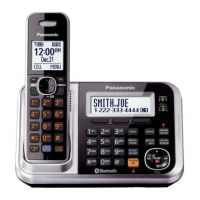
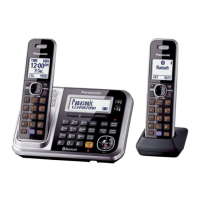
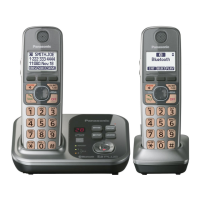
Model shown is KX-TG7841.
Before initial use, see “Getting Started”
on page 10.
Thank you for purchasing a Panasonic product.
Please read these operating instructions before using the unit and save them for
future reference.
Consulte “Guía Rápida Española”, página 80.
For assistance, visit our Web site: http://www.panasonic.com/help for customers
in the U.S.A. or Puerto Rico.
Please register your product: http://www.panasonic.com/prodreg
TG78xx(en)_1210_ver101.pdf 1 2012/12/10 21:19:23

Table of Contents

Other manuals for Panasonic KX-TG7871

Questions and Answers

  • A
    Alyssa Jones PhDSep 9, 2025
    Why can't I make a call using the landline on my Panasonic Telephone Accessories?
    • J
      John KimSep 9, 2025
      If you cannot make a call using the landline on your Panasonic Telephone Accessories, the dialing mode may be set incorrectly, so change the setting. Also, the cellular line only mode may be turned on, so turn it off.
  • B
    Billy BellAug 25, 2025
    Why I cannot hear a dial tone on my Panasonic KX-TG7871 Cordless Telephone?
    • J
      jessicawolfAug 25, 2025
      If you cannot hear a dial tone on your Panasonic Cordless Telephone, ensure the CELL 1 or CELL 2 indicator is lit. Check that the base unit’s AC adapter and telephone line cord are properly connected. You can also test the telephone line by connecting it to a known working telephone to determine if the issue is with the phone or the line.
  • N
    Nicole GarciaAug 25, 2025
    What to do if my Panasonic KX-TG7871 handset beeps and/or flashes?
    • T
      Taylor HardyAug 26, 2025
      If the handset of your Panasonic Cordless Telephone beeps and/or flashes, it usually indicates that the battery charge is low. You should fully charge the batteries.
  • L
    Logan PonceSep 23, 2025
    Why can't I operate the answering system remotely on my Panasonic Telephone Accessories?
    • C
      Cynthia AllenSep 23, 2025
      If you cannot operate the answering system remotely on your Panasonic Telephone Accessories, the remote access code may not be set, so set the remote access code. You may be entering the wrong remote access code. If you have forgotten your remote access code, enter the remote access code setting to check your current code. The answering system may be turned off, so turn it on. You cannot operate the answering system when calling a cellular phone paired to the base unit.
  • G
    gpooleSep 10, 2025
    Why is caller information not displayed on my Panasonic Telephone Accessories?
    • S
      Stephanie YoungSep 10, 2025
      Caller information may not be displayed on your Panasonic Telephone Accessories because you must subscribe to Caller ID service. If your unit is connected to any additional telephone equipment such as a Caller ID box or cordless telephone line jack, plug the unit directly into the wall jack. If you use a DSL/ADSL service, we recommend connecting a DSL/ADSL filter between the base unit and the telephone line jack. The name display service for landline calls may not be available in some areas. Other telephone equipment may be interfering with this unit, so disconnect the other equipment and try again.
  • D
    Dustin CooleySep 14, 2025
    Why is the 2nd caller’s information not displayed during an outside call on my Panasonic Telephone Accessories?
    • S
      Susan CunninghamSep 14, 2025
      In order to use Caller ID, call waiting, or Call Waiting Caller ID (CWID) on your Panasonic Telephone Accessories, you must first contact your service provider/telephone company and subscribe to the desired service. After subscribing, you may need to contact your service provider/telephone company again to activate this specific service, even if you already subscribed to both Caller ID and Call Waiting with Caller ID services (CWID).
  • K
    Karina FosterSep 4, 2025
    What to do if my Panasonic Telephone Accessories display is in a language I cannot read?
    • B
      Brittany RodgersSep 4, 2025
      If the display on your Panasonic Telephone Accessories is in a language you cannot read, change the display language.
  • C
    Charles EvansSep 4, 2025
    Why can't I connect a cellular phone to my Panasonic Telephone Accessories base unit?
    • J
      Jessica MaynardSep 5, 2025
      If you cannot connect a cellular phone to your Panasonic Telephone Accessories base unit, confirm that your cellular phone is turned on and is within the base unit range. If auto connection is on, wireless environment interferences can cause delays, so you can connect to the base unit manually. Ensure that the cellular phone has been paired to the base unit.
  • S
    Susan JacksonSep 23, 2025
    What can I do if liquid entered the handset/base unit of my Panasonic Telephone Accessories?
    • H
      huntermendozaSep 23, 2025
      If liquid or other form of moisture has entered the handset/base unit of your Panasonic Telephone Accessories, disconnect the AC adaptor and telephone line cord from the base unit. Remove the batteries from the handset and leave to dry for at least 3 days. After the handset/base unit are completely dry, reconnect the AC adaptor and telephone line cord. Insert the batteries and charge fully before use. If the unit does not work properly, contact an authorized service center.
  • M
    Martin ShermanAug 29, 2025
    What to do if Panasonic Cordless Telephone display is in a language I cannot read?
    • A
      Anthony HendrixAug 30, 2025
      If the display on your Panasonic Cordless Telephone is in a language you cannot read, you should change the display language.

Summary

Introduction

Model Composition

Details the different models and their included base unit and handset parts.

Accessory Information

Lists the supplied accessories for different unit configurations.

Expanding Your Phone System

Explains how to add optional handsets and Bluetooth devices.

Trademarks

Lists registered trademarks and their owners.

Important Information

Safety Guidelines and Precautions

Essential safety rules for power, installation, operation, and medical considerations.

Performance, Environment, and Care

Tips for optimal performance, environmental factors, and routine product care.

Product Notices and Information

Covers product disposal, notices, and ENERGY STAR details.

Getting Started

Setting Up Connections

Guides on connecting the base unit, charger, and phone line for initial setup.

Battery Installation and Charging

Instructions for battery installation, charging, and important notes.

Product Controls

Details the functions of handset and base unit controls.

Display and Indicators

Explains handset display items and base unit indicators.

Initial Settings Configuration

Covers setting date/time, display language, and dialing mode.

Link to Cell

Understanding Link to Cell Functionality

Explains the feature, requirements, and pairing/unpairing process.

Configuring Link to Cell Settings

Covers ring settings, auto connection, and text message alerts.

Managing Cellular Connections

Details manual connection/disconnection and cellular line only mode.

Advanced Link to Cell Options

Covers area code storage and Bluetooth PIN management.

Making and Answering Calls with Handset

Making and Answering Calls

Guides on basic cellular, landline, and redial calls, plus speakerphone usage.

Call Management Features

Explains features like hold, mute, flash, clarity booster, noise reduction, call sharing.

Handling Calls During Power Outages

Covers power back-up operation and making/answering calls during failures.

Making and Answering Calls with Base Unit

Making and Answering Calls

Guides on basic cellular, landline, and redial calls via the base unit.

Base Unit Call Management

Covers hold, mute, flash, ringer volume, and call waiting.

Transferring and Managing Calls

Details transferring calls and using other lines during conversations.

Shared Phonebook Management

Adding, Editing, and Erasing Entries

Instructions for managing phonebook entries, including groups.

Searching and Dialing from Phonebook

Covers various search methods and chain dialing functionality.

Speed Dial Operations

Setting Up Speed Dial

Guides on adding and editing phone numbers for speed dial keys.

Using Speed Dial Keys

Covers erasing entries, viewing assignments, and making calls via speed dial.

Programming Unit Settings

Accessing and Navigating Settings

Explains methods to access settings via menus and direct command codes.

Handset and Base Unit Feature Configuration

Details settings for answering system, Bluetooth, caller ID, etc., via menus.

Special Programming and Unit Management

Covers alarm, silent mode, call block, and unit registration.

Caller ID Service

Using Caller ID Features

Explains general Caller ID usage, talking caller ID, missed calls, and phonebook display.

Managing Caller Information

Covers caller list, editing, erasing, storing, and ringer ID setup.

Using Bluetooth Devices

Phonebook Transfer and Text Alerts

Guides on copying phonebooks and setting up text message alerts.

Bluetooth Headset Operation

Covers pairing, connecting, operating, switching, and call sharing for headsets.

Answering System for Landline

Answering System Setup and Operation

Details turning the system on/off, call screening, greeting messages, and listening.

Advanced Answering System Features

Covers new message alerts, remote operation, and system settings.

Intercom and Locator Functions

Making and Answering Intercom Calls

Instructions for using the intercom feature and locating handsets.

Call Transfer and Conferencing

Explains how to transfer calls and set up conference calls.

Useful Information and Troubleshooting

Installation and Physical Setup

Guides on wall mounting the base unit.

Error Messages and General Troubleshooting

Lists common error messages and troubleshooting steps for various issues.

Regulatory and Compliance Information

Contains FCC compliance, RF exposure, and hearing aid compatibility details.

Appendix

Customer Services and Accessory Purchases

Provides contact information and resources for support and buying accessories.

Warranty Information

Details the limited warranty coverage, terms, and claim procedures.

Panasonic KX-TG7871 Specifications

General IconGeneral
Frequency1.9 GHz
TypeCordless Phone
Answering SystemYes
Digital Answering System Recording Time18 minutes
SpeakerphoneYes
Caller IDYes
ExpandableUp to 6 handsets
Talking Caller IDYes
Call BlockYes
Link-to-CellYes
BluetoothYes
Handsets Included1
Battery TypeNi-MH
Keypad on BaseYes
Power Failure Talk SystemYes
Ringer IDYes
Silent ModeYes
Call WaitingYes
IntercomYes
Conference CallYes
Headset JackYes
Battery LifeUp to 10 hours talk time
DisplayBacklit LCD

Related product manuals