EasyManua.ls Logo

Panasonic KX-TG7893AZ - User Manual

Panasonic KX-TG7893AZ
80 pages
Print Icon
To Next Page IconTo Next Page
Loading...
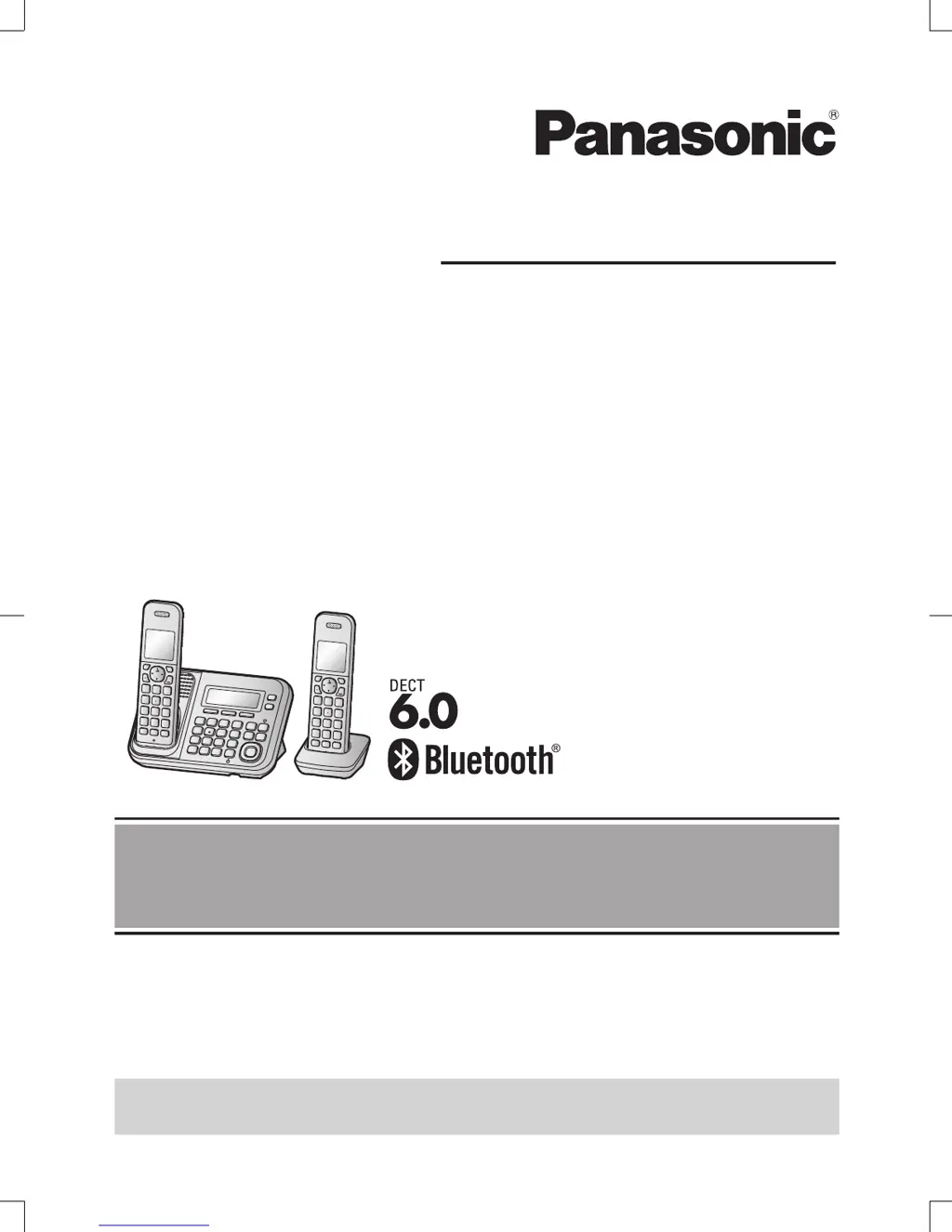
Operating Instructions
Model No. KX-TG7872AZ
KX-TG7873AZ
KX-TG7892AZ
KX-TG7893AZ
Digital Cordless Telephone
with Link-to-Cell System
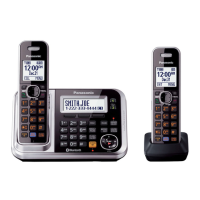
Model shown is KX-TG7872.
Before initial use, see “Getting Started”
on page 10.
Thank you for purchasing a Panasonic product.
Please read these operating instructions before using the unit and save them for
future reference.
To use this unit in your country, first change the unit’s region setting to match
your country (page 44).
Please access our online customer survey:
http://panasonic.net/pcc/tel/q
TG787x9xAZ(en)_0925_ver211.pdf 1 2013/09/25 15:24:45

Table of Contents

Other manuals for Panasonic KX-TG7893AZ

Questions and Answers

  • J
    Jamie AyalaSep 23, 2025
    What to do if I can make and answer cellular calls but cannot hear a sound on my Panasonic KX-TG7893AZ?
    • K
      Kim ThomasSep 23, 2025
      The Bluetooth technology on your cellular phone may not be functioning normally, so turn off and on your cellular phone. Also, disconnect and reconnect the base unit AC adaptor and try again.
  • K
    kkentAug 25, 2025
    What to do if my Panasonic KX-TG7893AZ Cordless Telephone unit does not work?
    • J
      johnsonkyleAug 25, 2025
      First, ensure the batteries are installed correctly. Then, fully charge the batteries. Check all connections. Unplug the base unit’s AC adaptor to reset the unit, then reconnect it and try again. It is also possible that the handset has not been registered to the base unit and needs registration.
  • J
    Jennifer WilliamsAug 25, 2025
    Why I cannot hear a dial tone on my Panasonic Cordless Telephone?
    • J
      James BenitezAug 26, 2025
      Make sure that the CELL 1 or CELL 2 indicator lights up. Also, check that the base unit’s AC adaptor or telephone line cord is properly connected.
  • C
    cheryl41Aug 27, 2025
    Why is there noise heard, and sound cuts in and out, on my Panasonic Cordless Telephone?
    • K
      kristine57Aug 27, 2025
      This can occur if you are using the handset or base unit in an area with high electrical interference. Try re-positioning the base unit and use the handset away from sources of interference. Also, move closer to the base unit. If you use a DSL/ADSL service, consider connecting a filter to the telephone line between the base unit and the telephone line socket, or contact your DSL/ADSL service provider to have a DSL/ADSL Splitter installed.
  • W
    walter21Aug 27, 2025
    How to fix if I cannot make or answer cellular calls with my Panasonic Cordless Telephone?
    • J
      James LevineAug 27, 2025
      If you're unable to make or answer cellular calls, ensure that the CELL 1 or CELL 2 indicator lights up and the cellular phone is connected to the base unit. Note that if someone is already on a cellular call or using the headset, the cellular feature cannot be used, as there can only be one active Bluetooth connection at a time. Also, ensure the cellular phone is not being used separately from the system.
  • R
    Ricky AllenSep 14, 2025
    Why do I hear an error tone when I try to program the Bluetooth feature on my Panasonic KX-TG7893AZ?
    • C
      Cameron HortonSep 14, 2025
      The Bluetooth feature cannot be accessed immediately after connecting the AC adaptor to the base unit. Wait a few seconds and try again. The headset may not have connected to the base unit yet, even though you performed the connecting procedure setting. Wait a few seconds and try again.
  • K
    kgoodwinSep 12, 2025
    What to do if I cannot connect my headset to the base unit of my Panasonic KX-TG7893AZ?
    • C
      Courtney BishopSep 12, 2025
      Confirm that your headset is turned on. If your headset is already connected to another Bluetooth device such as your cellular phone, disconnect the headset from your cellular phone, then perform the connecting procedure from the base unit. If someone is using a cellular line, you cannot connect the headset, as there can be only one active Bluetooth connection at a time. Also, ensure that the headset has been paired to the base unit.
  • S
    shannonwalterSep 13, 2025
    Why some headset enhanced features are not available on my Panasonic KX-TG7893AZ?
    • T
      Tony DyerSep 13, 2025
      The base unit does not support enhanced features such as Last number redial or Call reject.
  • J
    jordanleeSep 5, 2025
    Why does my Panasonic KX-TG7893AZ Cordless Telephone unit does not emit the specified number of rings?
    • R
      Richard GrantSep 5, 2025
      If the first ring is turned off, the number of rings decreases by 1 from the specified number of rings.
  • D
    Danielle MyersSep 2, 2025
    What to do if I cannot copy phonebook entries from a cellular phone to my Panasonic KX-TG7893AZ Cordless Telephone?
    • A
      Alan MarshSep 2, 2025
      Confirm that the cellular phone supports Bluetooth wireless technology and the Phone Book Access Profile (PBAP) or Object Push Profile (OPP) specification. If the cellular phone is already connected to another Bluetooth device, turn it off or disconnect it from the cellular phone. If someone is using a cellular line or headset, try again later. Try turning the cellular phone off, then turning it on and trying again. If an entry is already stored in the unit’s shared phonebook, the entry cannot be copied even by selecting another group.

Summary

Introduction

Model Composition

Details the components of different Panasonic phone models.

Accessory Information

Lists the supplied accessories for the phone models.

Important Information

For Your Safety

Provides essential safety precautions and warnings for product usage.

For Best Performance

Offers guidance on optimal placement, environment, and routine care for the phone unit.

Other Information

Notice for Product Disposal, Transfer, or Return

Advises on handling private data before disposing or returning the product.

Specifications

Getting Started

Setting Up and Connections

Guides through initial physical connections and setup of the phone unit.

Battery Management

Covers battery installation, charging, and performance details.

Initial Configuration and Features

Explains eco mode, initial settings, and charging the cellular phone via USB.

Controls

Handset Controls

Identifies and explains the functions of buttons and keys on the handset.

Base Unit Controls

Identifies and explains the functions of buttons and keys on the base unit.

Display;Indicators

Handset Display Items

Lists and explains icons and messages shown on the handset display.

Belt Clip Attachment

Instructions on how to attach and remove the belt clip accessory.

Base Unit Display Items

Lists and explains indicators and messages on the base unit display.

CELL 1;CELL 2 Indicators on Base Unit

Explains the status indicated by the CELL 1 and CELL 2 lights.

Link to Cell

Link to Cell Feature Overview

Introduces the feature, its benefits, and pairing/unpairing procedures.

Link to Cell Settings and Operation

Covers configuration like ring modes, auto connection, line selection, and PIN.

Making;Answering Calls Using the Handset

Call Procedures

Details making cellular, landline calls, and answering.

Phonebook and Call Management

Covers storing numbers, pause, auto talk, ringer volume, and temporary ringer off.

In-Call Features

Explains features like Hold, Mute, Recall, Noise Reduction, Equalizer, and Call Share.

Making;Answering Calls Using the Base Unit

Call Procedures

Details making cellular, landline calls, and answering via base unit.

Base Unit Ringer Volume and In-Call Features

Covers adjusting ringer volume and using Hold, Mute, Recall, Call Share.

Shared Phonebook

Managing Phonebook Entries

Covers adding, editing, and erasing entries in the shared phonebook.

Finding, Calling, and Searching Phonebook

Guides on scrolling, searching, chain dial, and making calls from the phonebook.

Speed Dial

Adding and Managing Speed Dial Entries

Covers adding, editing, and erasing numbers for speed dial keys.

Making Calls Using Speed Dial

Describes how to initiate calls using the speed dial feature.

Programming

Accessing and Navigating Settings

Explains menu navigation, command codes, and menu tree.

Feature Configuration and Settings

Details settings for Ringer, Night Mode, Caller ID, Bluetooth, etc.

Advanced Programming and Unit Setup

Covers Alarm, Night Mode, Call Barring, Region Setting, and Registration.

Answering System for Landline

System Operation and Greetings

Covers turning the system on/off, call screening, and greeting messages.

Message Playback and Remote Access

Details listening, playback controls, erasing, callbacks, and remote operation.

New Message Alerts and Settings

Explains alert features, remote access setup, and system configurations.

Voice Mail Service for Landline

Voice Mail Service Overview and Access

Explains voice mail services, storing/erasing access numbers, and listening.

Intercom;Locator

Intercom Calls and Handset Locator

Covers making, answering intercom calls, and locating handsets.

Transferring and Conference Calls

Details procedures for transferring outside calls and setting up conferences.

Useful Information

Wall Mounting

Provides instructions for mounting the base unit on a wall.

Error Messages

Lists common error messages and their solutions.

Troubleshooting

Troubleshooting Common Issues

Addresses general problems with handsets, batteries, and basic unit function.

Specific Feature Troubleshooting

Solves issues related to calls, Caller ID, Bluetooth, and answering systems.

Warranty (for New Zealand)

Panasonic KX-TG7893AZ Specifications

General IconGeneral
ModelKX-TG7893AZ
Frequency1.9 GHz
Caller IDYes
Answering MachineYes
SpeakerphoneYes
Keypad on BaseYes
Talking Caller IDYes
Call WaitingYes
IntercomYes
Conference CallYes
ExpandableUp to 6 handsets
Call BlockYes
Battery TypeNi-MH

Related product manuals