EasyManua.ls Logo

Panasonic KX-TGF973 - User Manual

Panasonic KX-TGF973
116 pages
Print Icon
To Next Page IconTo Next Page
Loading...
Operating Instructions
Cordless Phone
Model No.
KX-TGF973
KX-TG994SK
KX-TGF975
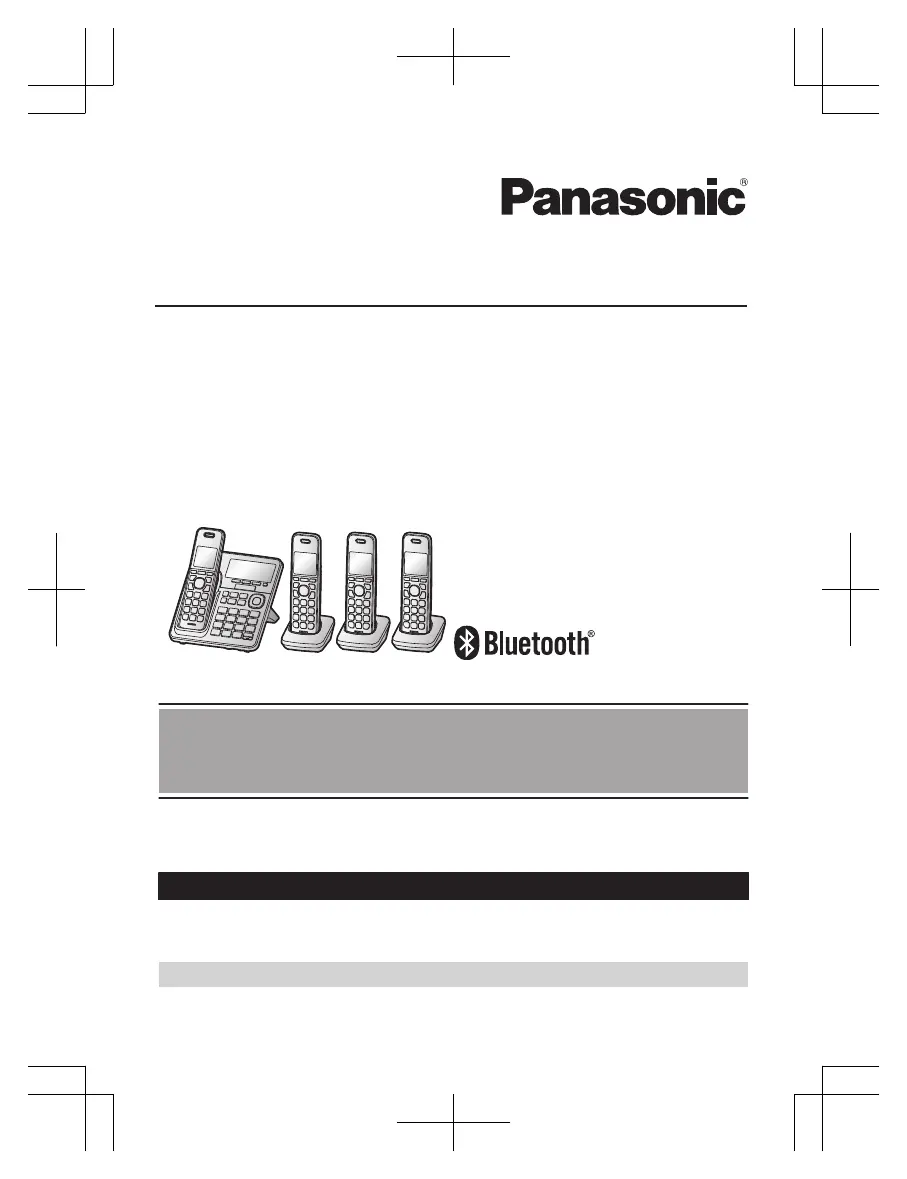
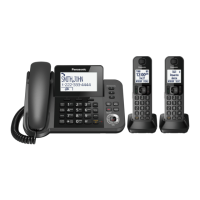
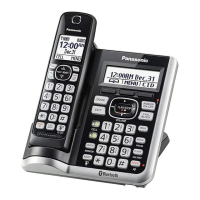
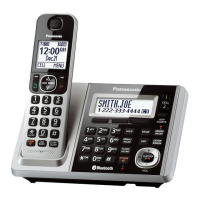
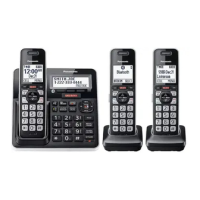
Model shown is KX-TG994SK.
Before initial use, see “Getting Started”
on page 12.
Thank you for purchasing a Panasonic product.
Please read these operating instructions before using the unit and save them for
future reference.
Consulte “Guía Rápida Española”, página 100.
For assistance, visit our Web site: http://shop.panasonic.com/support for
customers in the U.S.A.
Please register your product: http://shop.panasonic.com/support
KX-TGF97xUSA(en-us)_0928_ver121.pdf 1 9/28/2022 11:24:37 AM

Table of Contents

Questions and Answers

  • J
    Jessica MartinSep 12, 2025
    Why can't I copy phonebook entries from a cellular phone to my Panasonic Cordless Telephone?
    • S
      susanjacksonSep 12, 2025
      Confirm that the cellular phone supports Bluetooth wireless technology, and the Phone Book Access Profile (PBAP) or Object Push Profile (OPP) specification. If the cellular phone is already connected to another Bluetooth device, turn it off or disconnect it from the cellular phone. Someone is using a cellular line or headset. Turn the cellular phone off, then turn it on and try again. If an entry is already stored in the unit’s phonebook, the entry cannot be copied even by selecting another group. iPhone does not support individual phonebook copy.
  • G
    gallenAug 25, 2025
    How to fix Panasonic Cordless Telephone handset beeping and/or flashing?
    • D
      duncankathleenAug 25, 2025
      If the handset is beeping and/or flashing, it usually indicates that the battery charge is low. Fully charge the batteries to resolve this issue.
  • C
    Crystal CisnerosAug 25, 2025
    What to do if I cannot hear a dial tone on my Panasonic KX-TGF973?
    • A
      aprilhansonAug 26, 2025
      If you cannot hear a dial tone, check that the base unit’s AC adaptor or telephone line cord is properly connected. If the connections are correct, disconnect the base unit from the telephone line and connect the line to a known working telephone. If the working telephone operates properly, contact our service personnel to have the unit repaired. If the working telephone does not operate properly, contact your phone service provider.
  • T
    Terri RobertsSep 23, 2025
    What to do if liquid or other form of moisture has entered the handset/base unit of my Panasonic Cordless Telephone?
    • W
      Walter GreenSep 23, 2025
      Disconnect the AC adaptor and telephone line cord from the base unit. Remove the batteries from the handset and leave to dry for at least 3 days. After the handset/base unit are completely dry, reconnect the AC adaptor and telephone line cord. Insert the batteries and charge fully before use. If the unit does not work properly, contact an authorized service center.
  • L
    Lance Hobbs IISep 12, 2025
    Some headset enhanced features are not available on my Panasonic KX-TGF973 Cordless Telephone, why?
    • J
      Joseph WatsonSep 12, 2025
      The base unit does not support enhanced features such as Last number redial or Call reject.
  • P
    Paula RamirezSep 16, 2025
    Why can't I operate the answering system remotely on my Panasonic Cordless Telephone?
    • J
      Julia LeeSep 17, 2025
      If you cannot operate the answering system remotely, the remote access code is not set. Set the remote access code. You are entering the wrong remote access code. If you have forgotten your remote access code, enter the remote access code setting to check your current code. The answering system is turned off. You cannot operate the answering system when calling a cellular phone paired to the base unit.
  • R
    Rhonda LandrySep 5, 2025
    Why is the dedicated key for Telemarketing call block not displayed on my Panasonic KX-TGF973?
    • J
      Jason HernandezSep 5, 2025
      The MTELE.BLK.N key is not available while on the charger. Lift the handset from the charger. If the Auto talk feature is set to on, the call is answered automatically when the handset is lifted from the charger during an incoming call. Turn off the auto talk feature.
  • J
    Jeremy JohnstonSep 5, 2025
    Why does my Panasonic KX-TGF973 answer an incoming call on its own?
    • N
      Nicole GregorySep 6, 2025
      This might happen due to a false detection of ambient noise. Move the unit further away from the noise sources. If you are using other telephone that has Talking Caller ID feature turned on, it may also trigger false detection. Turn the Talking Caller ID feature off on the other telephone. To minimize false detection, decrease the sensitivity level of the answer by voice command.
  • H
    Hector SmithSep 18, 2025
    I can make and answer cellular calls but cannot hear a sound on my Panasonic Cordless Telephone, what to do?
    • Z
      zmorganSep 18, 2025
      The Bluetooth technology on your cellular phone may not be functioning normally. Turn off and on your cellular phone. Disconnect and reconnect the base unit AC adaptor and try again.
  • R
    Richard IbarraAug 30, 2025
    Why can't I connect a cellular phone to the Panasonic KX-TGF973 Cordless Telephone base unit?
    • K
      katherinejohnsonAug 30, 2025
      If you cannot connect a cellular phone to the base unit, confirm that your cellular phone is turned on and within base unit range. Ensure your cellular phone’s Bluetooth feature is turned on. Pair the cellular phone to the base unit. If your cellular phone is already connected to another Bluetooth device, disconnect the device, then perform the connecting procedure to the base unit. If your cellular phone is already registered on another Panasonic DECT phone, remove the registration of this phone on both your cellular phone and on the other Panasonic DECT phone.

Summary

Introduction

Model composition

Details the components and part numbers for each model.

Accessory information

Lists and quantifies the accessories included with the phone.

Additional;replacement accessories

Provides information on optional and replacement parts for the phone system.

Expanding your phone system

Explains how to add extra handsets to the base unit.

Bluetooth devices

Details the phone's compatibility with Bluetooth devices like phones and headsets.

Graphical symbols for use on equipment and their descriptions

Explains the meaning of various symbols used on the equipment.

Important Information

For your safety

Provides crucial safety precautions to prevent injury and property damage during use.

Important safety instructions

Lists essential safety precautions to follow when using the product.

For best performance

Provides tips for optimal performance, including base unit placement and environment.

Specifications

Lists technical specifications of the phone, including Bluetooth and power details.

Getting Started

Setting up

Guides users through the initial connection and setup of the base unit and charger.

Controls

Identifies and explains the function of buttons and indicators on the handset.

Display icons;Indicators

Explains the meaning of various icons and indicators displayed on the handset and base unit.

Language settings

Details how to change the display language and voice announcement language.

Date and time

Guides users on setting the current date and time on the unit.

Recording your greeting message

Explains how to record a personalized greeting message for the answering system.

Link to Cell

Link to cell feature

Introduces connecting the phone system to a cellular phone via Bluetooth for calls.

Pairing a cellular phone

Provides step-by-step instructions for pairing a cellular phone with the base unit.

Link to cell settings

Covers settings like selecting which unit receives cellular calls and ring as cell mode.

Cellular line only mode (If you do not use the landline)

Explains how to set the unit to use only cellular lines, disabling landline features.

Changing the Bluetooth PIN (Personal Identification Number)

Explains how to change the default Bluetooth PIN for security.

Making;Answering Calls Using the Handset

Making cellular calls

Details how to make calls using a paired cellular phone via the handset.

Making landline calls

Provides instructions for making calls using the traditional landline service.

Answering calls

Guides on how to answer incoming calls on the handset.

Useful features during a call

Covers features available while on an active call.

Recording a telephone conversation (2-way recording)

Instructions on how to record conversations made on landline calls.

Transferring calls, conference calls

How to transfer calls or set up conference calls.

Making;Answering Calls Using the Base Unit

Making cellular calls

How to make calls using a paired cellular phone via the base unit.

Making landline calls

Instructions for making calls using the traditional landline service via the base unit.

Answering calls

Guides on how to answer incoming calls on the base unit.

Useful features during a call

Covers features available while on an active call on the base unit.

Transferring calls, conference calls

How to transfer calls or set up conference calls from the base unit.

Power backup operation for landline

Making calls during a power failure

How to make and receive landline calls during a power outage using handset backup.

Answering calls during a power failure

How to answer calls during a power outage.

Answer by Voice Command

Answer by voice command

Explains how to answer calls automatically using voice commands.

Turning answer by voice command on;off

Instructions for enabling or disabling the voice command answering feature.

Intercom

Making an intercom call

How to initiate an intercom call between units or to page others.

Answering an intercom call

How to answer incoming intercom calls or pages.

Call Block

Call block

Overview of blocking unwanted calls and the pre-installed list.

Storing unwanted callers

How to block specific numbers or ranges of numbers.

Turning the first ring on;off

Setting whether the first ring sounds for blocked calls.

Enhanced Call Block

Automated call block

Feature to screen calls automatically and prompt for an access code.

Telemarketing call block

Feature to screen calls from telemarketers and ask for names.

One ring scam alert

Feature to identify and alert about potential scam calls based on ring patterns.

Phonebook

Adding phonebook entries

Step-by-step guide to adding new contacts to the phonebook.

Groups

How groups help organize and find phonebook entries easily.

Finding and calling from a phonebook entry

Methods to search for and make calls from phonebook entries.

Programming

Menu list

Explains how to navigate the phone's menu system to access features.

Greeting

Settings related to greeting messages for the answering system.

Link to cell

Options for managing cell phone connections, including ringer volume and alert settings.

Silent mode

Settings for enabling silent mode and managing group bypass.

Baby monitor

Feature to listen to a room remotely.

Registering a unit

Adding new handsets or other devices to the base unit.

Caller ID Service

Using Caller ID service

How to use the Caller ID service for identifying incoming calls.

Caller ID features

Details on how caller information is displayed and handled.

Talking Caller ID

Feature that announces caller information audibly.

Caller list

Managing the list of received calls.

Viewing the caller list and calling back

How to view call history and redial numbers.

Using Bluetooth Devices

Copying phonebook from a cellular phone (phonebook transfer)

Transferring contact information from a cell phone to the unit's phonebook.

Link to Cell app

Using a mobile app to integrate Android phones with the DECT phone.

Text message (SMS) alert

Receiving alerts on the DECT phone for SMS messages from iPhones.

Remote voice assist

Using the handset or base unit to operate the paired phone's voice assistant.

Using a Bluetooth headset (optional)

Connecting and using a Bluetooth headset for hands-free calls.

Making landline calls with your headset

Making landline calls using the Bluetooth headset.

Answering System for Landline

Answering system for landline

Overview of the answering system's capabilities for landline calls.

Turning the answering system on;off

How to activate or deactivate the answering system.

Listening to messages

How to play back recorded messages.

Editing the number before calling back

Modifying a caller's number before initiating a callback.

Advanced new message alerting features

Audible message alert

Setting the base unit to beep for new messages.

New message alert by a call

Receiving a notification call when new messages arrive.

Remote access code

Setting and managing the code for remote access.

Answering system settings

Call screening

Listening to callers leave messages in real-time.

Number of rings before the unit answers a call

Setting how many rings occur before the answering system activates.

Useful Information

Voicemail service for landline

Information on using voicemail service from the phone provider.

Error messages

Lists common error messages and their solutions.

Troubleshooting

General troubleshooting tips for common problems with the unit.

Call block

Troubleshooting issues with the call block feature.

Caller ID;Talking Caller ID

Troubleshooting Caller ID and Talking Caller ID display or announcement issues.

I cannot copy phonebook entries from a cellular phone.

Troubleshooting phonebook transfer failures from cellular phones.

Answering system

The unit does not record new messages.

Troubleshooting why the answering system is not recording messages.

I cannot operate the answering system remotely.

Troubleshooting remote operation of the answering system.

Bluetooth PIN

I cannot remember the PIN.

What to do if the Bluetooth PIN is forgotten.

FCC and other information

FCC RF Exposure Warning

Information regarding radio frequency exposure limits and safe usage.

Appendix

Customer services

Information on obtaining support and accessing customer service resources.

Limited Warranty (ONLY FOR U.S.A.)

Details the terms and conditions of the product's limited warranty for US customers.

Panasonic KX-TGF973 Specifications

General IconGeneral
BrandPanasonic
ModelKX-TGF973
CategoryCordless Telephone
LanguageEnglish

Related product manuals