EasyManua.ls Logo

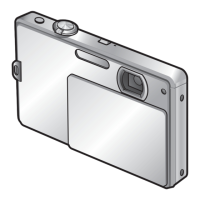
Panasonic Lumix DMC-FP3 - User Manual

Panasonic Lumix DMC-FP3
98 pages
Print Icon
To Next Page IconTo Next Page
Loading...
Operating Instructions
for advanced features
Digital Camera
Model No. DMC-FP3
Before connecting, operating or adjusting this product,
please read the instructions completely.
VQT2P49

Table of Contents

Other manuals for Panasonic Lumix DMC-FP3

Questions and Answers

  • D
    David TurnerAug 17, 2025
    What to do if my Panasonic Digital Camera cannot record pictures?
    • J
      jessica92Aug 18, 2025
      If your Panasonic Digital Camera is not recording pictures, ensure that it is not in Playback Mode by pressing the Playback button to switch to Recording Mode. Also, check that the lens cover is open. Finally, make sure that the built-in memory or card is not full by deleting unwanted pictures to free up space.
  • C
    Carl MitchellAug 20, 2025
    How to fix a Panasonic Lumix DMC-FP3 Digital Camera that does not work even if power is turned on?
    • L
      Larry MoranAug 20, 2025
      If your Panasonic Digital Camera does not work even when the power is turned on, it might be because the battery is not inserted correctly or needs recharging.
  • J
    Jonathan CoxAug 22, 2025
    Why can't I view pictures on my Panasonic Lumix DMC-FP3?
    • A
      angela45Aug 23, 2025
      If you cannot view pictures on your Panasonic Digital Camera, there may be no pictures in the built-in memory or card. If a card is inserted, pictures will be played from the card; otherwise, they will be played from the built-in memory. Press the Playback button to view the pictures.
  • M
    Melvin SmithAug 26, 2025
    Why do recorded pictures from my Panasonic Lumix DMC-FP3 look too bright or too dark?
    • J
      Julia OliverAug 26, 2025
      If the recorded pictures from your Panasonic Digital Camera appear too bright or too dark, it may be because the pictures were taken in dark locations or with bright subjects occupying most of the screen. In this case, try adjusting the exposure.
  • D
    David ParkerAug 27, 2025
    Why does motion picture recording stop midway on my Panasonic Lumix DMC-FP3?
    • A
      alexandria98Aug 28, 2025
      If motion picture recording stops midway on your Panasonic Digital Camera, it could be due to the card's speed. When recording motion pictures, use a card rated with an SD speed class of ‘Class 6’ or higher. If the issue persists, back up the data on the memory card and reformat it.
  • A
    anthonyhernandezAug 30, 2025
    Why do recorded pictures from my Panasonic Lumix DMC-FP3 look white?
    • T
      Tamara NelsonAug 30, 2025
      If the recorded pictures from your Panasonic Digital Camera look white, it could be due to a dirty lens (fingerprints, etc.). Clean the lens surface with a soft, dry cloth. It is also possible that the lens is foggy.
  • R
    Renee ArnoldSep 1, 2025
    Why does the power cut off during use on my Panasonic Lumix DMC-FP3 Digital Camera?
    • R
      robertsmichaelSep 2, 2025
      If the power cuts off during use with your Panasonic Digital Camera, it could be that the battery needs recharging. Press the Power button to turn the power on again. Alternatively, the camera may be set to [AUTO POWER OFF].
  • V
    Valerie MejiaSep 4, 2025
    Why is my Panasonic Lumix DMC-FP3 Digital Camera taking multiple pictures with one shutter press?
    • R
      Robert Hernandez PhDSep 4, 2025
      If your Panasonic Digital Camera is taking 2-3 pictures when you press the shutter button just once, the camera might be set to use [BURST], [HI-SPEED BURST], or [FLASH BURST] Scene Modes.
  • T
    todd12Sep 7, 2025
    Why are recorded pictures blurred on my Panasonic Lumix DMC-FP3?
    • C
      Corey BlackSep 7, 2025
      If the recorded pictures from your Panasonic Digital Camera are blurred and the Optical Image Stabilizer is ineffective, it could be because the shutter speed is slower in dark locations, making the Optical Image Stabilizer less effective. Hold the camera firmly with both hands, keeping your arms close to your body. Also, set [DIGITAL ZOOM] to [OFF] and [SENSITIVITY] to [|].
  • L
    leebrianSep 9, 2025
    How to fix Panasonic Lumix DMC-FP3 when it cannot record to cards?
    • C
      Christopher FletcherSep 9, 2025
      If you cannot record to cards with your Panasonic Digital Camera, format the cards using the camera itself, as formatting on other equipment can cause issues.

Summary

Quick start guide

Battery and Card Setup

Instructions for charging the battery, inserting it and the memory card, and opening the lens cover.

Basic Operation

Guide to selecting recording modes, taking pictures, and playback.

Before use

Read first.

Important initial reading instructions before operating the camera.

Preventing Damage and Malfunctions

Guidelines to avoid shocks, moisture, foreign objects, and condensation.

Standard Accessories

Names of parts

Using the Touch Panel

Touch Operations

Details on how to touch, drag, and the effective range for touch operations.

Charging battery

About Batteries

Information on using dedicated and compatible batteries safely.

Recordable Pictures and Time

Guidelines on battery life and number of pictures/recording time.

Inserting and removing the card (optional);the battery

Picture Save Destination

Explanation of saving pictures to built-in memory or memory card.

Memory Card Compatibility

Details on compatible SD, SDHC, and SDXC memory card types.

Setting the clock

Setting Date, Time, and Display Format

Procedure for setting the camera's date, time, and their display format.

Changing Time Settings

Instructions on how to change the clock settings via the SETUP menu.

Setting the menu

Menu Types

Overview of the different menu types: REC, PLAYBACK, and SETUP.

[REC] Menu Options

Settings for picture preferences, color, sensitivity, and pixel level.

[PLAYBACK] Menu Options

Options for picture protection, cropping, and printing.

[SETUP] Menu Options

Settings for usability, clock, beep sounds, and more.

Using Quick menu

Using [SETUP] menu

[CLOCK SET]

Setting the date, time, and display format for the camera.

[WORLD TIME]

Registering local time for travel destinations.

[LCD MODE]

Adjusting LCD monitor brightness for better visibility.

[RESET]

Resetting camera settings to default values.

Sequence of Recording

Recording Mode Overview

List and explanation of available recording modes like Intelligent Auto and Normal Picture.

Holding the camera

Convenient ways to turn the power on

In Playback Mode

Turning the camera on by holding the Playback button.

With Lens Cover Opened

Turning the camera on with the lens cover opened.

Taking pictures with automatic settings

Automatic Scene Detection

How the camera automatically identifies scenes for optimum settings.

Using Flash

Instructions and settings for using the flash in automatic mode.

Taking pictures with your own settings

[NORMAL PICTURE] Mode Operations

Using the REC menu to set up recording environment with own preferences.

Common Shooting Adjustments

Adjustments for zoom, flash, brightness, close-up, and coloring.

Align focus for desired composition

Direction Detection Function

Automatic playback rotation for vertically taken pictures.

Taking pictures with zoom

Zoom In;Out

How to use zoom and view zoom ratio and focus range.

Optical Zoom and Extended Optical Zoom (EZ)

Explanation of automatic optical and extended optical zoom functions.

Enlarging further ◉ [DIGITAL ZOOM]

Viewing your pictures [NORMAL PLAY]

Playback Zoom and List View

Enlarging pictures during playback and viewing them in list format.

Playback Modes

Options to view pictures via slideshow, motion playback, etc.

Deleting pictures

To delete displayed picture

Procedure for deleting a single picture.

To delete multiple (up to 50) or all pictures

Method for deleting multiple or all pictures at once.

Changing recording information display

Recording and Playback Display

Switching display information for recording and playback modes.

Guide Lines

Using guide lines for composition assistance during recording.

Taking pictures with self-timer

Taking pictures with flash

Flash Types and Uses

Explanation of different flash modes and their applications.

Focus Range and Modes

Focus range based on ISO sensitivity and zoom, and available flash types.

Taking close-up pictures

[AF MACRO] Mode

Enabling macro mode for close-up photography with AF.

Focus range for AF Macro Mode

Details on focus range when using AF Macro Mode.

Taking pictures at even closer range [MACRO ZOOM]

Taking pictures with the Touched Area in Focus (Touch AF Area Selection)

Taking pictures with exposure compensation

Taking pictures according to the scene [SCENE MODE]

[PORTRAIT] and [SOFT SKIN] Scene Modes

Using Portrait and Soft Skin modes for improved skin tone and smoothing.

[SCENERY] and [SPORTS] Scene Modes

Using Scenery for clear distant shots and Sports for fast movement.

[NIGHT SCENERY] and [FOOD] Scene Modes

Using Night Scenery for clear night shots and Food for natural colors.

Registering commonly used scenes [MY SCENE MODE]

Taking motion pictures [MOTION PICTURE] Mode

Start and End Recording

Procedure for starting and ending motion picture recording.

[REC QUALITY]

Setting the recording quality for motion pictures (HD, WVGA, VGA, QVGA).

Useful features for travel

[TRAVEL DATE]

Recording travel date and destination for pictures.

[WORLD TIME]

Registering local time for travel destinations.

Using [REC] menu

[PICTURE SIZE]

Setting the picture size and its effect on recording capacity.

ISO [SENSITIVITY]

Manually setting ISO sensitivity for different lighting conditions.

AF [AF MODE]

Changing focus alignment method based on subject position and number.

WB [WHITE BALANCE]

Adjusting coloring to suit light source for natural appearance.

Entering Text

Viewing as list (Multi playback;Calendar playback)

Watching motion pictures

Different playback methods (Playback Mode)

[NORMAL PLAY]

Standard method for viewing pictures one by one.

[SLIDE SHOW]

Automatically playing pictures in order, often with music.

[CATEGORY PLAY]

Viewing pictures automatically classified by category.

[FAVORITE PLAY]

Viewing only pictures marked as favorites.

[SLIDE SHOW]

Setting Playback Effects

Customizing slide show effects, music, and duration.

[CATEGORY PLAY]

Viewing Pictures by Category

How to select categories and view pictures accordingly.

[FAVORITE PLAY]

Viewing Favorite Pictures

Procedure for viewing pictures marked as favorites.

Using [PLAYBACK] menu

[TEXT STAMP]

Stamping recording date or registered text onto still pictures.

[RESIZE]

Reducing picture size for email attachments or homepages.

[PROTECT]

Setting protection to prevent deletion of important pictures.

[COPY]

Copying pictures between built-in memory and memory card.

Using with your PC

Connecting Camera to Computer

Procedure for connecting the camera to a computer via USB.

Operating with Your Computer

Using software to import, print, or email pictures.

Printing

Connecting to a Printer

Steps to connect the camera to a PictBridge-compatible printer.

Printing Multiple Pictures

Instructions for printing multiple pictures and adding dates.

Making Print Settings

Adjusting print settings like paper size and layout on the camera.

Viewing on TV screen

Connecting and Viewing

Steps to connect the camera to a TV using the AV cable.

Using TVs with SD Card Slot

Notes on playing back pictures from SD cards on TVs with card slots.

List of LCD monitor displays

In Recording Mode Displays

Explanation of icons and information displayed during recording.

In Playback Mode Displays

Explanation of icons and information displayed during playback.

Message displays

Memory Card and Recording Errors

Displays related to memory card compatibility and recording failures.

Battery Status Messages

Messages related to battery power and compatibility.

Q&A Troubleshooting

Battery, Power, and Recording Issues

Troubleshooting common problems with power, battery, and recording.

Picture Quality Issues

Resolving issues with picture quality, blur, color, and exposure.

LCD Monitor Issues

Troubleshooting problems related to the LCD monitor display.

Flash and Playback Issues

Troubleshooting flash not emitting, red-eye, and playback problems.

Others

Camera Operation Issues

Troubleshooting camera rattles, heat, lens noise, and touch panel operation.

Display and Setting Issues

Resolving clock errors, file number sequence, and card recognition problems.

Usage cautions and notes

When in use

Precautions for using the camera, including environmental factors and interference.

Caring for your camera

Instructions for cleaning and maintaining the camera's exterior and finish.

Memory Cards and LCD Monitor

Personal Information Security

Protecting personal information stored on the camera before disposal or repair.

Recording picture;time capacity

Panasonic Lumix DMC-FP3 Specifications

General IconGeneral
TypeCompact
Sensor TypeCCD
Sensor Size1/2.33 inch
Optical Zoom4x
Digital Zoom4x
LCD Screen Size3.0 inch
LCD Screen Resolution230, 000 dots
Image StabilizationOptical
Battery TypeLithium-Ion
Effective Pixels14.1 MP
Megapixels14.1 MP
Lens Focal Length28 - 112 mm
ISO Sensitivity80-1600
Shutter Speed8-1/2000 sec
Video Resolution1280 x 720
Storage MediaSD/SDHC
Supported Flash MemorySD/SDHC

Related product manuals