EasyManua.ls Logo

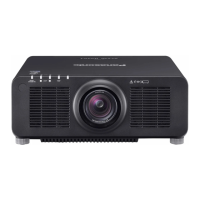
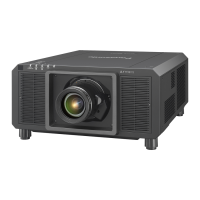
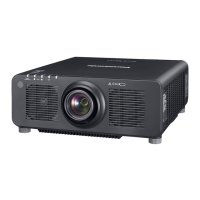
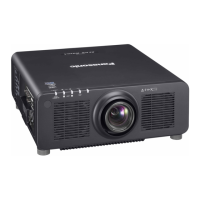
Panasonic PT-RZ770 - User Manual

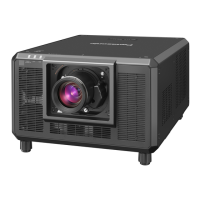
Panasonic PT-RZ770
210 pages
Print Icon
To Next Page IconTo Next Page
Loading...
Thank you for purchasing this Panasonic product.
This manual is common to all the models regardless of sufxes of the Model No.
z
for Taiwan
BT: Black model, the standard zoom lens supplied
z
for India
BD: Black model, the standard zoom lens supplied LBD: Black model, the lens sold separately
WD: White model, the standard zoom lens supplied LWD: White model, the lens sold separately
z
for Asia (except for Taiwan, India, Korea) / Oceania / Africa
BA/B: Black model, the standard zoom lens supplied LBA/LB: Black model, the lens sold separately
WA/W: White model, the standard zoom lens supplied LWA/LW: White model, the lens sold separately
z
for other countries or regions
B: Black model, the standard zoom lens supplied LB: Black model, the lens sold separately
W: White model, the standard zoom lens supplied LW: White model, the lens sold separately
Before operating this product, please read the instructions carefully and save this manual
for future use.
Before using this product, be sure to read “Read this rst!” (
x
pages 5 to 13).
DPQP1064ZA
DLP™ Projector
Commercial Use
Operating Instructions
Functional Manual
ENGLISH
Model No.
PT-RZ770
PT-RW730
PT-RZ660
PT-RW620


Table of Contents

Questions and Answers

  • T
    Thomas PalmerSep 18, 2025
    What to do if HDMI video is jumbled on Panasonic Projector?
    • R
      Rodney HallSep 18, 2025
      If video from an HDMI compatible device doesn't appear or appears jumbled on your Panasonic Projector: * Ensure the HDMI cable is securely connected. * Try turning the power of both the projector and the external device off and on. * Verify that the input signal is compatible with the projector.
  • L
    Lisa SharpAug 25, 2025
    How to fix Panasonic PT-RZ770 when power does not turn on?
    • M
      Marvin RichAug 25, 2025
      If your Panasonic Projector isn't powering on, try these steps: * Ensure the power plug is firmly inserted into the outlet. * Check that the switch is not set to . * Verify the wall outlet is supplying electricity. * See if the circuit breakers have tripped. * Check if the light source indicators / are blinking. * Check if the temperature indicator is lit or blinking.
  • V
    Victoria GreeneAug 25, 2025
    Why Panasonic Projector remote control does not respond?
    • K
      Kendra ValenzuelaAug 26, 2025
      If the remote control for your Panasonic Projector isn't responding, consider the following: 1. Check if the batteries are depleted and replace them if necessary. 2. Ensure the batteries are inserted with the correct polarity. 3. Make sure there are no obstructions between the remote control and the projector's signal receiver. 4. Verify the remote control is within its effective operating range. 5. Check if other light sources, like fluorescent lights, are interfering with the projection. 6. Confirm that the [REMOTE CONTROL] setting in [CONTROL DEVICE SETUP] is not set to [DISABLE]. 7. Verify that the terminal is not being used for contact control. 8. Ensure the ID number setting operation is correct.
  • R
    Richard TorresAug 27, 2025
    What to do if my Panasonic Projector has no image?
    • K
      Kendra CantuAug 27, 2025
      If no image appears on your Panasonic Projector, consider the following: * Check if the connections to external devices are correctly performed. * Ensure the input selection setting is correct. * Verify that the [BRIGHTNESS] adjustment is not at its minimum. * Confirm the external device connected to the projector is working properly. * Check if the shutter function is in use. * Make sure the lens cover is removed from the lens. If the power indicator is blinking in red, consult your dealer.
  • D
    Devin TurnerSep 18, 2025
    Why don't the buttons on my Panasonic Projector control panel operate?
    • A
      Angelica HarrisSep 18, 2025
      If the buttons on the control panel of your Panasonic Projector are not working, check the following: * Ensure that the [CONTROL PANEL] setting in [CONTROL DEVICE SETUP] is not set to [DISABLE]. * Verify that the terminal is not being used for contact control.
  • W
    Wanda PayneSep 23, 2025
    What to do if menu screen does not appear on Panasonic PT-RZ770 Projector?
    • D
      Douglas RamosSep 23, 2025
      If the menu screen does not appear on your Panasonic Projector, check if the on-screen display function is turned off (hidden).
  • M
    Michael DominguezSep 9, 2025
    Why image output from DVI-D does not appear on Panasonic PT-RZ770 Projector?
    • P
      Priscilla PerrySep 9, 2025
      If the image output from DVI?D of the computer does not appear on your Panasonic Projector, try the following: * Check if [EDID SELECT] in [DVI-D IN] is set to [EDID3] or [EDID2:PC]. * Consider updating the graphic accelerator driver of the computer to the latest version. * Performing the [EDID SELECT] setting in [DVI-D IN], and then rebooting the computer may also improve the image.
  • J
    Jill MckenzieSep 10, 2025
    How to fix a fuzzy image on a Panasonic Projector?
    • R
      rodneysanchezSep 12, 2025
      If the image on your Panasonic Projector appears fuzzy, consider these solutions: * Ensure the lens focus is set correctly. * Verify that the projection distance is appropriate. * Check if the lens is dirty. * Confirm that the projector is installed perpendicular to the screen.
  • J
    Jessica WestSep 3, 2025
    How to fix fuzzy image on Panasonic Projector?
    • C
      Charles ArellanoSep 3, 2025
      If the image from your Panasonic Projector appears fuzzy, check these items: * Ensure the lens focus is set correctly. * Verify the projection distance is appropriate. * Check if the lens is dirty. * Confirm the projector is installed perpendicular to the screen.
  • M
    Mallory TateSep 1, 2025
    What to do if DVI-D image from computer does not appear on Panasonic PT-RZ770?
    • T
      Tracy WallaceSep 1, 2025
      If the image output from the DVI-D of your computer does not appear on the Panasonic Projector: * Verify that [EDID SELECT] in [DVI-D IN] is set to [EDID3] or [EDID2:PC]. * Updating the graphic accelerator driver of the computer to the latest version may improve the image. * Performing the [EDID SELECT] setting in [DVI-D IN] and then rebooting the computer may also help.

Summary

Chapter 1 Preparation

Precautions for use

Essential safety guidelines and warnings before using the projector, including transportation and installation.

About your projector

Overview of the projector's components and features, including the remote control.

Connecting

Detailed instructions and examples for connecting various external devices to the projector.

Chapter 2 Getting Started

Setting up

Guidance on installing the projector, including installation modes and angle sensor.

Projected image and throw distance

Information on determining projected image size and projection distance for different lenses.

Chapter 3 Basic Operations

Switching on;off the projector

Instructions for connecting power, switching the projector on and off, and understanding power indicators.

Selecting the input signal

How to choose and switch between different input sources for projection.

Adjusting the focus, zoom, and shift

Procedures for fine-tuning the projected image's focus, zoom, and position.

Chapter 4 Settings

Menu navigation

Explains how to navigate and operate the projector's on-screen menu system.

[PICTURE] menu

Settings related to picture quality, including picture mode, contrast, brightness, and color adjustments.

[POSITION] menu

Adjustments for image position, aspect ratio, zoom, clock phase, and geometry.

[PROJECTOR SETUP] menu

Configuration settings for projector installation, operation modes, light output, and system setup.

Chapter 5 Operations

Network connection

Instructions for connecting the projector to a network for remote control and monitoring.

Web control function

How to access and operate the projector via a web browser for settings and status.

Chapter 6 Maintenance

Light source;temperature indicators

Explanation of indicator lights for light source and temperature, and troubleshooting steps.

Maintenance

Procedures for cleaning the projector's outer case and lens surface.

Troubleshooting

Common problems and their solutions, with references to relevant pages for details.

Chapter 7 Appendix

Technical information

Details on PJLink protocol, control commands, Art-Net function, and LAN commands.

Specifications

Technical specifications of the projector, including power, dimensions, and compatible signals.

Panasonic PT-RZ770 Specifications

General IconGeneral
PlacementDesktop, Ceiling
Product typeLarge venue projector
Product colorBlack
Built-in displayNo
Power sourceAC
AC input voltage100 - 240 V
AC input frequency50 - 60 Hz
Power consumption (standby)3 W
Power consumption (typical)825 W
Matrix size0.67 \
Native aspect ratio16:10
Projection distance- m
Projection technologyDLP
Contrast ratio (typical)10000:1
Screen size compatibility50 - 600 \
Projector native resolutionWUXGA (1920x1200)
Keystone correction, vertical-40 - 40 °
Keystone correction, horizontal-15 - 15 °
Lamps quantity1 lamp(s)
Light source typeLaser
Service life of light source20000 h
Service life of light source (economic mode)24000 h
3D-
Full HDYes
Supported video modes480i, 525i, 576i, 625i, 720p, 1080i, 1080p
Analog signal format systemNTSC, NTSC 4.43, PAL, PAL 60, PAL M, PAL N, SECAM
Supported graphics resolutions1920 x 1200 (WUXGA)
BNC input ports6
Serial interface typeRS-232
USB 2.0 ports quantity0
Noise level36 dB
RS-232 ports3
Number of bulbs1 bulb(s)
Ethernet LAN data rates10, 100 Mbit/s
Operating temperature (T-T)0 - 45 °C
Operating relative humidity (H-H)10 - 80 %
Focal length range- mm
Weight and Dimensions IconWeight and Dimensions
Depth538 mm
Width498 mm
Height200 mm
Weight22300 g

Related product manuals