EasyManua.ls Logo

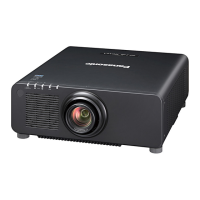
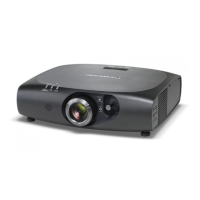
Panasonic PT-RZ690 - User Manual

Panasonic PT-RZ690
240 pages
Print Icon
To Next Page IconTo Next Page
Loading...
Thank you for purchasing this Panasonic product.
This manual is common to all the models regardless of sufxes of the Model No.
z
for Taiwan
B: Black model, the standard zoom lens supplied
z
for India
BD: Black model, the standard zoom lens supplied LBD: Black model, the lens sold separately
z
for Korea
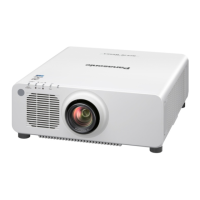
B: Black model, the standard zoom lens supplied W: White model, the standard zoom lens supplied
z
for other countries or regions
B: Black model, the standard zoom lens supplied LB: Black model, the lens sold separately
W: White model, the standard zoom lens supplied LW: White model, the lens sold separately
Before operating this product, please read the instructions carefully and save this manual
for future use.
Before using this product, be sure to read “Read this rst!” (
x
pages 5 to 17).
DPQP1335ZA/X1
DLP™ Projector
Commercial Use
Operating Instructions
Functional Manual
ENGLISH
Model No.
PT-RZ990
PT-RZ890
PT-RZ790
PT-RZ690

Table of Contents

Questions and Answers

  • P
    Paul MezaAug 18, 2025
    Why is my Panasonic PT-RZ690 Projector remote control not working?
    • E
      Emily RodriguezAug 18, 2025
      If the remote control for your Panasonic Projector isn't responding, first ensure the batteries aren't depleted and are inserted with the correct polarity. Check for obstructions between the remote and the projector's signal receiver. Also, verify that you're within the remote's effective range and that other light sources aren't interfering with the signal. Finally, confirm that the [REMOTE CONTROL] setting in [CONTROL DEVICE SETUP] isn't set to [DISABLE], the terminal isn't used for contact control, and the ID number setting is correct.
  • H
    Hunter CabreraAug 20, 2025
    How to fix no image on Panasonic Projector?
    • P
      pramosAug 20, 2025
      If your Panasonic Projector displays no image, verify that all connections to external devices are correctly performed and that the input selection setting is correct. Ensure the [BRIGHTNESS] adjustment isn't at its minimum. Check that the connected external device is working properly and that the shutter function isn't in use. Confirm the projection lens is correctly attached and that the lens cover has been removed.
  • K
    Kenneth RossAug 23, 2025
    What to do if my Panasonic PT-RZ690 Projector power does not turn on?
    • C
      Chelsea GibsonAug 23, 2025
      If your Panasonic Projector's power won't turn on, ensure the power plug is firmly inserted into the outlet and the switch isn't set to . Verify the wall outlet is supplying electricity and that the circuit breakers haven't tripped. Check if the light source indicators / are blinking or if the temperature indicator is lit or blinking.
  • C
    Curtis WhiteAug 25, 2025
    What to do if HDMI video is not displayed correctly on Panasonic PT-RZ690 Projector?
    • M
      Melanie YatesAug 26, 2025
      If the video from an HDMI compatible device does not appear or appears jumbled on your Panasonic Projector, make sure the HDMI cable is connected securely. Try turning the power of both the projector and the external device off and on. Also, verify that the input signal is compatible with the projector.
  • L
    Laura Hart DVMAug 27, 2025
    How to fix no image from DVI-D on Panasonic Projector?
    • J
      Jesus GutierrezAug 27, 2025
      If the image from DVI-D of the computer does not appear on your Panasonic Projector, is [EDID SELECT] in [DVI-D IN] set to [EDID3] or [EDID2:PC]? Updating the graphic accelerator driver of the computer to the latest version or performing the [EDID SELECT] setting in [DVI-D IN] and then rebooting the computer may also help.
  • L
    Laura BradshawAug 30, 2025
    What to do if DIGITAL LINK image is not displayed on Panasonic PT-RZ690 Projector?
    • D
      danamartinAug 30, 2025
      If the DIGITAL LINK input image is not displayed on your Panasonic Projector, ensure the cable is compatible with the projector's condition. Verify the connections between the twisted-pair-cable transmitter and external device, and between the transmitter and projector, are correctly done. Check if [DIGITAL LINK MODE] is set to [AUTO], [DIGITAL LINK], or [LONG REACH], and not to [ETHERNET]. Also, ensure the input signal is compatible with the twisted-pair-cable transmitter.
  • B
    Bradley WilliamsonSep 1, 2025
    Why is the image on my Panasonic Projector fuzzy?
    • B
      Beverly MoralesSep 1, 2025
      If the image from your Panasonic Projector is fuzzy, make sure the lens focus is set correctly and the projection distance is appropriate. Check if the lens is dirty and ensure the projector is installed perpendicular to the screen.
  • L
    Lacey OrtizSep 3, 2025
    Why is the image on my Panasonic PT-RZ690 dark?
    • E
      Ellen MannSep 3, 2025
      If the image on your Panasonic Projector is dark, check if the [CONTRAST] adjustment setting is at a minimum and if the setting value of [LIGHT OUTPUT] is set small. Also, see if the light source indicators / are blinking. Reattaching the projection lens may also improve the image.
  • N
    Nancy LewisSep 6, 2025
    Why does the Panasonic Projector image look pale?
    • W
      Wendy CollinsSep 6, 2025
      If the color on your Panasonic Projector appears pale or grayish, ensure that the [COLOR] and [TINT] are adjusted correctly. Check if the external device connected to the projector is adjusted correctly, and inspect the computer cable for any damage.
  • R
    reedtamaraSep 8, 2025
    How to troubleshoot Panasonic Projector image display issues?
    • J
      John SchaeferSep 8, 2025
      If the image on your Panasonic Projector does not display correctly, ensure that [SYSTEM SELECTOR] is set properly and that [RGB1 INPUT SETTING] is correct. Check for any problems with the video tape or other image sources, and verify that the input signal is compatible with the projector.

Summary

Chapter 1 Preparation

Precautions for use

Important safety guidelines and precautions for using the projector, including installation and transportation.

Cautions when transporting

Specific instructions for safely transporting the projector, including lens handling.

Cautions when installing

Guidelines for proper installation, including avoiding specific locations and ensuring secure mounting.

Security

Measures to protect the projector and personal information from unauthorized access or interference.

DIGITAL LINK

Information on the DIGITAL LINK technology and its support for transmitting video, audio, and control signals.

Art-Net

Details on the Art-Net protocol for Ethernet communication, used for controlling stage lighting systems.

Application software supported by the projector

Overview of supported software for projector control, logo transfer, and system management.

Cautions on use

General precautions for optimal picture quality, handling the projection lens, and operation guidelines.

Accessories

List of standard accessories included with the projector.

Optional accessories

Information on optional accessories available for extending projector functionality.

About your projector

Overview of the projector's components, including the remote control and projector body.

Remote control

Detailed explanation of the remote control's buttons and functions for operating the projector.

Projector body

Identification and description of the various parts and terminals located on the projector body.

Preparing the remote control

Instructions for inserting batteries, using multiple remote controls, and connecting the remote control via cable.

Connecting the remote control to the projector with a cable

Procedure for connecting the remote control to the projector using a wired connection.

Chapter 2 Getting Started

Setting up

Guidance on setting up the projector, including usable outlets and installation modes.

Installation mode

Details on different projector installation orientations like front/rear and floor/ceiling.

Parts for installation (optional)

Information on optional parts required for installation, such as ceiling mount brackets.

Projected image and throw distance

Guidance on setting up the projector based on projected image size and throw distance.

Adjusting adjustable feet

Instructions for adjusting the projector's angle and leveling using the adjustable feet.

Removing;attaching the projection lens

Step-by-step procedure for safely removing and attaching the projector's projection lens.

Removing the projection lens

Detailed steps for detaching the projection lens from the projector.

Attaching the projection lens

Detailed steps for securely attaching the projection lens to the projector.

Connecting

General guidelines and examples for connecting external devices to the projector.

Before connecting

Important precautions to take before connecting any external device to the projector.

Connecting example: AV equipment

Illustrative examples of connecting AV equipment like DVD players via HDMI or DVI-D.

Connecting example: Computers

Illustrative examples of connecting computers to the projector using various input terminals.

Connecting example using DIGITAL LINK

Example setup for connecting devices via DIGITAL LINK using twisted-pair cables.

Connecting example when using the contrast synchronization function;shutter synchronization function

Guide for connecting multiple projectors for synchronized contrast or shutter functions.

Chapter 3 Basic Operations

Switching on;off the projector

Instructions for connecting the power cord and turning the projector on and off.

Connecting the power cord

Procedure for securely attaching the power cord to the projector.

How to attach the power cord

Detailed steps for attaching the power cord holder to the projector.

Switching on the projector

Step-by-step guide to power on the projector and begin projection.

When the initial setting screen is displayed

Guide for performing initial setup tasks like focus adjustment and language selection.

Setting the administrator account

Procedure for setting the user name and password for the administrator account.

Making adjustments and selections

Steps for making image adjustments like focus, zoom, lens shift, and input selection.

Switching off the projector

Instructions for properly powering off the projector and putting it into standby mode.

Projecting

Guidance on starting projection, selecting input signals, and adjusting image appearance.

Selecting the input signal

How to switch between different input sources using the remote control or control panel.

Adjusting the focus, zoom, and lens shift

Detailed procedure for adjusting the projected image focus, zoom size, and lens position.

Lens shift range

Information on the adjustable range for lens shift on different projection lenses.

Operating with the remote control

Explanation of how to operate the projector using the remote control's various functions.

Chapter 4 Settings

Menu navigation

Guide to navigating the projector's on-screen menu system for settings and adjustments.

[PICTURE] menu

Settings related to image quality, including picture mode, contrast, brightness, and color.

[POSITION] menu

Settings for adjusting the projected image position, including shift, aspect ratio, and zoom.

[ADVANCED MENU] menu

Advanced settings for image processing, including digital cinema reality and blanking.

[DISPLAY LANGUAGE] menu

Selecting the language for the projector's on-screen display (OSD).

[DISPLAY OPTION] menu

Options for display settings, including color matching, screen settings, and signal adjustments.

[COLOR MATCHING]

Correcting color differences between projectors for multi-display synchronization.

[BACKUP INPUT SETTING]

Setting up backup input signals for seamless switching when the primary signal is disrupted.

Chapter 5 Operations

Network connection

Information on connecting the projector to a network for remote control and monitoring.

Web control function

Enabling and using the web control function for remote projector management.

Accessing from the web browser

Procedure for accessing the projector's web interface using its IP address.

Error information page

Detailed information on errors or warnings displayed by the projector's self-test.

[Basic control] page

Provides basic control functions like power, shutter, OSD, system, and input selection.

[Detail control] page

Detailed control options for the projector, including sub memory and system daylight view.

[E-mail set up] page

Configuration for sending E-mails for warnings or periodic reports.

Updating the firmware

Instructions for updating the projector's firmware via a wired LAN connection.

Updating the firmware via LAN

Step-by-step guide to updating firmware using a computer connected via LAN.

[Set up password] page (For administrator account)

Page for setting or changing the administrator account credentials.

[Crestron Connected(TM)] page

Accessing and controlling the projector via Crestron Connected.

Chapter 6 Maintenance

Light source;temperature indicators

Information on projector indicator lights and troubleshooting steps for issues.

Maintenance

Procedures for maintaining the projector's outer case and lens.

Troubleshooting

A guide to common problems and their solutions, with references to relevant pages.

Chapter 7 Appendix

Technical information

Technical details including PJLink commands, Art-Net function, and control commands via LAN.

Precautions for attaching the Ceiling Mount Bracket

Important safety guidelines and specifications for mounting the projector on a ceiling.

Compatible signal

Information on the types of video signals compatible with the projector.

Panasonic PT-RZ690 Specifications

General IconGeneral
BrandPanasonic
ModelPT-RZ690
CategoryProjector
LanguageEnglish

Related product manuals