EasyManua.ls Logo

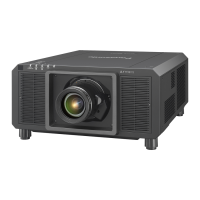
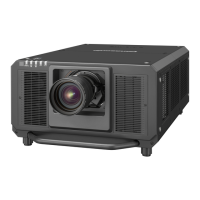
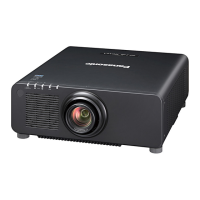
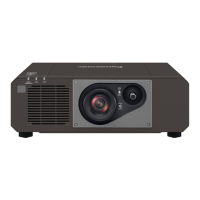
Panasonic PT-RZ990 - User Manual

Panasonic PT-RZ990
240 pages
Print Icon
To Next Page IconTo Next Page
Loading...
Thank you for purchasing this Panasonic product.
This manual is common to all the models regardless of sufxes of the Model No.
z
for Taiwan
B: Black model, the standard zoom lens supplied
z
for India
BD: Black model, the standard zoom lens supplied LBD: Black model, the lens sold separately
z
for Korea
B: Black model, the standard zoom lens supplied W: White model, the standard zoom lens supplied
z
for other countries or regions
B: Black model, the standard zoom lens supplied LB: Black model, the lens sold separately
W: White model, the standard zoom lens supplied LW: White model, the lens sold separately
Before operating this product, please read the instructions carefully and save this manual
for future use.
Before using this product, be sure to read “Read this rst!” (
x
pages 5 to 17).
DPQP1335ZA/X1
DLP™ Projector
Commercial Use
Operating Instructions
Functional Manual
ENGLISH
Model No.
PT-RZ990
PT-RZ890
PT-RZ790
PT-RZ690

Table of Contents

Questions and Answers

  • E
    Erica KellerAug 19, 2025
    Why is my Panasonic PT-RZ990 remote control not working?
    • U
      ucrossAug 19, 2025
      If the remote control for your Panasonic Projector isn't responding, first ensure the batteries aren't depleted and are inserted with the correct polarity. Check for obstructions between the remote and the projector's signal receiver. Also, verify that you're within the remote's effective range and that other light sources aren't interfering with the signal. Finally, confirm that the [REMOTE CONTROL] setting in [CONTROL DEVICE SETUP] isn't set to [DISABLE], the terminal isn't used for contact control, and the ID number setting is correct.
  • A
    Amber MeyerAug 21, 2025
    How to fix no image on Panasonic PT-RZ990 Projector?
    • S
      Suzanne NunezAug 21, 2025
      If your Panasonic Projector displays no image, verify that all connections to external devices are correctly performed and that the input selection setting is correct. Ensure the [BRIGHTNESS] adjustment isn't at its minimum. Check that the connected external device is working properly and that the shutter function isn't in use. Confirm the projection lens is correctly attached and that the lens cover has been removed.
  • P
    Patrick FlynnAug 23, 2025
    What to do if my Panasonic PT-RZ990 Projector power does not turn on?
    • J
      Jamie BennettAug 23, 2025
      If your Panasonic Projector's power won't turn on, ensure the power plug is firmly inserted into the outlet and the switch isn't set to . Verify the wall outlet is supplying electricity and that the circuit breakers haven't tripped. Check if the light source indicators / are blinking or if the temperature indicator is lit or blinking.
  • A
    austinjakeAug 26, 2025
    What to do if HDMI video is not displayed correctly on Panasonic Projector?
    • G
      Gary VasquezAug 26, 2025
      If the video from an HDMI compatible device does not appear or appears jumbled on your Panasonic Projector, make sure the HDMI cable is connected securely. Try turning the power of both the projector and the external device off and on. Also, verify that the input signal is compatible with the projector.
  • A
    Allison VelasquezAug 28, 2025
    How to fix no image from DVI-D on Panasonic PT-RZ990?
    • S
      Sandra MorrisonAug 28, 2025
      If the image from DVI-D of the computer does not appear on your Panasonic Projector, is [EDID SELECT] in [DVI-D IN] set to [EDID3] or [EDID2:PC]? Updating the graphic accelerator driver of the computer to the latest version or performing the [EDID SELECT] setting in [DVI-D IN] and then rebooting the computer may also help.
  • V
    Victoria WilliamsAug 30, 2025
    What to do if DIGITAL LINK image is not displayed on Panasonic PT-RZ990 Projector?
    • R
      Regina WalkerAug 30, 2025
      If the DIGITAL LINK input image is not displayed on your Panasonic Projector, ensure the cable is compatible with the projector's condition. Verify the connections between the twisted-pair-cable transmitter and external device, and between the transmitter and projector, are correctly done. Check if [DIGITAL LINK MODE] is set to [AUTO], [DIGITAL LINK], or [LONG REACH], and not to [ETHERNET]. Also, ensure the input signal is compatible with the twisted-pair-cable transmitter.
  • T
    taylorsamanthaSep 1, 2025
    Why is the image on my Panasonic Projector fuzzy?
    • T
      Tamara DillonSep 1, 2025
      If the image from your Panasonic Projector is fuzzy, make sure the lens focus is set correctly and the projection distance is appropriate. Check if the lens is dirty and ensure the projector is installed perpendicular to the screen.
  • E
    eallenSep 4, 2025
    Why is the image on my Panasonic PT-RZ990 Projector dark?
    • T
      Thomas ChenSep 4, 2025
      If the image on your Panasonic Projector is dark, check if the [CONTRAST] adjustment setting is at a minimum and if the setting value of [LIGHT OUTPUT] is set small. Also, see if the light source indicators / are blinking. Reattaching the projection lens may also improve the image.
  • L
    leslie94Sep 6, 2025
    Why does the Panasonic Projector image look pale?
    • J
      Javier MorrisSep 6, 2025
      If the color on your Panasonic Projector appears pale or grayish, ensure that the [COLOR] and [TINT] are adjusted correctly. Check if the external device connected to the projector is adjusted correctly, and inspect the computer cable for any damage.
  • L
    Lori McconnellSep 8, 2025
    How to troubleshoot Panasonic PT-RZ990 Projector image display issues?
    • P
      pwaltonSep 8, 2025
      If the image on your Panasonic Projector does not display correctly, ensure that [SYSTEM SELECTOR] is set properly and that [RGB1 INPUT SETTING] is correct. Check for any problems with the video tape or other image sources, and verify that the input signal is compatible with the projector.

Summary

Read This First! - Safety Information

General Safety Warnings

Covers essential warnings regarding electrical shock, moisture, and environmental hazards.

Laser Safety Information

Provides warnings and compliance details related to laser light emission from the projector.

Power Supply Cautions

Details on safe power cord usage, voltage compatibility, and grounding requirements.

Power Safety Precautions

Covers safe practices for power connection, outlet usage, and preventing electrical hazards.

Installation and Usage Environment Safety

Guidelines for safe projector placement, ventilation, and operating environment conditions.

Laser Exposure and Product Handling Warnings

Warnings related to laser exposure, product modification, liquid contact, and accessory handling.

Chapter 1 Preparation - Precautions and Projector Details

Precautions for Use - General

Covers intended use, cautions for transport, installation, and environmental conditions.

Chapter 2 Getting Started - Setup and Connections

Setting Up the Projector

Covers usable outlets, installation modes, and projector orientation.

Connecting the Projector

Guidance on connecting external devices like AV equipment and computers.

Chapter 3 Basic Operations

Switching On;Off the Projector

Covers power cord connection, removal, and projector power status indicators.

Initial Projector Setup

Guides through initial settings like focus, language, operation mode, and network configuration.

Making Image Adjustments and Selections

Instructions for adjusting focus, zoom, lens shift, and other image parameters.

Chapter 4 Settings - Menu Navigation and Options

Picture Menu Settings

Covers adjustments for picture mode, contrast, brightness, color, tint, and white balance.

Position Menu Settings

Details on adjusting image shift, aspect ratio, zoom, clock phase, and geometry.

Projector Setup Menu Options

Covers projector ID, projection method, lens settings, operation modes, and synchronization.

Network Menu Settings

Configuration for Ethernet type, Digital Link, Wired LAN, projector name, and network status.

Security Menu Settings

Covers security password entry, change, display settings, and control device limitations.

Chapter 5 Operations - Network and Web Control

Web Control Functionality

Explains how to control and adjust the projector using a web browser.

Firmware Update Procedure

Step-by-step guide for updating the projector's firmware via a wired LAN connection.

Chapter 6 Maintenance and Troubleshooting

Troubleshooting Common Problems

A guide to diagnosing and resolving issues like power, image, and remote control problems.

Chapter 7 Appendix - Technical Information and Specifications

Projector Specifications

Technical specifications including power, light output, dimensions, and noise level.

Panasonic PT-RZ990 Specifications

General IconGeneral
Matrix size0.67 \
Projection technologyDLP
Supported aspect ratios16:10
Contrast ratio (typical)10000:1
Screen size compatibility50 - 600 \
Projector native resolutionWUXGA (1920x1200)
Keystone correction, vertical-40 - 40 °
Keystone correction, horizontal-15 - 15 °
PlacementCeiling, Floor
Product typeStandard throw projector
Product colorBlack
Housing materialPlastic
Built-in displayNo
Light source typeLaser
Service life of light source20000 h
Service life of light source (economic mode)24000 h
Power sourceAC
AC input voltage100 - 240 V
AC input frequency50 - 60 Hz
Power consumption (standby)- W
Power consumption (typical)920 W
FocusAuto
Throw ratio1.71–2.41:1
Zoom capabilityYes
Focal length range25.6 - 35.7 mm
Aperture range (F-F)1.7 - 1.9
Vertical lens shift range-16 - 50 %
Horizontal lens shift range-10 - 30 %
BNC input ports6
Serial interface typeRS-232C
USB 2.0 ports quantityUSB 2.0 ports have a data transmission speed of 480 Mbps, and are backwards compatible with USB 1.1 ports. You can connect all kinds of peripheral devices to them.
Operating temperature (T-T)0 - 45 °C
Operating relative humidity (H-H)10 - 80 %
Ethernet LAN data rates10, 100 Mbit/s
Ethernet LAN (RJ-45) ports2
Noise level41 dB
Projection modesCeiling, Front, Rear
Quantity per pack1 pc(s)
Weight and Dimensions IconWeight and Dimensions
Depth581 mm
Width498 mm
Height200 mm
Weight23100 g

Related product manuals