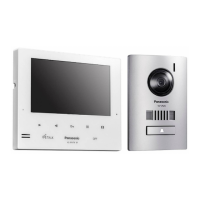
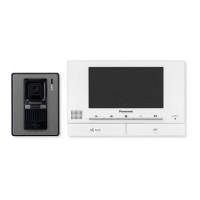
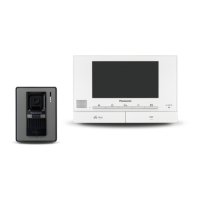
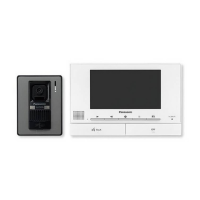
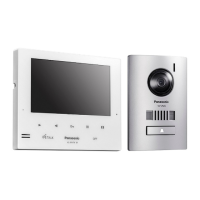
What to do if the main monitor of my Panasonic VL-SV74 does not work properly?
- AAlexander PrinceSep 23, 2025
Check the power connection of your Panasonic Intercom System. If the power is connected, there may be a problem with the electrical wiring.


What to do if the main monitor of my Panasonic VL-SV74 does not work properly?
Check the power connection of your Panasonic Intercom System. If the power is connected, there may be a problem with the electrical wiring.
What to do if Panasonic VL-SV74 Intercom System images are unclear?
If the images on your Panasonic Intercom System are dirty or unclear, the doorphone's lens surface may be dirty or have water condensation. Wipe the lens with a soft, dry cloth, or wait for the condensation to evaporate.
Why is Panasonic VL-SV74 image black and white?
If the image of the subject is displayed in black and white (or bluish-purple) on your Panasonic Intercom System, it may be night or there may be poor light in the area around the doorphone. Turn on the LED lights when it is dark. Also, if you are using a doorphone not equipped with LED lights, it is recommended to install extra lights in the area around the doorphone.
How to improve night vision on Panasonic Intercom System?
If images at night are dark and faces cannot be identified on your Panasonic Intercom System, ensure that “Automatic illumination” is set to “Enable”. If the doorphone's LED lights are lit, but the light from the LED lights cannot illuminate the edges of the visible area, it is recommended to install extra lights in the area around the doorphone.
Why can't visitor hear me on Panasonic Intercom System?
If your voice cannot be heard by the visitor on the Panasonic Intercom System, but you can hear the visitor’s voice, you might be using the "Press-to-talk" mode. When using this mode, the visitor can only hear your voice while you are pressing M N.
What to do if Panasonic VL-SV74 doesn't work properly?
If your Panasonic Intercom System does not work with correct operations, press the MRESETN button on the side of the main monitor with a pointed object.
How to stop sound cutting in/out on Panasonic VL-SV74?
If the sound cuts in/out or fades on your Panasonic Intercom System, this may be because the area surrounding the main monitor, extension monitor, or doorphone are noisy. Try using the "Press-to-talk" mode to mitigate this issue.
How to fix white images with lines/circles on Panasonic VL-SV74 Intercom System?
If images are white, or white lines or circles are shown on the display of your Panasonic Intercom System, strong light such as sunlight is shining into the lens of the doorphone causing images to be difficult to see. Locating the doorphone away from direct sunlight or changing the angle that the doorphone is installed may help reduce this problem.
What to do if Panasonic Intercom System doesn't work?
To solve the problem when the product does not work with correct operations, press the MRESETN button on the side of the main monitor of your Panasonic Intercom System with a pointed object.
Why is Panasonic VL-SV74 Intercom System flickering?
If the images on your Panasonic Intercom System are flickering, it may be due to AC (alternating current) lights such as fluorescent lights being used near the doorphone. These lights may cause flickering in dark environments.
Crucial warnings and instructions for preventing fire, electric shock, and injury.
Basic safety precautions to reduce the risk of fire, electric shock, or personal injury.
Details the buttons, indicators, and functions of the doorphone and main monitor.
Guides through the initial setup of display language, date, and time settings.
Step-by-step guide to answer, talk, and end calls from the doorphone.
Explains how to use press-to-talk for clearer conversations in noisy environments.
How to remotely view and listen to the doorphone's camera and audio.
Overview of how the system saves still images from doorphone calls.
Details automatic recording of 4 images when a call is received.
How to access and play back recorded doorphone images.
Guides on connecting and controlling electric locks via the main monitor.
Procedures for managing and answering new calls during an active call or monitoring session.
Using zoom, wide mode, and pan/tilt features for doorphone image viewing.
Step-by-step procedures for registering and cancelling system devices.
Detailed guide on how to register extension monitors to the main monitor.
Lists common issues with monitor display (e.g., distorted images) and their causes/solutions.
Explanation of error messages displayed on the main monitor and their causes.
Explanation of error messages displayed on the extension monitor and their causes.
Crucial warnings and instructions for preventing fire, electric shock, and injury.
Basic safety precautions to reduce the risk of fire, electric shock, or personal injury.
Details the buttons, indicators, and functions of the doorphone and main monitor.
Guides through the initial setup of display language, date, and time settings.
Step-by-step guide to answer, talk, and end calls from the doorphone.
Explains how to use press-to-talk for clearer conversations in noisy environments.
How to remotely view and listen to the doorphone's camera and audio.
Overview of how the system saves still images from doorphone calls.
Details automatic recording of 4 images when a call is received.
How to access and play back recorded doorphone images.
Guides on connecting and controlling electric locks via the main monitor.
Procedures for managing and answering new calls during an active call or monitoring session.
Using zoom, wide mode, and pan/tilt features for doorphone image viewing.
Step-by-step procedures for registering and cancelling system devices.
Detailed guide on how to register extension monitors to the main monitor.
Lists common issues with monitor display (e.g., distorted images) and their causes/solutions.
Explanation of error messages displayed on the main monitor and their causes.
Explanation of error messages displayed on the extension monitor and their causes.
| Type | Video Intercom System |
|---|---|
| Camera | Yes |
| Wide-angle Lens | Yes |
| Two-Way Audio | Yes |
| Connectivity | Wired |
| Wireless Connectivity | No |
| Electric Lock Support | Yes |
| Door Release | Yes |
| Power Supply | AC 100-240V, 50/60Hz |
| Monitor Size | 7 inches |
| Display Type | TFT LCD |
| Night Vision | Yes |
| Expandability | Up to 3 additional monitors |
| Operating Temperature | +40°C |


Loading...