EasyManua.ls Logo

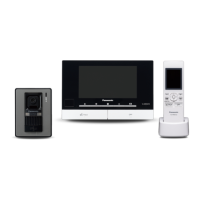
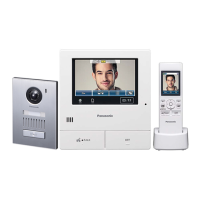
Panasonic VL-SWD272 - User Manual

Panasonic VL-SWD272
40 pages
Print Icon
To Next Page IconTo Next Page
Loading...
Operating Instructions
Thank you for purchasing a Panasonic product.
Please read this document before using the product and save it for future reference.
Installation Guide is supplied separately.
This system is an auxiliary system; it is not designed to provide complete protection from property loss. Panasonic will not be
held responsible in the event that property loss occurs while this system is in operation.
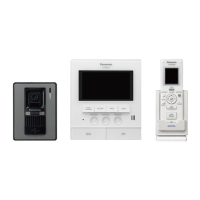
VL-MWD272
VL-SWD272
VL-SVD272
Model Name
Model No.
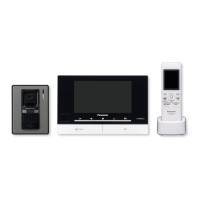
Video Intercom System
Wireless Video Intercom System
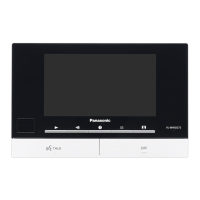
Main Monitor Station

Table of Contents

Other manuals for Panasonic VL-SWD272

Questions and Answers

  • M
    Mr. Rick RamirezSep 9, 2025
    Why doesn't the charge indicator turn off on my Panasonic Intercom System?
    • L
      Logan CummingsSep 9, 2025
      If the charge indicator on your Panasonic Intercom System doesn't turn off after charging the batteries for about 8 hours: * Ensure the main monitor is turned on and charge the sub monitor nearby. The charging time may increase if the sub monitor is picked up or used during charging, or if the main monitor is turned off.
  • S
    Sarah WallAug 23, 2025
    How to fix dirty or unclear images on Panasonic Intercom System?
    • J
      James BurkeAug 23, 2025
      If the images on your Panasonic Intercom System are dirty, unclear, or out of focus: * Wipe the lens with a soft, dry cloth if there is dirt. * Wait for the condensation to evaporate if there is water condensation.
  • A
    Alicia BarronAug 25, 2025
    What to do if my Panasonic Intercom System main monitor does not work?
    • D
      David ArnoldAug 25, 2025
      If the main monitor of your Panasonic Intercom System isn't working properly, showing nothing on the screen, not sounding the ringtone, or not transmitting voices, check the power connection. If the power is connected, there may be a problem with the electrical wiring.
  • L
    leahcampbellAug 27, 2025
    Why does the ringtone for my Panasonic Intercom System doorphone not sound?
    • H
      harrisjeremyAug 27, 2025
      If the ringtone for the doorphone on your Panasonic Intercom System doesn't sound, make sure the ringtone volume isn't muted and that the sub monitor's batteries are charged. Activate the sound for the ringtone, and charge the batteries, if needed.
  • T
    Tracy HuffmanAug 27, 2025
    How to stop sound from cutting out on Panasonic Intercom System?
    • J
      Joshua LuceroAug 27, 2025
      If you're experiencing sound cutting in/out or fading on your Panasonic Intercom System: 1. Try using the "Press-to-talk" mode if the area is noisy. 2. Ensure you're not covering the top of the sub monitor (where the antenna is located). 3. Move the sub monitor closer to the main monitor, or to an area without obstructions like concrete walls. 4. Consider installing a repeater to improve the signal.
  • H
    Holly NicholsAug 29, 2025
    How to adjust brightness on Panasonic Intercom System if images are white or black?
    • J
      Jamie PattersonAug 29, 2025
      If images on your Panasonic Intercom System are white or black, try adjusting the brightness settings when the images are displayed.
  • M
    Mark FitzgeraldSep 18, 2025
    Why is my Panasonic Intercom System flashing after charging?
    • J
      Jennifer LowerySep 18, 2025
      To address the flashing issue on your Panasonic Intercom System's sub monitor after only a few uses post-charge, clean the ends of the batteries with a dry cloth and recharge. If the problem persists, it may be time to replace the batteries.
  • J
    Juan WarnerSep 22, 2025
    Why are images distorted on my Panasonic Intercom System?
    • V
      vguzmanSep 22, 2025
      Images appearing distorted on the Panasonic Intercom System is not a malfunction.
  • R
    Roger GonzalesSep 8, 2025
    Why won't the charge indicator light up on my Panasonic Intercom System?
    • J
      James HuntSep 8, 2025
      If the charge indicator doesn't light up when you place the sub monitor on the charger for your Panasonic Intercom System: * Ensure the AC adapter is firmly plugged into the power outlet. * Make sure the sub monitor is securely placed on the charger. * If the batteries are new or discharged, leave the sub monitor on the charger for a few minutes.
  • E
    ericmaddenSep 4, 2025
    Why can't the visitor hear me on my Panasonic Intercom System?
    • J
      Jacqueline TurnerSep 5, 2025
      If your voice cannot be heard by the visitor on your Panasonic Intercom System, and you're using the "Press-to-talk" mode, remember that the visitor can only hear you while you are pressing the M N button.

Summary

1. Introduction

1.1 Model Composition

Details the components and models within the system.

1.2 Accessory Information

Lists the accessories supplied with the product.

1.3 Additional;Replacement Accessories

Lists optional and replacement parts available for the system.

1.3.1 Compatible Panasonic PBXs

Lists compatible Panasonic PBX models for system integration.

1.4 General Information

Provides general product details, operating modes, and contact information.

1.5 Symbols, Expressions, and Styles

Explains the conventions used in the manual for clarity and understanding.

1.6 Trademarks and Registered Trademarks

Lists intellectual property and brand ownership information relevant to the product.

2. Important Information

2.1 Safety Precautions and Warnings

Critical warnings to prevent injury, fire, and electric shock during product use.

2.2 Important Safety Instructions

Basic safety precautions for product usage, including water and battery handling.

2.3 For Best Performance

Advice on optimal placement and environmental conditions for best performance.

2.4 Other Important Information

Details on AC adaptor, tapping precautions, and environmental factors.

Privacy and Personal Information

Discusses user privacy, personal data storage, and related disclaimers.

Product Service and Disposal Advice

Guidance on product repairs, return, and safe disposal procedures.

Disposal and Miscellaneous Notes

Information on disposal outside the EU and other general notes.

3. Preparation

3.1 Controls Overview

Identifies controls on the doorphone and main monitor/extension monitor.

3.1.1 Soft Keys and Sub Monitor Controls

Explains soft key functions and controls on the sub monitor.

3.1.2 Sub Monitor Multifunction Buttons

Details the functions of the sub monitor's multifunction buttons and display.

3.2 Main Monitor Display Information

Describes the main monitor's image viewing and information screens.

3.2.1 Sub Monitor Display Information

Explains status icons and display screens for the sub monitor.

3.3 Battery Installation and Charging

Instructions for installing batteries and charging the sub monitor.

3.4 Sub Monitor Charging Details

Information on charging time, indicators, and battery level.

3.5 Wall Mounting Instructions

Guidance on securely mounting the unit to a wall.

3.6 Setting Language, Date, and Time

Step-by-step guide for initial setup of language, date, and time.

3.7 Wide;Zoom and Zoom Position Settings

How to configure image display modes and zoom positions for doorphone views.

4. Talking and Monitoring

4.1 Answering Doorphone Calls

How to answer, talk, and end calls from the doorphone.

4.2 Transferring Doorphone Calls

Procedures for transferring calls between devices.

4.3 Monitoring Outside with Doorphone

How to view and listen to the doorphone feed.

4.4 Talking with Other Devices

Making intercom calls between main, sub, and extension monitors.

5. Recording and Playing

5.1 Recording Doorphone Images

How the system automatically or manually records images from the doorphone.

5.2 Playing Recorded Images

How to view recorded still images on the main and extension monitors.

5.2.1 Image Playing Screen

Details the interface elements during image playback.

5.2.2 Options Available During Playback

Features like turning on guides, protecting, deleting, and adjusting brightness.

6. Using Electric Locks and PBXs

6.1 Using Electric Locks

How to connect, configure, and operate electric locks for doors or gates.

6.2 Panasonic PBX Integration

Connecting the system to Panasonic PBXs for answering calls via extensions.

7. Incoming Call Operations

7.1 Handling Multiple Incoming Calls

Procedures for managing new calls while already on a call or monitoring.

8. Additional Functions

8.1 Zooming and Pan;Tilt Control

Adjusting wide/zoom modes and camera pan/tilt for doorphone images.

8.2 Sound and Display Settings

Customizing volumes, voice changer, brightness, and LED lights.

8.3 Ringtone Settings

How to change ringtone type and volume for incoming calls.

8.4 Main;Extension Monitor Function Settings

Configuring various settings like date, time, zoom, and language.

Ringtone and Connected Devices Settings

Detailed settings for ringtone volume, types, and device connections.

8.5 Register;Cancel Devices

Procedures for registering and cancelling sub monitors, extension monitors, and repeaters.

Other Settings and Demo Mode

Managing play lamp, deleting images, initializing settings, and demo mode.

8.5 Sub Monitor Function Settings List

Customizing ringtone, key sound, contrast, and initialization for the sub monitor.

9. Expanding the System

9.1 Registering Sub Monitors and Extension Monitors

Step-by-step guide to adding sub and extension monitors to the main unit.

9.2 Using Repeaters

How repeaters extend wireless range and troubleshooting signal issues.

9.2.1 Registering Repeaters

Instructions for registering repeaters to enhance signal coverage.

9.3 Cancelling Devices

How to remove registered devices like sub monitors or extension monitors.

10. General Information

10.1 Cleaning Instructions

How to properly clean the main monitor, sub monitor, and charger.

10.2 Specifications

Technical specifications for the main monitor, sub monitor, and doorphone.

11. Troubleshooting

11.1 Monitor Display Issues

Solutions for distorted images, color issues, dark images, and focus problems.

11.2 Sub Monitor Display and Call Issues

Troubleshooting slow display, sound cut-outs, and voice issues with the sub monitor.

11.3 Ringtone and Call Problems

Addresses issues with the doorphone ringtone not sounding and call clarity.

11.4 Sub Monitor Charging Problems

Solutions for charging indicator issues and battery replacement.

11.5 General Product and Operation Issues

Troubleshooting "Demo mode," product not working, and no display issues.

11.2 Error Messages - Main Monitor

Explains common error messages on the main monitor and their causes/solutions.

11.3 Error Messages - Extension Monitor

Lists error messages for the extension monitor and how to resolve them.

11.4 Error Messages - Sub Monitor

Covers error messages specific to the sub monitor and their fixes.

12. VL-V900 Basic Operations

12.1 Controls Overview

Identifies the controls and features of the VL-V900 lobby station.

12.2 Lobby Station Operations

How to call residents by room number or name, and switch images.

12.3 Main Monitor Operations with Lobby Station

Using the main monitor to view lobby station feeds, open doors, and call extensions.

12.4 System Conditions and Limitations

Explains system limitations, call priorities, and timeout conditions.

Panasonic VL-SWD272 Specifications

General IconGeneral
Screen Size7 inches
CameraYes
ConnectivityWired
Expandable Door StationsUp to 2
Picture RecordingYes
Night VisionYes
TypeVideo Intercom
AudioTwo-way audio
Power SupplyAC adapter
Operating Temperature0 to 40 degrees Celsius
Weight1.2 kg
DisplayColor LCD

Related product manuals