Copyright © ParTech, Inc. 2013. All Rights Reserved.Page 6 6/13/2013
PixelPoint OPOS Files
If the Windows path on your system differs from the one shown in these instructions,
modify the paths in these instructions accordingly.
Extract the files from PixelPoint OPOS.zip, and then perform the following steps:
1. Copy DrawerOPOSes500.dll and PoleShowOPOS.dll to the \PixelPOS\DLLS directory.
Create this folder if it does not already exist.
2. Copy the following files into C:\Windows\System32:
Cocash.ocx
Codisp.ocx
Opos20.dll
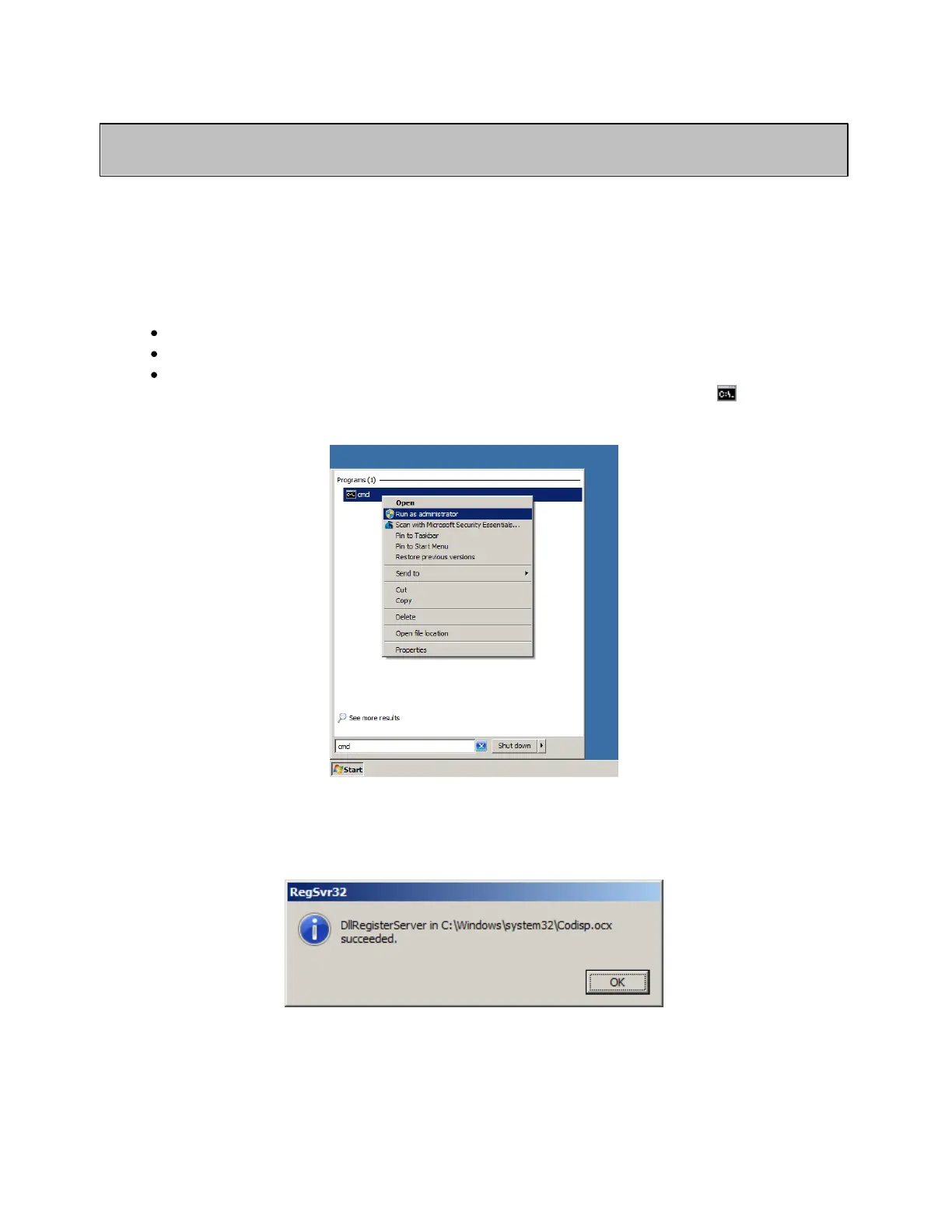
3. Open Windows Start Menu and type "cmd". Right-click on cmd (the
icon), and select
Run as administrator. Agree to the UAC notification if it appears.
4. Type "regsvr32 C:\Windows\system32\Codisp.ocx" in the command line, and then
press Enter. This will register Codisp.ocx in the Windows Registry. You should get the
following message:
Repeat steps 3 to 4 for Cocash.ocx. They must be registered individually. After both OCX files
have been registered, proceed to the next section.



 To Next Page