Wireless Smart Gate Record and Display Data in PASCO Capstone
22
013-16123A
Step 5: Click here to enter parameters, if any, such as the length of a flag or the spacing between photogates,
Step 6: Highlight the text in the edit window to enter a new name for the timer.
Click “Save” if you want to save your changes. Click “Cancel” to remove your changes and revert to the original
setup. Click the “Timer Setup” Icon to close the Timer Setup panel.
Record and Display Data in PASCO Capstone
First, Setup a Display for a “Smart Gate (Single Flag)”
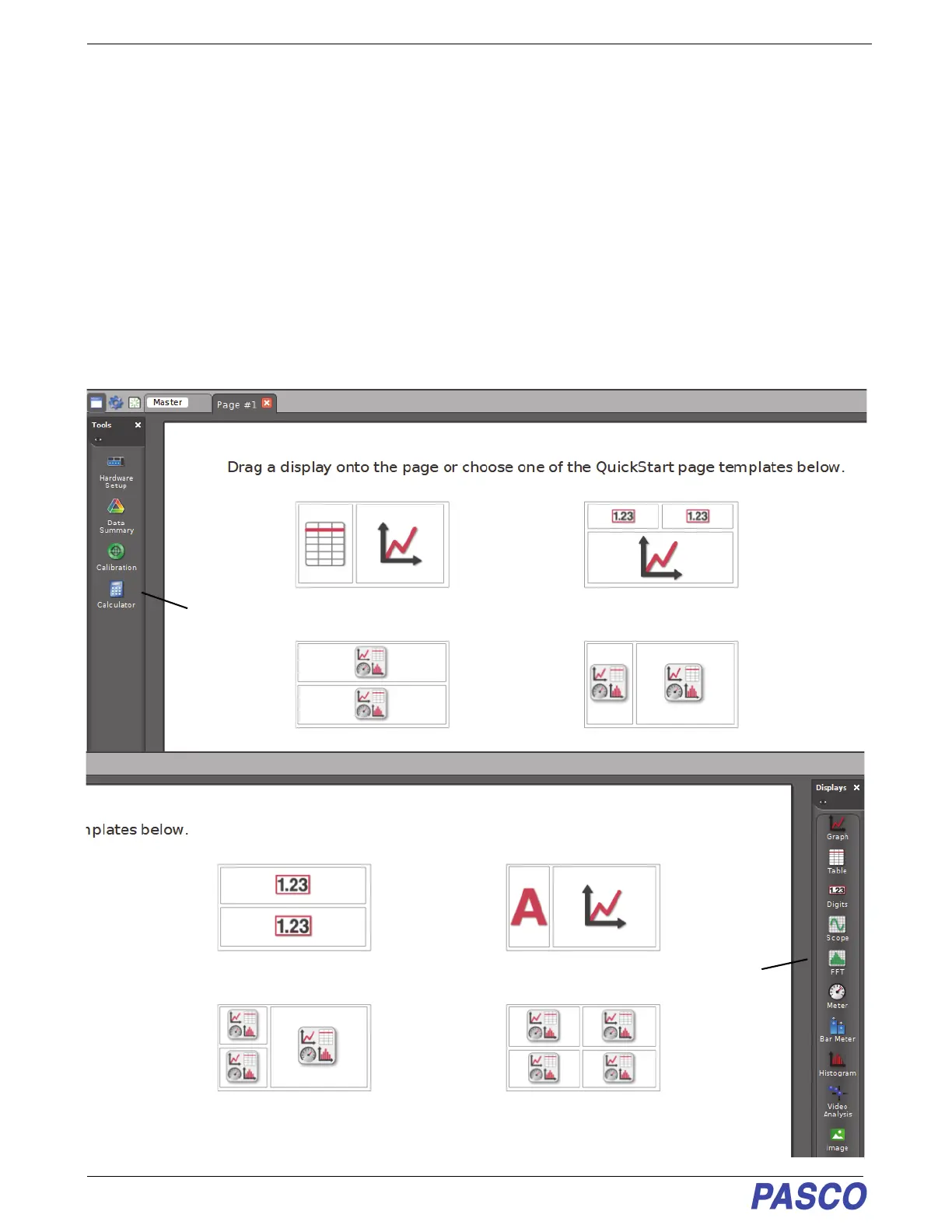
By default, PASCO Capstone shows a “workbook” page with eight pre-configured “QuickStart” page templates
• The “Part A” illustration below shows the left half of the “workbook” page and the Tools palette.
• The “Part B” illustration below shows the right half of the “workbook” page and ten of the fourteen choices in
the Displays palette.
Part A (left half of workbook page)
Part B (right half of workbook page)
Two Digits Display template
Tools palette
Displays palette


 To Next Page