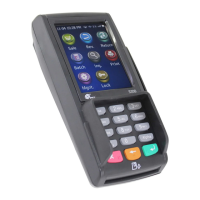
PAX D220 Quick Setup Guide
20180801 v1.1 6 PAX Technology®
support@pax.us
(877) 859-0099
www.pax.us
The terminal searches for Wi-Fi networks and
only displays local Wi-Fi networks that have the
SSID broadcast option enabled.
Use the Right and Left Arrows on the screen to
review and select the desired Wi-Fi network.
Select the Password option, input the case-
sensitive password and press the Enter button.
Use the X button on the screen to back out
of the options until you see the “Please Wait,
Wi-Fi Init…” message.
The terminal attempts to connect to the Wi-
Fi network. If the connection is successful, the
network icon at the top of the screen changes
to blue from gray and shows relative signal
strength.
If there is a connection error, the screen
displays, “Please wait Wi-Fi connecting failed”
and returns to the IDLE screen. The terminal
automatically tries to connect again every 30
seconds.
If you receive the connection error, ensure
you have the correct, case sensitive password
and that you are selecting the correct Wi-Fi
network.
Repeat Steps 1 through 6 in this section.
After selecting the Wi-Fi parameters option
(Step 6), use the Right Arrow on the screen,
navigate to and select the Switch Router
option.
The terminal searches for Wi-Fi networks.



 To Next Page