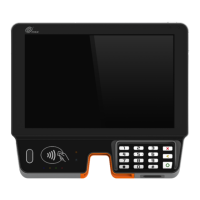
PAX D220 Quick Setup Guide
PAX Technology® 7 20180801 v1.1
support@pax.us
(877) 859-0099
www.pax.us
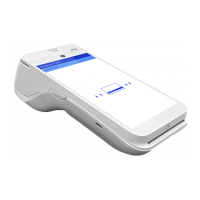
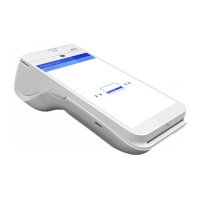
Use the Right and Left Arrows on the screen
to review and select the desired Wi-Fi network.
Select the Password option, input the case-
sensitive password and press the Enter button.
Wi-Fi Static IP Setup
(SSID Visible)
If you are required to setup a Wi-Fi connection with
a static IP and you know that the SSID is visible,
perform the steps in this section.
Before you begin configuration, ensure that you
have the correct network information; IP Address,
Subnet mask, Gateway ID, passwords, etc.
If you are required to setup a Wi-Fi connection with
a static IP and you know that the SSID is NOT
visible, perform the Steps in Section 8.1.2 Wi-Fi
Static IP Setup
(SSID Not Visible).
Perform Steps 1 through 6 as shown in Section
8.1 D220 Basic Wi-Fi Setup.
After selecting the Wi-Fi parameters option
(Step 6), use the Right Arrow on the screen,
navigate to and select the Switch Router
option.
The terminal searches for Wi-Fi networks.
Use the Right and Left Arrows on the screen to
review and select the desired Wi-Fi network.
Select the Password option, input the case-
sensitive password and press the Enter button.
Select the DHCP Type option and select Static.
Select the IP Address option, input the IP
Address, and press the “Enter” button.



 To Next Page