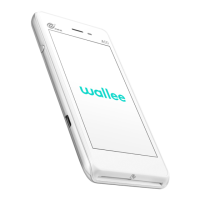
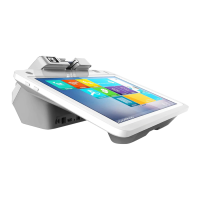
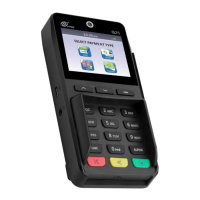
The PAX A77 is a versatile, touchscreen-enabled payment terminal designed for efficient transaction processing. It offers both Wi-Fi and 4G connectivity options, ensuring reliable operation in various environments. The device is compact and user-friendly, making it suitable for a wide range of businesses.
Function Description
The primary function of the PAX A77 is to process payments. It supports contactless transactions via a reader located on the back of the terminal, as well as magnetic swipe and chip card transactions. The device runs the POSitive app, which is the main interface for handling payments.
Key functions include:
- Transaction Processing: Facilitates sales, refunds, and other payment-related operations.
- Connectivity: Connects to the internet via Wi-Fi or a mobile network (4G) to authorize transactions.
- Receipt Management: Offers email receipt capabilities, as it does not have a built-in till roll holder. Both customer and merchant receipts can be emailed.
- User Management: Allows for multiple users/cashiers with individual login credentials and password management.
- Settings Configuration: Provides options to adjust display settings, brightness, and standby time.
Usage Features
The PAX A77 is designed for ease of use, with a touchscreen interface familiar to Android users.
Getting Started:
Upon receiving the terminal, users should:
- Set up in a convenient location: Choose a suitable spot for operation.
- Charge the terminal: Use the supplied charging cable and base unit. The charging port is a standard USB-C port located on the top of the terminal. It can be charged directly via a power source, PC, or in-vehicle charger, or by placing it on the base station.
- Connect to the internet: Establish a connection via Wi-Fi or a mobile network.
- Wi-Fi Connection:
- Tap the menu button in the top right corner of the home screen.
- Select "Wi-Fi Settings" from the pop-up menu.
- Choose the desired network from the list of available networks.
- Enter the password when prompted and press the 'connect' icon.
- The terminal will then connect to the network.
- Mobile Network Connection:
- Tap the menu button in the top right corner of the home screen.
- Select "Cellular Settings" from the pop-up menu.
- Choose "Select Network."
- Select the desired network from the list of available networks.
- The terminal will then connect to the network.
Note: The terminal automatically connects to the best mobile network available, but manual selection is an option.
- Log into the POSitive app: This involves entering a User ID and password.
- Initial Login: The default User ID is
1234, and the initial password is 0000. Users will be prompted to change the password upon first login for security.
- Error Handling: If there's no SIM card or no connected Wi-Fi, an "Error message - Comms Limited: No Wi-Fi or Active SIM Found. Operations will be limited." notification may appear. Users can dismiss this option.
- Perform a test transaction: It is recommended to conduct a small test transaction (e.g., 1p) with a personal card to ensure all systems are functioning correctly.
Operating the Terminal:
- Turning On: Press and hold the Power button (upper right-hand side) for 2-4 seconds. This button also serves as a Wake Up button when the terminal is in standby mode.
- Turning Off: Press and hold the Power button, then select "Power off" on the touchscreen.
- Navigation: The A77 is a touchscreen device, allowing users to navigate menus in a manner similar to other Android devices.
- Function Keys:
- Menu: Enters application menus from the Main Menu.
- DEL: Deletes one character. Pressing "Cancel" while in DEL mode deletes an entire line.
- CANCEL: Cancels a transaction.
- DONE: Confirms input or turns on the terminal.
- Power On/Off: The upper right-hand key on the side of the terminal.
Processing Payments:
- Once logged into the POSitive app, tap the "Payments" icon to proceed to the transaction screen.
- Users/cashiers must log in before processing transactions.
Email Receipts:
- After a transaction is approved or declined, the terminal will display a screen prompting for receipt options.
- Users can select "VIEW CARDHOLDER" or "VIEW MERCHANT" to see the receipt on screen.
- To send a customer receipt, select "MAIL CARDHOLDER" and enter the customer's email address.
- Press "DONE" to complete the process.
- The merchant copy of the receipt is always automatically emailed to the pre-loaded Merchant Address email and cannot be skipped.
- The reprint manager in the main menu allows viewing and emailing copies of both Merchant and Customer receipts if needed.
Maintenance Features
Proper care ensures the longevity and optimal performance of the PAX A77.
Cleaning:
- General Cleaning: Clean the terminal with a soft cloth. Avoid spilling liquids on the terminal or its base. Do not use water, harsh cleaning agents, or abrasive materials.
- Before Cleaning: Always turn off the terminal before cleaning.
- Card Readers: Regularly clean the magnetic swipe and chip card readers with a suitable cleaning card to maintain functionality.
Connectivity Management:
- Users can manage Wi-Fi and cellular network settings from the Home screen menu, ensuring continuous connectivity for transactions.
Password Management:
- Users are prompted to change their password upon first login, enhancing security. The option to save credentials is also available for convenience.
The PAX A77 is a robust and intuitive payment terminal designed to streamline transaction processes with its advanced connectivity and user-friendly interface.

 Need help?
 General

 To Next Page