Euronet Merchant Services Spain
1. Select "Sale"
2. Enter the amount
3. Press
4. Present or tap the card/phone (contactless
transaction)
5. Enter the number of installments (if
supported)
6. Press
7. The customer enters their PΙΝ (if required
and selects
8. Approval
9. Print the receipt
SALE
1. On the screen, the keyboard for
entering the tip amount is displayed below
the initial transaction amount
2. i. To enter a tip amount, enter the desired
amount and press
ii. For a transaction without a tip, press
without entering an amount
Continue with steps 6, 7, 8, 9 of "SALE"
Tip
Only “Sale” is allowed
through contactless
reader
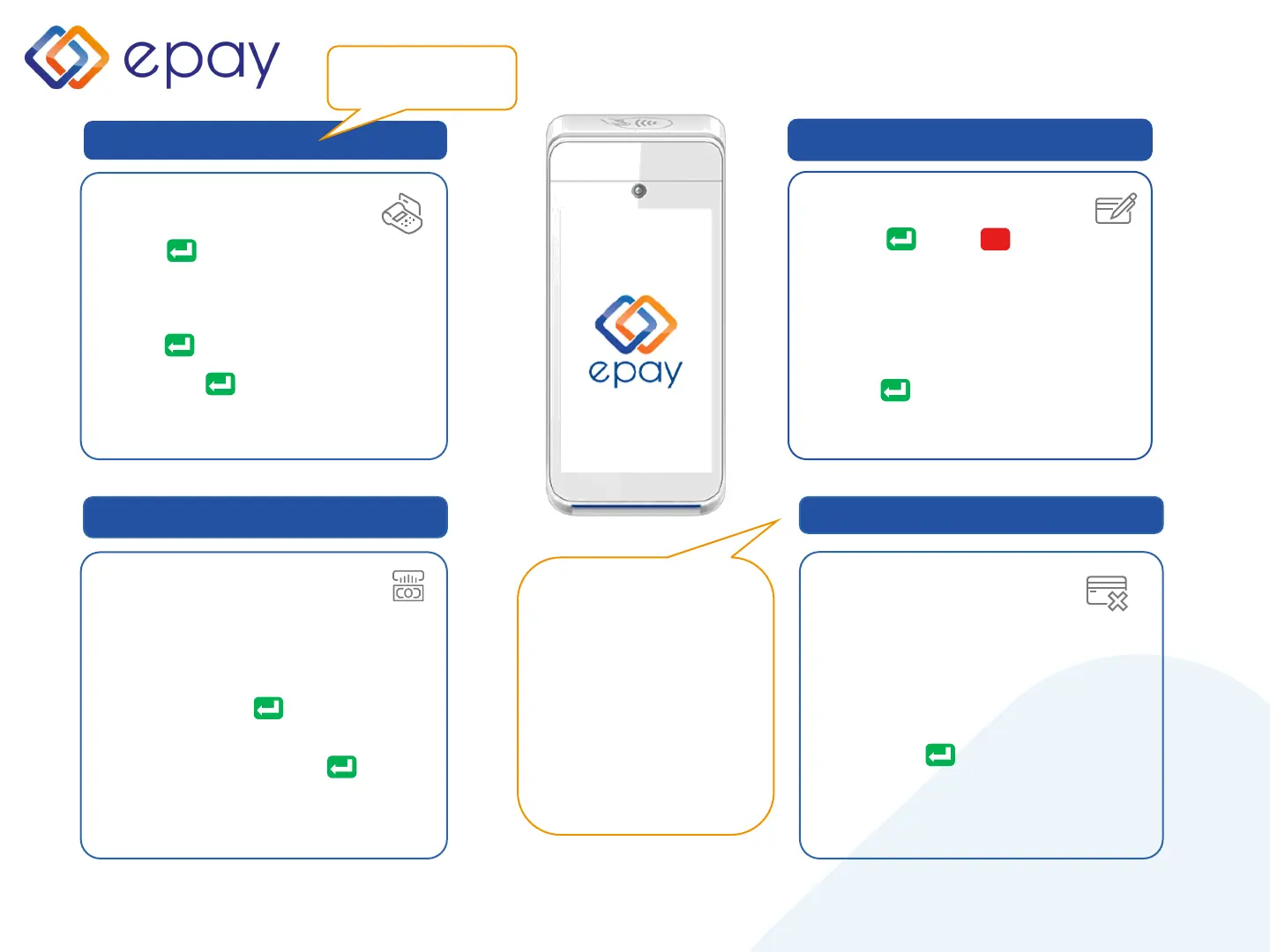
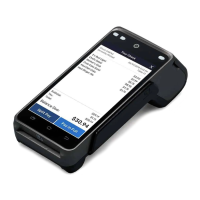
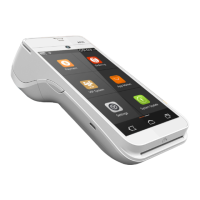
User Guide PAX A920 Pro
Cancellation (void) of a
contactless transaction can
be done for a Mastercard or
other non-VISA cards using
an alternative input method
(e.g., chip). However,
cancellation (void) of a
contactless VISA transaction
cannot be performed. You
will need to contact the
Business Support at +30 210
3898 954 for assistance.
1. "Signature Ok?" is displayed
2. Select =YES or =NO
If no option is chosen, it is considered
that the user has selected "YES"
If the user selects "NO" the transaction
will be canceled, and the message "NOT
APPROVED. SIGNATURE NOT ACCEPTED"
will be printed
3. Press to verify the signature
Continue with steps 4, 5, and 6 of “SALE”
Signature verification (contactless)
Χ
1. Select "Cancellation"
2. From the list of transactions displayed,
select the one you wish to cancel
3. Press "CANCEL“
4. Swipe the card or tap the card/phone (for
contactless transaction)
5. The customer enters their PIN (if required)
and selects
6. Obtain approval
7. Print the receipt
CANCELLATION
August 2023


 To Next Page