Euronet Merchant Services Spain
This applies if the specific
functionality has been activated
by epay.
Note:
During a chip transaction, do not remove the card before the transaction is
completed. During a contactless transaction, do not remove the card/phone
until the distinctive sound is heard.
1. Press the arrow that appears in
the upper left corner of the screen
2. Select "Transactions"
3. From the list of transactions displayed,
choose the transaction you wish to reprint
4. Press "REPRINT"
5. Print the receipt
REPRINTING
1. Press the arrow that appears
in the upper left corner of the screen
2. Select "Transactions"
3. Press the three vertical dots that appear in
the upper right corner of the screen
4. Choose:
• Print Last Transaction
• Detailed Print
• Summary Print
• Print Last Closure
5. Print the Receipt
REFERENCES
ATTENTION: This specific
procedure needs to be
performed on a daily basis.
1. Press the arrow that appears in
the upper left corner of the screen
2. Select "Close Package"
3. Print the receipt
PACKAGE DELIVERY
1. Select "Other Transactions"
2. Choose "Installments"
3. Enter the amount
4. Press
5. Enter the number of installments
6. Press
7. Swipe the card or tap the card/phone (for
contactless transaction)
8. The customer enters their PIN (if required)
and selects
9. Obtain approval
10. Print the receipt
INSTALLMENTS
1. Press the arrow that appears
in the upper left corner of the screen
2. Select "Communication Test"
3. Obtain approval
COMMUNICATION TEST
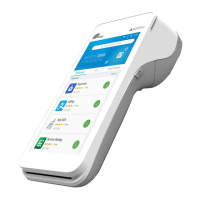
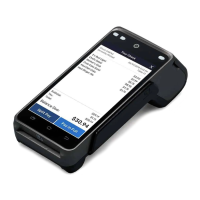
User Guide PAX A920 Pro
August 2023


 To Next Page