11
TO ORGANIZE SYMBOLS IN FOLDERS AND TO ADD
NEW SYMBOLS
You can arrange icons on the home screen in folders and add
a new application icon into it.
1. Tap on icon you would like to arrange in a folder.
Move it on another icon you wish to arrange a folder
with. A new folder will be created automatically.
2. Press and hold an app icon on the home screen to
activate the edit mode. Now you can move this icon
into the folder you created by releasing your finger.
NOTICE:
To delete the folder please refer to “Deleting
items from home screen” in this chapter.
RENAMING FOLDERS
1. Tap the folder to open it.
2. Press and hold the title bar to activate the edit mode.
3. Insert a new name and confirm with OK.
1.8 STATUS AND NOTIFICATION
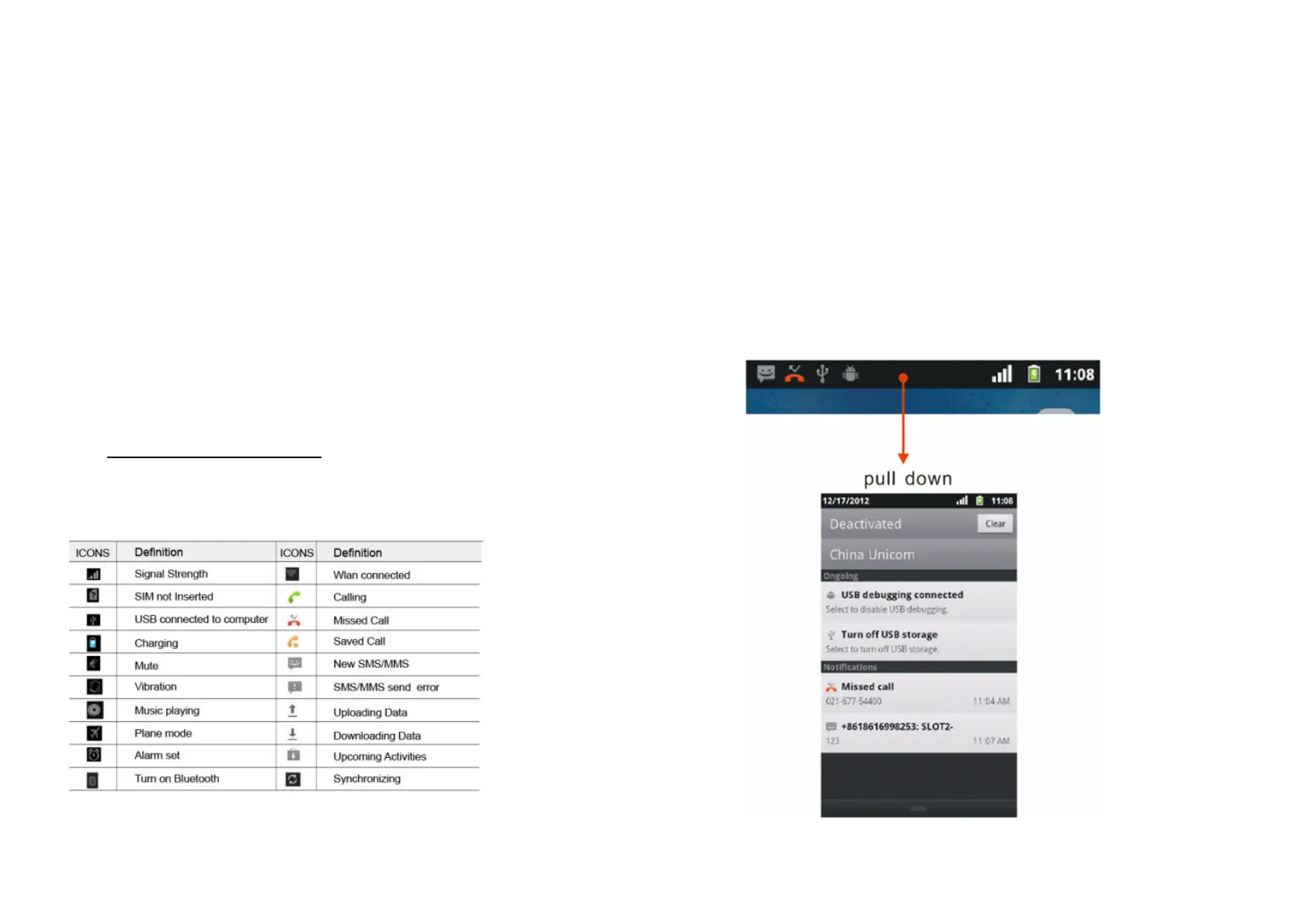
STATUS ICONS
The following are some of the status icons that you may see
on the phone:
NOTIFICATIONS
Notifications icons opens to display when recieving new
messages, set calendar events, clock or forwarded calls as
12
well as your current call status. You can enable the
notifications panel to get an information about your messages
or calendar events and check the carrier’s name.
OPEN NOTIFICATION PANEL
Seeing new notificaiton icon on the status bar, press and hold
the status bar and then slide your finger down to open up the
notification panel.
If there are many notfications just scroll down the screen to
see more notifications.


 To Next Page