24
Listen to music
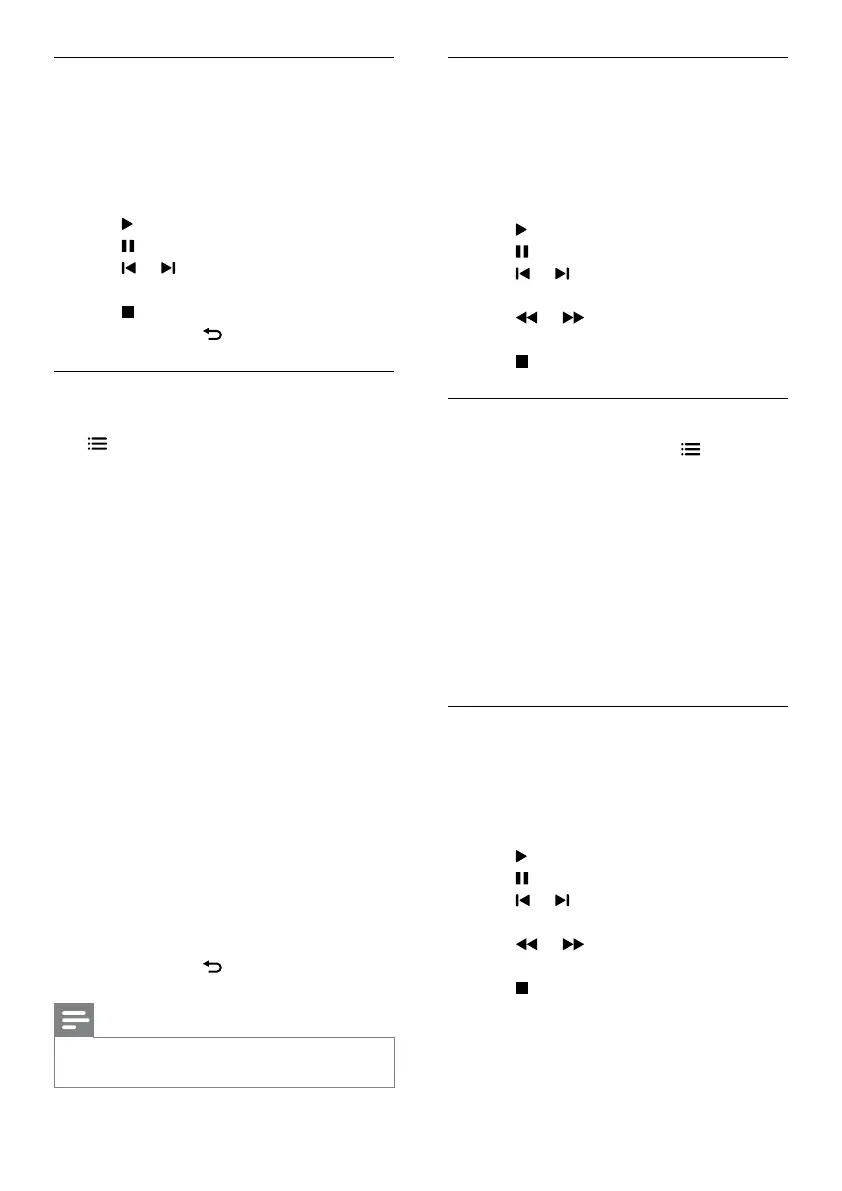
1 In the USB browser, select [Music], then
press OK.
2 Select a music track or album, then press
OK to play.
3 To control play, press the play buttons:
•
to play.
•
to pause.
•
or to play the previous or next
track.
•
or to search forward or
backward.
•
to stop.
Change music settings
• While you play music, press OPTIONS
to access one of the following settings,
then press OK.
• [Stop playback] / [Start playback]:
Stop or start music play.
• [Repeat] / [Play once]: Play repeatedly
or once.
• [Shufe on] / [Shufe off] : Play
sequence or at random.
• [Show info]: Display the le name.
• [Sound]: Select a smart sound setting.
Watch video
1 In the USB browser, select [Video], then
press OK.
2 Press OK to play.
3 To control play, press the play buttons:
•
to play.
•
to pause.
•
or to play the previous or next
video.
•
or to search forward or
backward.
•
to stop.
View a slide show of your photos
1 When a full screen image of a photo is
displayed, press OK.
» A slide show begins from the selected
photo.
• Press the following buttons to control play:
•
to play.
•
to pause.
•
or to play the previous or next
photo.
•
to stop.
• To return, press
.
Change slide show settings
1 While you view a slide show, press
OPTIONS.
» The slide show options menu is
displayed.
2 Select one of the following, then press OK.
• [Start/stop slideshow]: If available,
stop music.
• [Slideshow transitions]: Set the
transition from one picture to the
next.
• [Slideshow frequency]: Select the
display time for each photo.
• [Repeat] / [Play once]: Play the
repeatedly or once.
• [Shufe on] / [Shufe off]: Play the
photos in the slideshow at random or
sequentially.
• [Rotate image]: Rotate photo.
• [Set as Scenea]: Set the selected
picture as the TV wallpaper (see ‘View
Scenea’ on page 22).
• [Show info]: Display the picture name,
date, size and next picture in the slide
show.
3 To return, press .
Note
•
[Rotate image], [Show info], and [Set as Scenea]
appear only when the slideshow is paused.
EN







 To Next Page