25
English
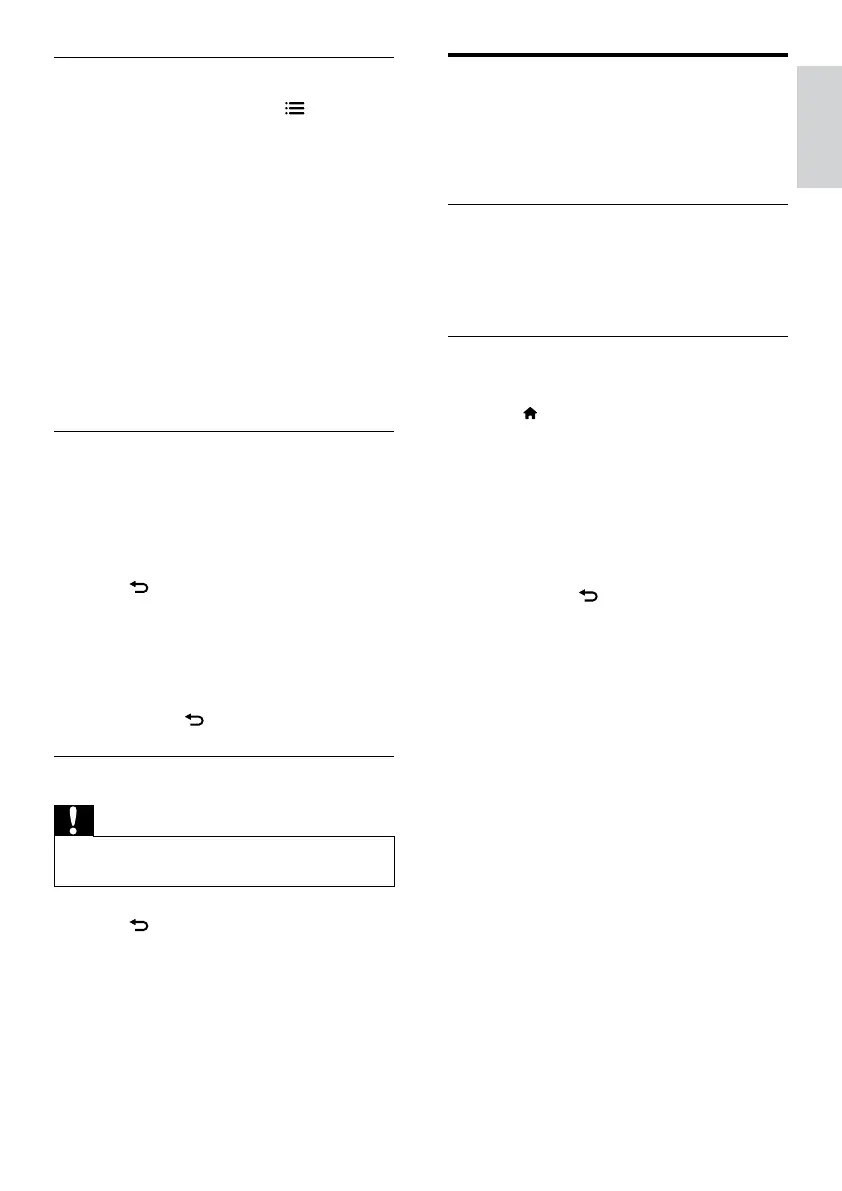
Update the TV software
Philips continuously tries to improve its
products and we recommend that you update
the TV software when updates are available.
Update with a USB device
To update with a USB storage device, you need:
• A computer with Internet access
• A USB storage device.
Step 1: Check the current software
version
1 Press .
2 Select [Setup] > [Software settings] >
[Current software info].
» The current software information is
displayed.
3 Write down the software version number.
4 To return, press OK.
5 To exit, press .
Change video settings
1 While you play video, press OPTIONS
to access one of the following settings,
then press OK.
• [Stop playback] / [Start playback]:
Stop or start video play.
• [Repeat] / [Play once]: Play repeatedly
or once.
• [Shufe on] / [Shufe off]: Play at
random or sequentially.
• [Small Screen] / [Full Screen]: If
available, show video in its original
(native) size, or expand it to t the full
screen.
• [Show info]: Display the le name.
View a slide show with music
You can view picture slide show with
background music.
1 Select an album of songs.
2 Press OK.
3 Press to return to USB content
browser.
4 Select an album of pictures.
5 Press OK.
» The slideshow begins.
6 To exit, press .
Disconnect a USB storage device
Caution
•
Follow this procedure to avoid damage to your USB
storage device.
1 Press to exit the USB browser.
2 Wait for ve seconds, then disconnect the
USB storage device.
EN



 To Next Page