10
Use of the remote control
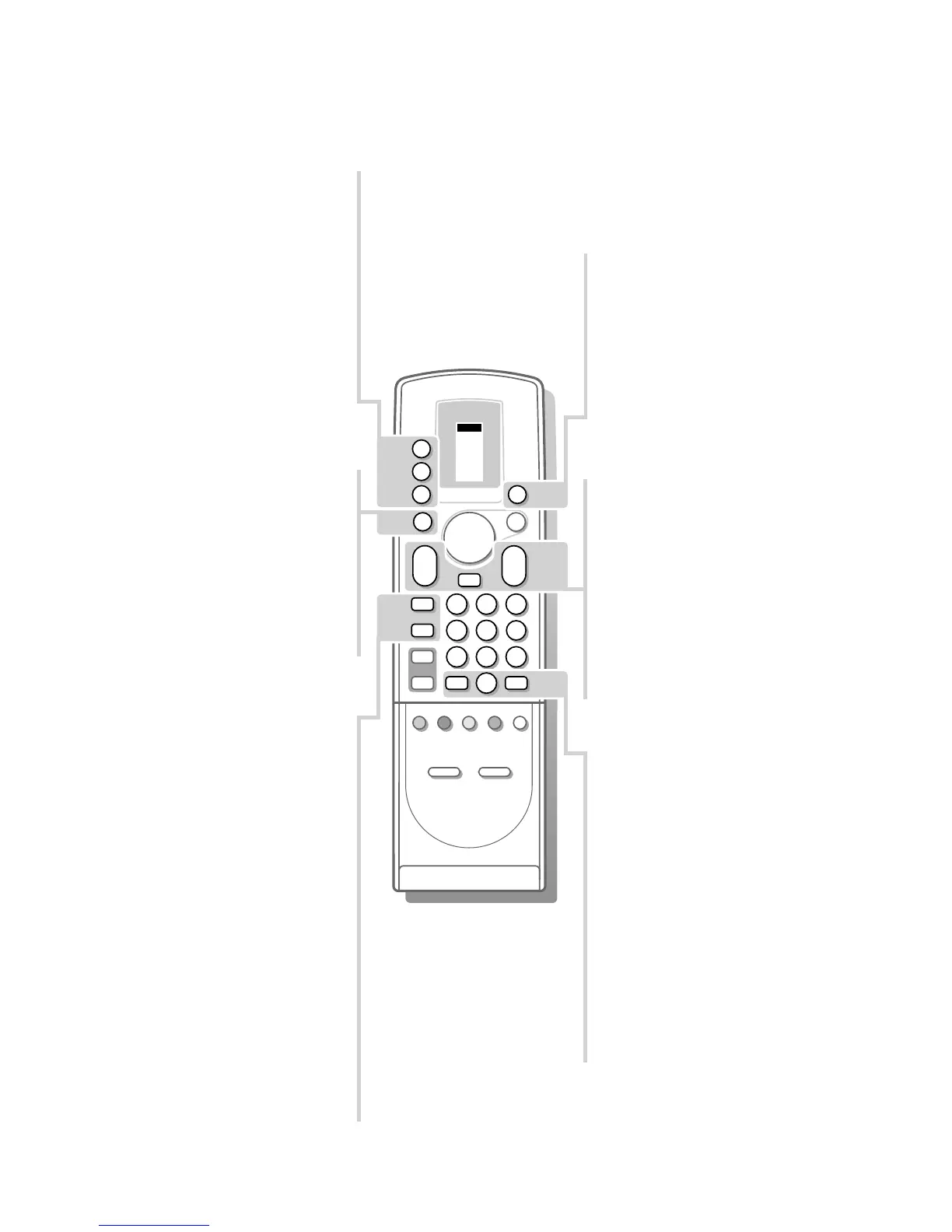
P Programme selection
To browse through the TV channels activated
in the Favourite Programme menu. See p. 7.
V Volume
The volume is adjusted. If you want to store
the volume adjustment in the memory, see
the Features menu, Store PP, p. 15 to store
the same volume adjustment for all the
stored TV channels.
¬ Mute key
Temporarily interrupt the sound or restore it.
0/9 Digit keys
To select a TV channel.
For a two digit programme number, enter the
second digit within 2 seconds.
0 Previous programme
The previously selected TV channel is
displayed.
i Screen information
Press for 5 seconds to activate/de-activate
extended or reduced display of TV channel
and programme information on the screen.
Press briefly to display information about the
selected TV channel and programme, the
sound reception, the selected DNR setting
and picture format and the remaining time set
with the sleeptimer.
VCR 1
VCR 2
SAT
AMP
TUNER
TAPE
DCC
CD
TV
π
π
π
π
OK
M
u
TV
b
æ
q
b
B
1
23
456
789
PICTURE
SOUND
SMART
+
-
V
P
+
-
¬
0
i
0
ZOOM
Zoom
Press the
ZOOM key repeatedly to select one
of the zoom magnifications (x1, x4, x9, x16).
Additionally you can shift the selected zoom
window over the screen with the A keys.
The zoom window is reset after: selecting
another TV channel, another picture format
or when another picture format is selected
automatically, or the dual screen mode.
Zooming is disabled in Dual screen mode.
Dynamic Contrast is disabled when zoom is
active.
b Dual Screen See p. 17
q Picture format
Press this key repeatedly to select another
picture format: 4:3, Movie Expand 14:9,
Movie Expand 16:9 with or without subtitling,
Wide Screen, Automatic (in case Auto
Format Yes has been selected in the
SETUP
menu) or Super Zoom,
When in Movie Expand 14:9 or 16:9 picture
format you can make subtitles visible with the
o or œ keys.
When the broadcaster transmits PALplus
signals, the Movie Expand 16:9 picture format
is selected automatically.
(In case of PALplus transmission, the set also
reproduces PALplus quality.)
Sometimes video recorders or TV
programmes carry special signals which will
automatically switch the TV to the correct
screen format.
Selecting Auto format, the screen will be
filled as much as possible with the picture in
case of no PALplus transmission or when TV
programmes are not carrying special signals
detecting the correct screen format.
Auto format is disabled when in Dual Screen.
u Select peripherals
Press this key repeatedly to select
EXT1,
EXT2, EXT3 or FRONT, according to where
you connected your peripherals (see p. 27).
M Mode selection
Press this key repeatedly to indicate the
peripheral equipment you want to operate
with the remote control.
TV TV operation
Press this key to use the remote control
directly in the TV mode
B Standby
The set is switched off and the red indicator
(red and green in the case of
NEXTVIEW info
acquisition) lights up.
In case of
NEXTVIEW acquisition the TV is
switched to full standby after about 30 min.
and the red indicator lights up.
To switch the TV on again, press - P + or the
digit keys.
3104 305 34730.5.gb 28-05-1999 11:07 Pagina 10





 To Next Page