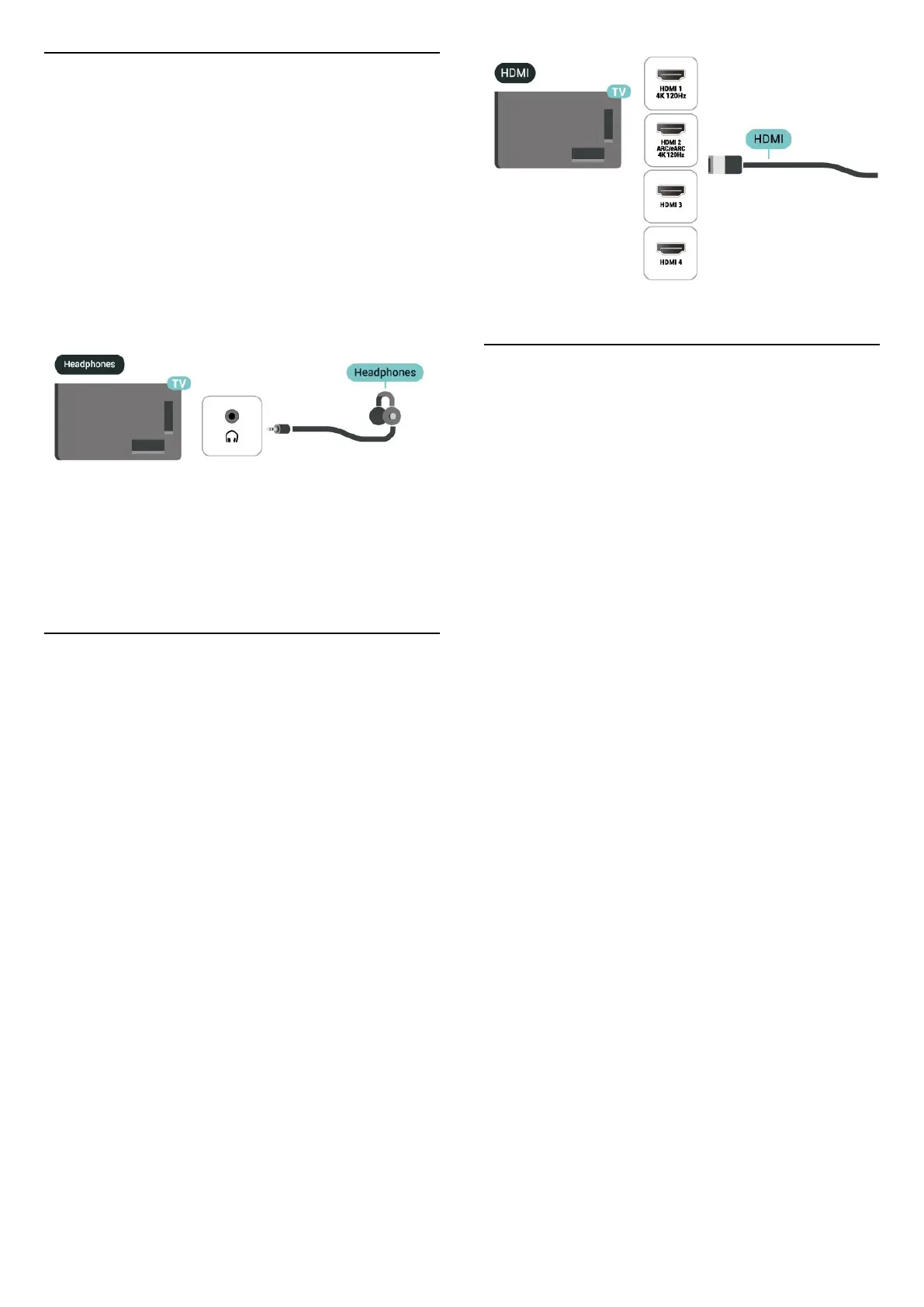
9.6. Headphones
You can connect a set of headphones to
the connection on the back of the TV. The connection
is a mini-jack 3.5mm. You can adjust the volume of the
headphones separately.
To adjust the volume:
1 - Press Volume, select the headphones icon by
arrows (left) or (right).
2 - Press the arrows (up) or (down) to adjust the
volume.
9.7. Game Console
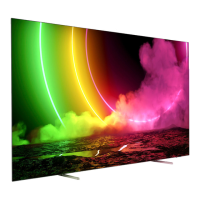
HDMI
For best quality, connect the game console with an Ultra
High speed HDMI cable to the HDMI 1 or HDMI 2 on TV.
If external audio system with HDMI ARC/eARC support is
used together with TV and game console, recommended
connection is: connecting game console device’s HDMI
output to TV HDMI 1 port and connecting TV HDMI 2 to
external audio system’s HDMI input with another Ultra
high speed HDMI cable. To have best gaming audio
effect matching video, you can set TV Audio output to
Multichannel (bypass) here: Settings > Display and
sound > Audio output > Digital out format.
9.8. USB Keyboard
Connect
Connect a USB keyboard (USB-HID type) to enter text on
your TV.
Use one of the USB connections to connect.
Configure
Install the keyboard
To install the USB keyboard, switch on the TV and
connect the USB keyboard to one of the USB connections
on the TV. When the TV detects the keyboard for the first
time, you can select your keyboard lay-out and test your
selection. If you select a Cyrillic or Greek keyboard layout
first, you can select a secondary Latin keyboard layout.
To change the keyboard layout setting when a layout
was selected:
1 - Select Settings > System > Keyboard.
2 - Select USB Keyboard Settings, and press OK to start
the keyboard setup.
Special Keys
Keys for entering text
• Enter key = OK
• Backspace = delete character before cursor
• Arrow keys = navigate within a text field
• To switch between keyboard layouts, if a secondary
layout is set, press the Ctrl + Spacebar keys
simultaneously.
Keys for apps and Internet pages
• Tab and Shift + Tab = Next and Previous
• Home = scroll to the top of the page
• End = scroll to the bottom of the page
28





 To Next Page