65BDL6005X
34
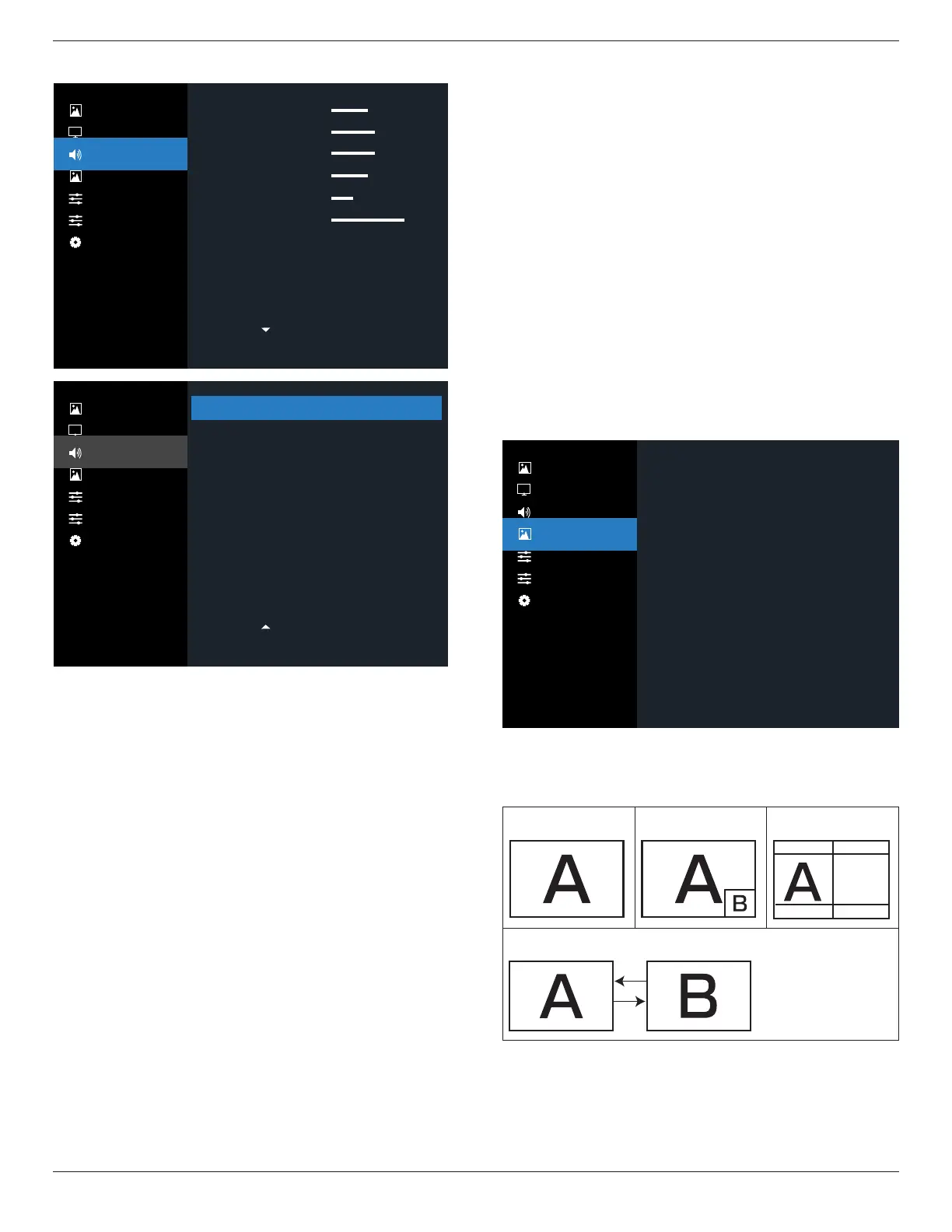
6.2.3. Audio menu
Off
On
Off
50
60
60
50
30
100
0
Balance
Treble
Bass
Volume
Audio out (line out)
Maximum volume
Minimum volume
Mute
Speaker
Sync. Volume
Digital
Digital
Action
Audio source
OPS audio
Audio reset
Picture
Screen
Audio
PIP
Configuration 1
Configuration 2
Advanced Option
Picture
Screen
Audio
PIP
Configuration 1
Configuration 2
Advanced Option
Balance
Adjust to emphasize left or right audio output balance.
Treble
Adjust to increase or decrease higher-pitched sounds.
Bass
Adjust to increase or decrease lower-pitched sounds.
Volume
Adjust to increase or decrease the audio output level.
Audio out (line out)
Adjust to increase or decrease line out output level.
Maximum volume
Adjust your own limitation for the maximum volume setting.
This stops the volume from being played too loudly.
Minimum volume
Adjust your own limitation for the minimum volume setting.
Mute
Turn the mute function on/o.
Speaker
Turn the internal speaker on/o.
NOTE: This function is only available when “Audio Out Sync”
is on.
Sync. Volume
Enable/disable audio out (line out) volume adjustability to
sync with internal speakers volume, but PD Internal speaker
sound will be forced to be mute.
Audio source
Select the audio input source.
Analog: audio from audio input
Digital : audio from HDMI/DVI audio.
DisplyPort: audio from DP.
OPS Audio
Select OPS audio from:
• {Digital}-(Default)
• {Analog}
*OPS model only.
Audio reset
Reset all settings in the Audio menu to factory preset values.
6.2.4. PIP menu
Picture
Screen
Audio
PIP
Configuration 1
Configuration 2
Advanced Option
Off
Small
Bottom-Right
Action
VGA
Main
Action
Sub mode
PIP size
PIP positon
PIP change
PIP source
PIP audio
PIP reset
Sub mode
Select the sub mode.
Choose from: {O} / {PIP} / {PBP} / {Quick swap}.
O PIP PBP 2Win
Sub Win1
Input
Quick swap
Switch main on top
or sub on top.
PIP size
Select the size of the sub picture in the PIP (Picture-in-Picture)
mode.
Choose from: {Small} / {Medium} / {Large}.


 To Next Page