65BDL6005X
38
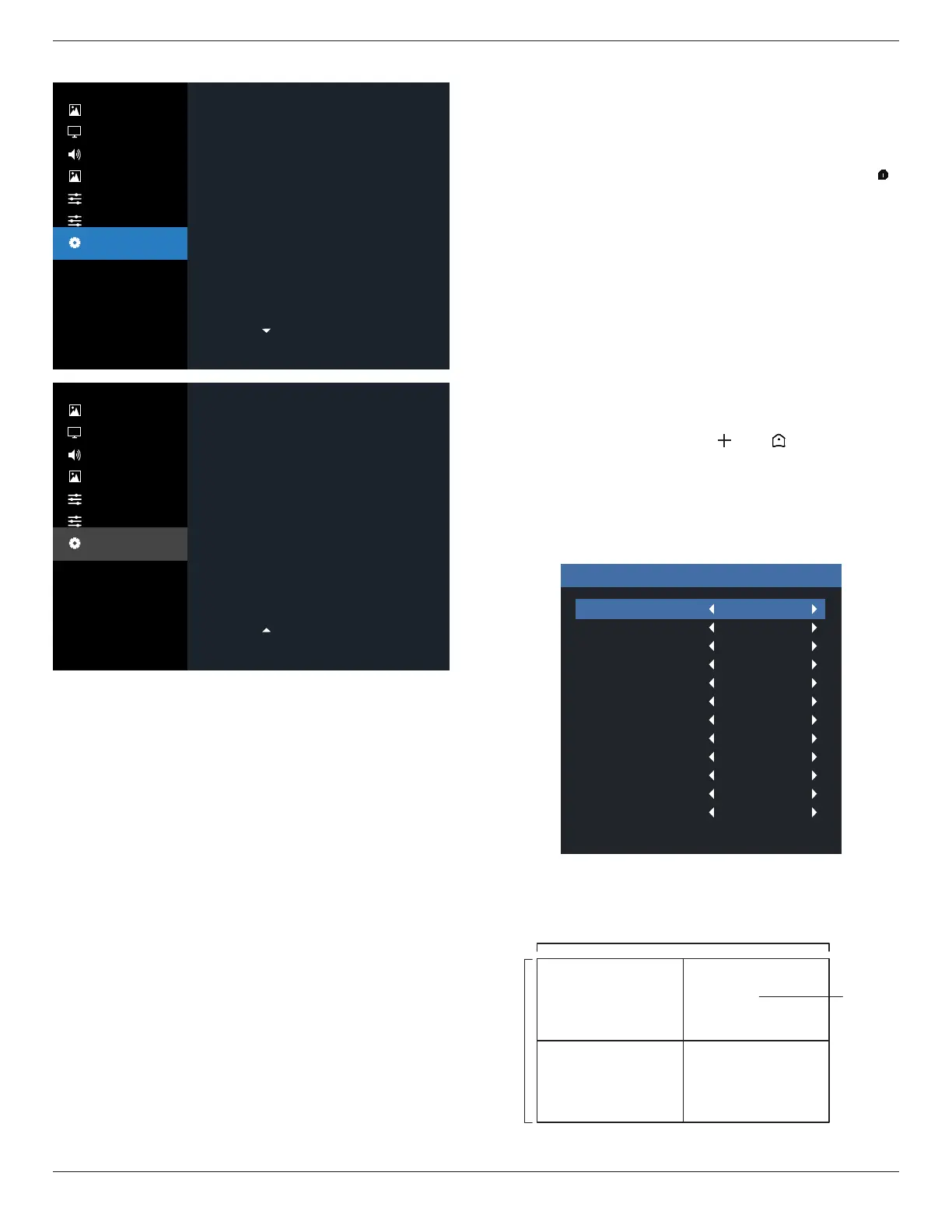
6.2.7. Advanced option menu
Picture
Screen
Audio
PIP
Configuration 1
Configuration 2
Advanced Option
Auto
Action
Action
Action
Off
Action
Action
Off
Action
Action
Input resolution
IR control
Keypad control
Tiling
Off timer
Date and time
Schedule
HDMI with One Wire
Auto Signal Detection
Power Save
Picture
Screen
Audio
PIP
Configuration 1
Configuration 2
Advanced Option
Action
20 Sec.
Auto
Action
Scalar FW Update
Information OSD
OPS settings
Advanced option reset
Input resolution
Set the resolution of the VGA input. This is only required
when the display is unable to detect the VGA input
resolution correctly.
NOTE: This item is functional for VGA input only.
The options are:
• {1024x768 / 1280x768 / 1360x768 / 1366x768}
• {1400x1050 / 1680x1050}
• {1600x1200 / 1920x1200}
• {Auto}: Determines the resolution automatically.
The selected settings will become eective after turning o
the power and turning it on again.
IR control
Select the operation mode of the remote control when
multiple displays are connected via an RS232 connection.
• {Normal} - All displays can be operated normally by the
remote control unit.
• {Primary} - Designate this display as the primary display
for remote control operation. Only this display can be
operated by the remote control. (In primary mode, IR key
will always be processed regardless the monitor id/group
settings).
• {Secondary} - Designate this display as the secondary
display. This display can not be operated by the remote
control, and will only receive the control signal from the
primary display via the RS232 connection.
• {Lock All} / {Lock all but Volume} / {Lock all but Power}
/ {Lock all except PWR & VOL}- Lock the remote control
function of this display. To unlock, press and hold the [ ]
INFO button on the remote control for 6 (six) seconds.
NOTE
:
If secondary PD is set {Normal}, it always receive IR
control signal from primary PD.
Keyboard control
Choose to enable or disable the display keyboard (control
buttons) function.
• {Unlock} - Enable the keyboard function.
• {Lock All} / {Lock all but Volume} / {Lock all but Power}
/ {Lock all except PWR & VOL} - Disable the keyboard
function.
NOTE: “Keyboard Control Lock Mode” This function
completely disables the access to all Keyboard
Control functions. To enable or disable the keyboard
control lock, press both [ ] and [ ] buttons and
hold down continuously for more than 3 seconds.
Tiling
With this function you can create a single large-screen matrix
(video wall) that consists of up to 225 sets of this display (up
to 15-sets on the vertical and 15-sets on the horizontal sides).
This function requires a daisy-chain connection.
Tiling
H monitors
V monitors
Position
Frame Comp.Top
Frame Comp. Bottom
Frame Comp. Left
Frame Comp. Right
Frame Comp.
Enable
Switch on delay
Brightness
Output Content
1
1
1
0
0
0
0
Off
Off
Off
Normal
Current Video
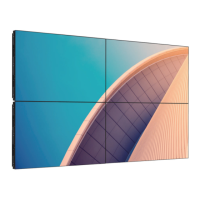
Example: 2 x 2 screen matrix (4 displays)
H monitors = 2 displays
V monitors = 2 displays
1 2
3 4
H monitors
V monitors
Position











 To Next Page