65BDL6005X
37
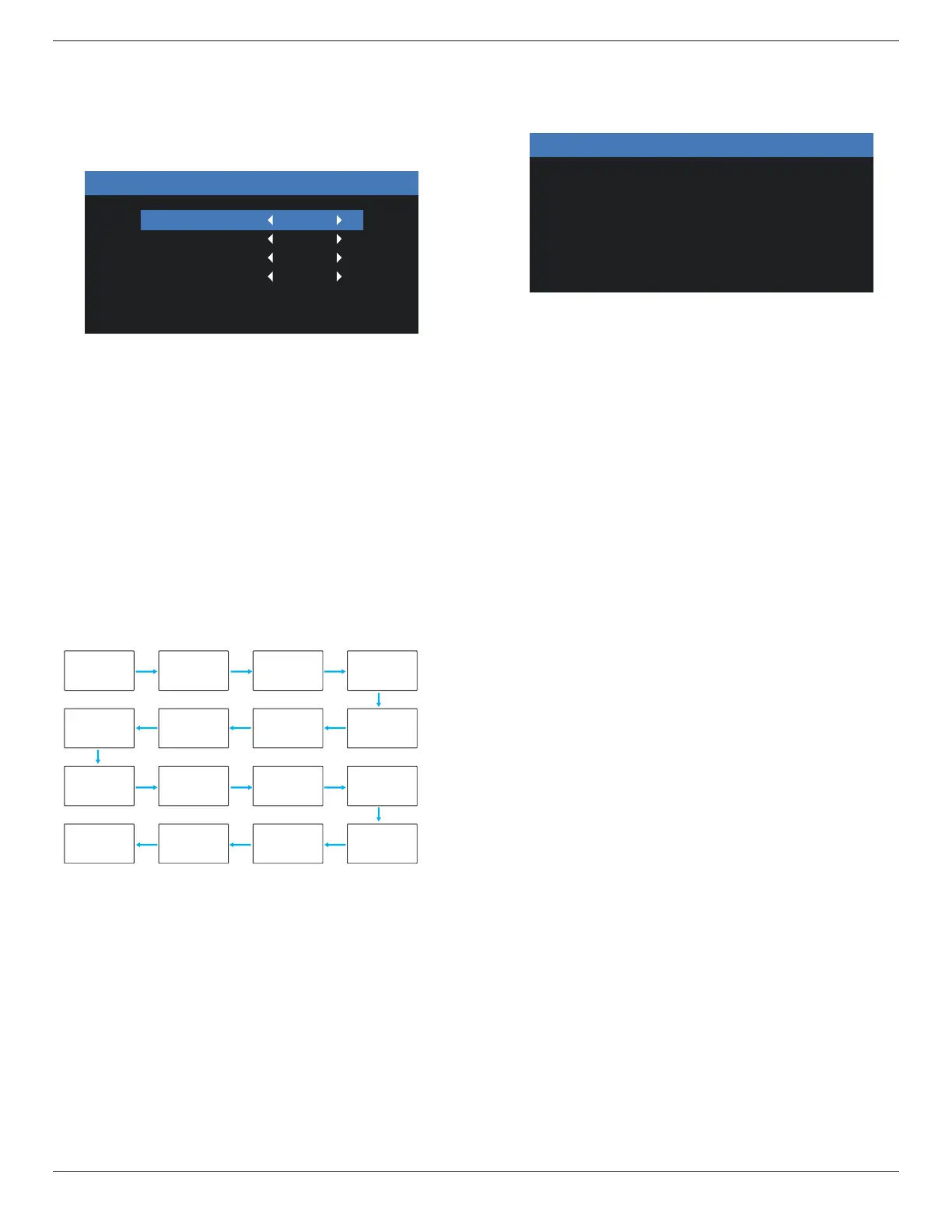
Monitor ID
Set the ID number for controlling the display via the RS232
connection. Each display must have a unique ID number
when multiple sets of this display are connected. Monitor ID
number range is between 1 to 255.
The option are: {Monitor group} / {Tiling matrix} / {Auto ID}
Monitor ID
Monitor ID
Monitor group
Tiling matrix
Auto ID
1
1
1
End
• {Monitor group}
• The options are: {O} / {1-254}
• {O} – {Monitor group} are not supported.
• {1-254} – {Monitor group} are supported. The default
setting is 1.
• {Tiling matrix}
Refer to the following example for tiling matrix sets as 4:
Note that a splitter or signal extension may be required
depending on the number of display installed or other
conditions. Please consult your service agent for detail
instructions on installation.
• Tiling matrix number range is between 1 to 15. 1 is
default setting. The {Auto ID} setup function enables
setting up {Monitor ID} of connected machine according
to {Tiling matrix} settings.
Example: Tiling matrix sets as 4
1 2
5 6
3
4
7 8
9 10 11 12
13 14 15 16
• {Auto ID}
The option are: {Start} / {End}. The default is {End}.
• Switch to Start option to set up IDs of machines
backward from current one.
• Once the setup is completed, the option exits to End
automatically.
• To use this function, serial connect all machines with
RS-232 cable and set their Control ports to RS-232
too.
Heat status
This function allows you to check the thermal status at any
time.
Monitor information
Shows information about your display, including model
number, serial number, operating hours and software
version.
Monitor information
Model name
Serial NO
Operator hours
SW Version
XXXXXX
XXXXXX
XXXXXX
XXXXXX
DP version
DisplayPort support mode.
The options are:
• {DP 1.1} (Default) : DP 1.1 single stream(clone mode)
• {DP 1.2}: DP 1.2
*NOTE:
1. The DP version must be set the same for all daisy chain
displays.
2. For 3840x2160, the dot clock timing should be 533MHz.
3. DP 1.1 not support 4K/60Hz timing.
HDMI EDID
Switch HDMI EDID type: {HDMI 1.4}, {HDMI 2.0}.
OSD rotation
Set the rotation of OSD.
Language
Select the language used in the OSD menu.
The options are: English/Français/Deutsch/Español/Italiano/
简体中文
/
繁體中文
/Português/
日本語
.
Scan Inversion
ON: Turn on scan data inversion function of Panel
OFF: Turn o this function
Default: O
Conguration2 reset
Reset all settings in Conguration2 menu to the factory
preset values.






 To Next Page