BDL5590VL
20
4.5. Play options
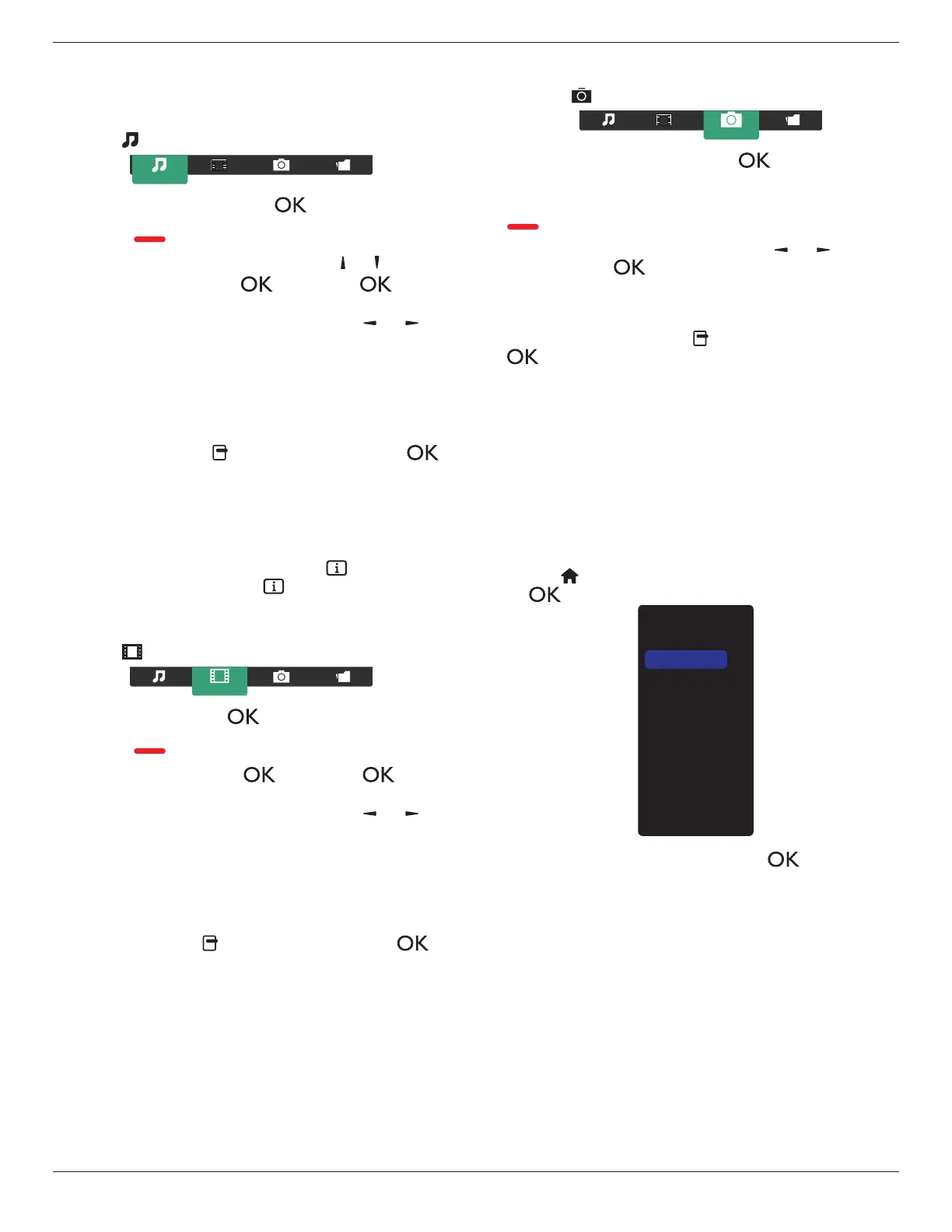
4.5.1. Playing music files
1. Choose
Music
inthetopbar.
2. Chooseonemusictrack,andpress[ ]button.
• Toplayallthetracksinafolder,chooseonemusicle.Then,
press[ ] to
Play All
.
• Toskiptothenextorprevioustrack,press[ ] or [ ]button.
• Topausethetrack,press[ ]button.Press[ ]button
againtoresumeplayback.
•
Toskipbackwardorforward10seconds,press[ ]or[ ]
button.
• Tosearchbackwardorforward,press[
G
]
or
[
J
]button,
pressrepeatedlytotogglebetweendifferentspeeds.
• Tostopthemusic,press[
H
]button.
Music options
Whileyouplaymusic,press[ ] OPTIONS button,thenpress[ ]
buttontochooseanoption:
• {Shufe}:Enableordisablerandomplayoftracks.
• {Repeat}:Choose{Repeat}toplayatrackoranalbumrepeatedly,
orchoose{Play once}toplayatrackonce.
NOTE: Toviewinformationaboutasong(forexample,title,artistor
duration),choosethesong,thenpress[ ] INFObutton.To
hidetheinformation,press[ ] INFO buttonagain.
4.5.2. Playing movie files
1. Choose
Movie
inthetopbar.
2. Chooseavideo,andpress[ ]button.
• Toplayallthevideosinafolder,chooseonevideole.Then,
press[ ] to
Play All
.
• Topausethevideo,press[ ]button.Press[ ]button
againtoresumeplayback.
•
Toskipbackwardorforward10seconds,press[ ]or[ ]
button.
• Tosearchbackwardorforward,press[
G
]
or
[
J
]button,
pressrepeatedlytotogglebetweendifferentspeeds.
• Tostopthevideo,press[
H
]button.
Movie options
Whileplayingvideo,press[ ] OPTIONSbutton,thenpress[ ]
buttontochooseanoption:
• {Subtitles}:Choosetheavailablesubtitlesettings.
• {Subtitle language}:Choosethelanguageforsubtitlesifavailable.
• {Shufe}:Enableordisablerandomplayofvideoles.
• {Repeat}:Choose{Repeat}toplaythevideolerepeatedlyor
{Playonce}toplaythevideoleonce.
• {Status}:Toviewinformationaboutavideo(forexample,played
position,duration,title,ordate).
4.5.3. Playing photo files
1. Choose
Photo
inthetopbar.
2. Chooseaphotothumbnail,thenpress ]button.
Start a slideshow
Iftherearemultiplephotosinafolder,chooseaphoto.Then,press
[ ] to
Play All
.
•
Toskiptothepreviousornextphoto,press[ ]or[ ]button,
andthenpress[ ]button.
• Tostoptheslideshow,press[
H
]button.
Slideshow options
Whileyouplayaslideshow,press[ ] OPTIONSbutton,thenpress
[ ]buttontochooseanoption:
• {Shufe}:Enableordisablerandomdisplayofpicturesinthe
slideshow.
• {Repeat}:Choose{Repeat}towatchaslideshowrepeatedlyor
{Play once}towatchonce.
• {Slideshow Time}:Choosethedisplayingtimeforeachphotointhe
slideshow.
• {Slideshow Transitions}:Choosethetransitionfromonephototo
thenext.
4.6. How to use Opera browser (HTML5)
1. Press[ ] HOMEbutton,andchoose
Internet
andpress
[ ] button.
USB
Network
Internet
SmartCMS
CVBS
YPbPr
VGA
HDMI 1
HDMI 2
DVI-D
Display Port
Card OPS
2. MovethecursortoURLaddressbar.Press[ ] buttonandit
willpopouttheon-screenkeyboard.Youcanmovethecursorto
entertheURLaddress.AfternishingtheURLaddress,choose
Done
.








 To Next Page