BDL5590VL
23
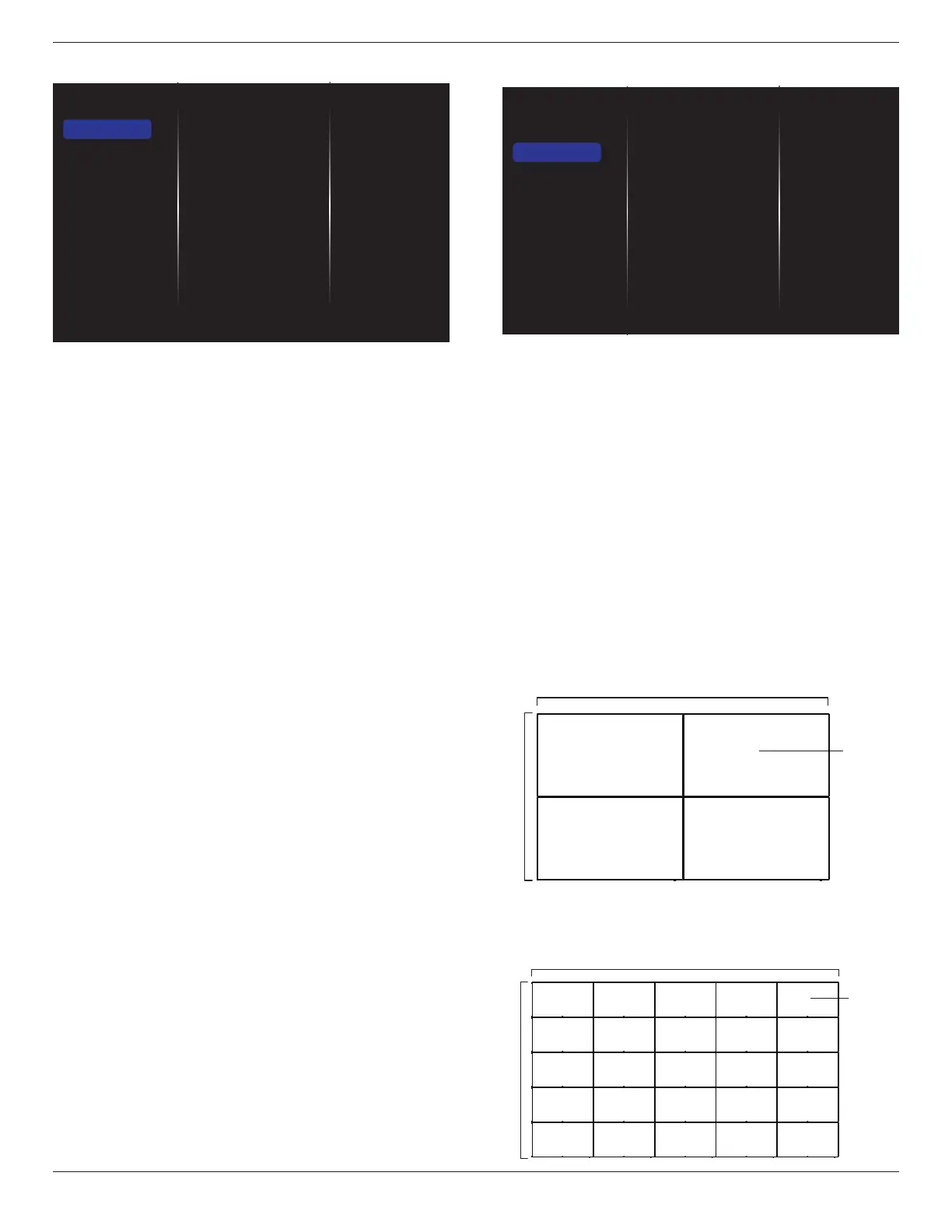
5.1.2. Sound
Sound style
Bass
Treble
Balance
Volume
Minimum volume
Maximum volume
Surround mode
Audio out (line out)
Advanced
Sync. Volume
Sound reset
Picture
Sound
Tiling
Network
Storage
General settings
Adv.
Sound style
Accesspredenedsoundsettings.
Bass
Adjusttoincreaseordecreaselower-pitchedsounds.
Treble
Adjusttoincreaseordecreasehigher-pitchedsounds.
Balance
Adjusttoemphasizeleftorrightaudiooutputbalance.
Volume
Adjusttoincreaseordecreasethevolume.
Minimum volume
SettheMinimumvolume.
Maximum volume
SettheMaximumvolume.
Surround mode
Setsurroundeffectsforaudioperformance.
Audio out (line out)
Adjustaudiooutputvolume.
Advanced
Accessadvancedsettingstoenhanceyouraudioexperience.
• {Auto volume leveling}:Enablethereductionofsuddenvolume
changes.
• {Speaker settings}:Turnonorofftheinternalspeakers.
• {Clear sound}:Enhancesoundquality.
• {Audio out format}:Choosethetypeofaudiooutputthrough
thedigitalaudiooutputconnector.(HDMIonly)
• {Audio out delay}:Automaticallysynctheimageonthisdisplay
totheaudiofromaconnectedhometheatre.
• {Audio out offset}:Adjustthesettingforaudiooutputdelay.
Availableif{Audio out delay}isswitchedon.
Sync. Volume
Chooseto{On}or{Off}theSync.Volumefunction.Set{On}to
synchronizethevolumeofinternalspeakerandline-out.Set{Off}to
adjustthevolumeofinternalspeakerandline-out,respectively.
Sound reset
Resettodefaultsetting.
5.1.3. Tiling
Enable
H monitors
V monitors
Position
Frame comp.
Switch on delay
Auto ID.
Picture
Sound
Tiling
Network
Storage
General settings
Adv.
Withthisfunctionyoucancreateasinglelarge-screenmatrix(video
wall)thatconsistsofupto225setsofthisdisplay(up to 15-sets on the
vertical and 15-sets on the horizontal sides).
Enable
Chooseto{On}or{Off}theTilingfunction.If{On},thedisplaywill
applythesettingsin{H monitors},{V monitors},{Position},and
{Frame comp.}.
H monitors
Adjustdisplaysonthehorizontalside.
V monitors
Adjustdisplaysontheverticalside.
Position
Adjustthepositionofthisdisplayinthescreenmatrix.
Example: 2 x 2 screen matrix (4 displays)
Hmonitors=2displays
Vmonitors=2displays
1 2
3 4
H monitors
V monitors
Position
Example: 5 x 5 screen matrix (25 displays)
Hmonitors=5displays
Vmonitors=5displays
1 2
6 7
3 4
8 9
5
10
11 12 13 14 15
16 17 18 19 20
21 22 23 24 25
H monitors
V monitors
Position





 To Next Page