BDL5590VL
22
5. Change your settings
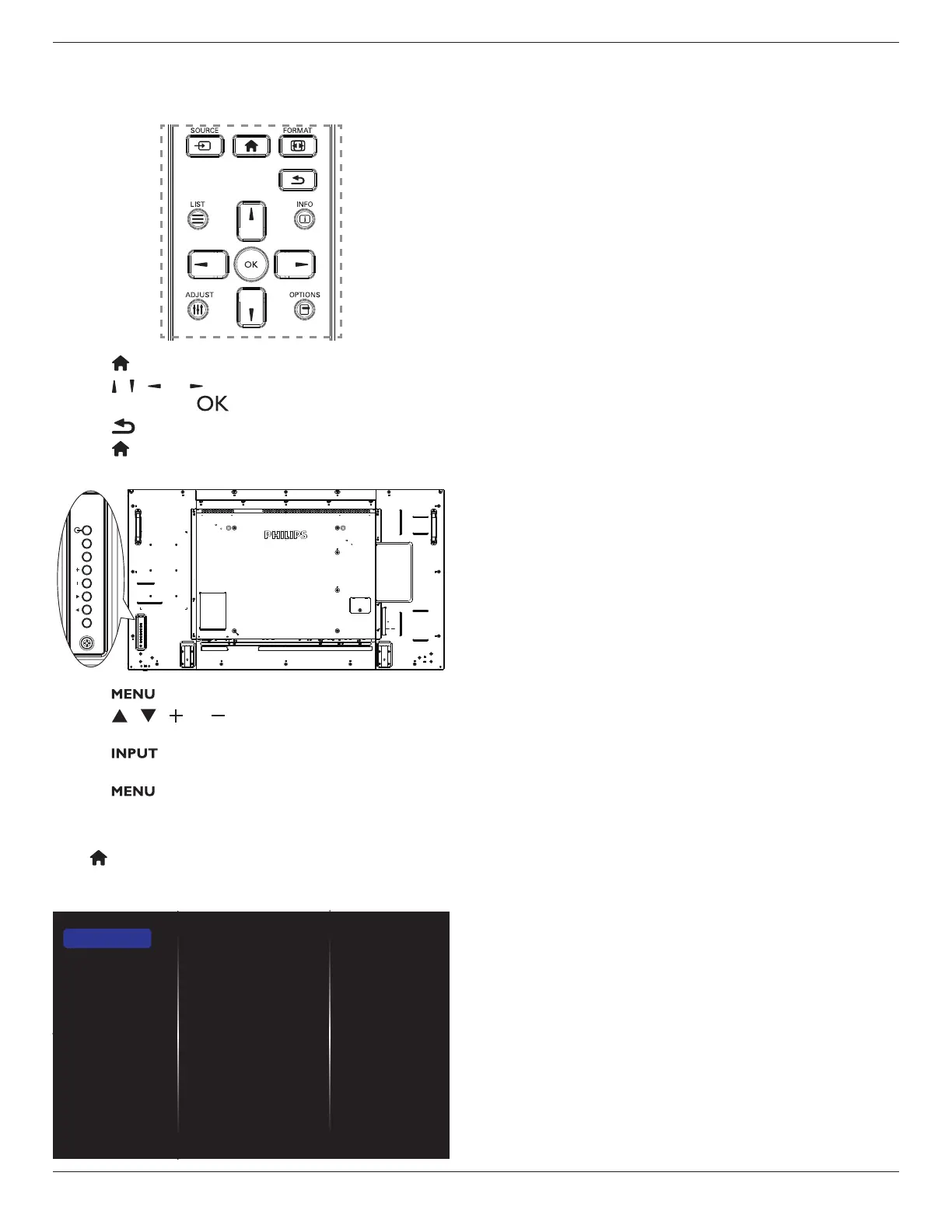
Using the remote control:
1. Press[ ] HOMEbuttontodisplaytheOSDmenu.
2. Press[ ] [ ] [ ] or[ ]buttontochooseitsmenuitemorto
adjustitsvalue.Press[ ]buttontoconrm.
3. Press[ ] BACKbuttontogobacktothepreviousmenulayer.
4. Press[ ] HOMEbuttontoexittheOSDmenu.
Using the display’s control buttons
1. Press[ ]buttontodisplaytheOSDmenu.
2. Press[ ][ ][ ]or[ ]buttontochoosemenuitemoradjust
itsvalue.
3. Press[ ]buttontoconrmmenuselectionandenterits
submenu.
4. Press[ ]buttontoexittheOSDmenu.
5.1. Settings
Press[ ] HOMEbutton.
5.1.1. Picture
menu
Picture style
Backlight
Colour
Sharpness
Noise reduction
MPEG artifact reducti...
Picture enhancement
Advanced
Scan mode
Format and edges
Picture reset
Picture
Sound
Tiling
Network
Storage
General settings
Adv.
Picture style
Chooseapredenedpicturesetting.
Backlight
Adjustthebrightnessofthisdisplay’sbacklight.
Colour
Adjustthecoloursaturationofthepicture.
Sharpness
Adjustthesharpnessofthepicture.
Noise reduction
Choosetheamountofnoisereductionforthepicture.
MPEG artifact reduction
Smoothentransitionsandhazinessinthedigitalpicture.
Picture enhancement
Fine-tuneeachpixeltomatchsurroundingpixelsandproduceabrilliant,
high-denitionimage.
• {Advanced sharpness}:Enablesuperiorsharpness,especiallyon
linesandcontoursinthepicture.
• {Dynamic contrast}:Dynamicallyenhancethedetailsinthe
dark,mediumandlightareasofthepicture.
• {Colour enhancement}:Dynamicallyenhancethevividnessand
detailsofcolours.
Advanced
Accessadvancedsettingssuchasgamma,tint,videocontrastandsoon.
• {Gamma}:Adjustthenon-linearsettingforpictureluminance
andcontrast.
TheoptionsareNative, S gamma, 2.2, 2.4,andD-Image.
Note:D-ImageistosimulateDICOMcurveforX-rayphotos.
• {Tint}:Changethecolourbalance.
• {Custom tint}:Customisecolourbalancesetting.Onlyavailable
if{Tint}
{Custom}ischosen.
• {Video contrast}:Adjustvideocontrast.
• {Brightness}:Adjustscreenbrightness.
• {Hue}:Adjustscreenhue.
Scan mode
Changethedisplayareaoftheimage.
Format and edges
• {Picture format}:Changethepictureformat.
• {Zoom}:Expandsthehorizontalandverticalsizesoftheimage
simultaneously.
• {H Zoom}:Expandsthehorizontalsizeoftheimageonly.
• {V Zoom}:Expandstheverticalsizeoftheimageonly.
Note:Zoom,HZoomandVZoomarefunctionalonlywhenthe
PictureformatsettingissettoCustomZoom.
Seepage18forthedescriptionsabout
Picture format
.
Picture reset
Resetallyourpicturesettingstothefactorydefaults.






 To Next Page