BDL8470QT
17
5. OSD Menu
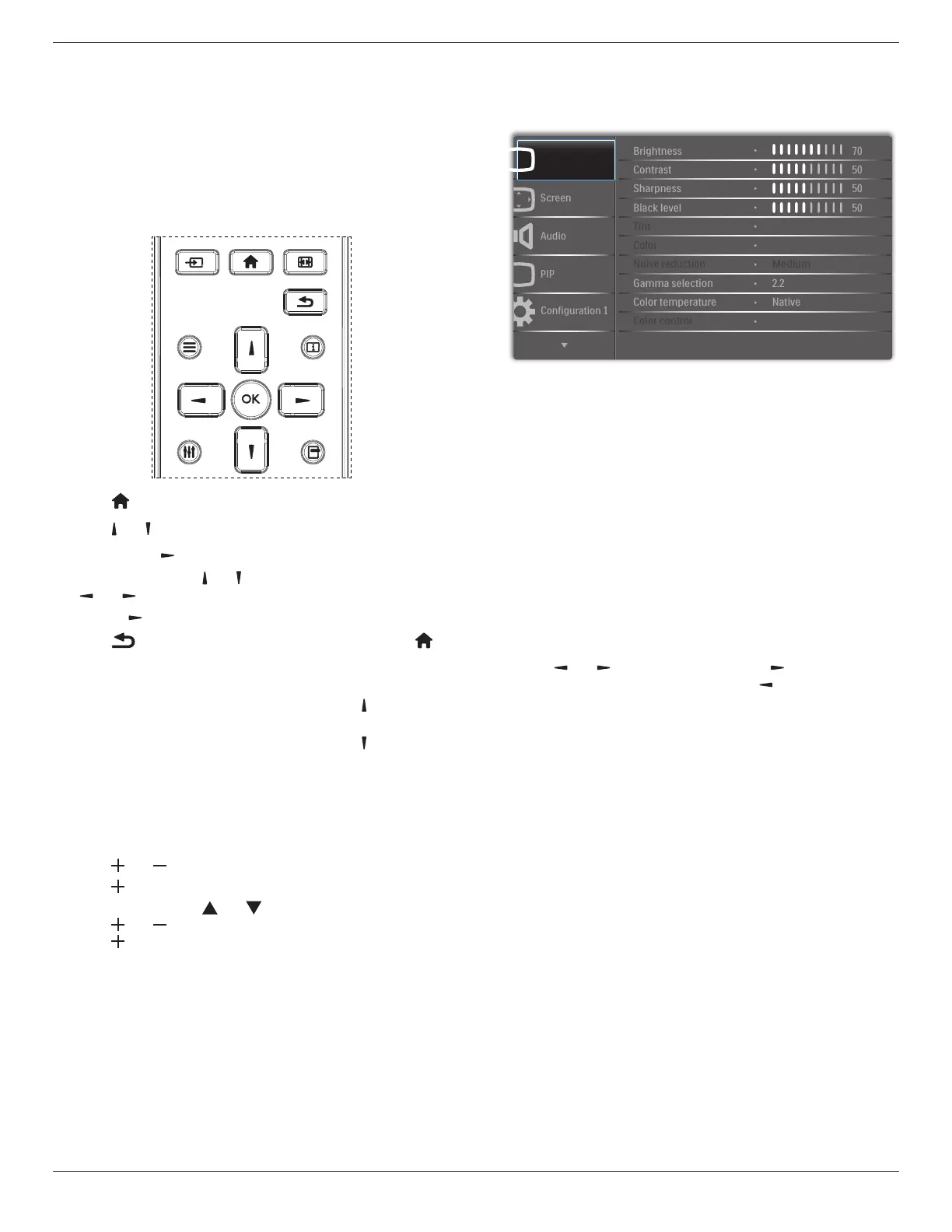
AnoverallviewoftheOn-ScreenDisplay(OSD)structureisshown
below.Youcanuseitasareferenceforfurtheradjustingyourdisplay.
5.1. Navigating the OSD Menu
5.1.1. Navigating the OSD menu using the
remote control
FORMAT
SOURCE
INFOLIST
OPTIONSADJUST
1. Press[ ] buttonontheremotecontroltodisplaytheOSDmenu.
2. Press[ ] or[ ] buttontochoosetheitemyouwanttoadjust.
3. Press[OK]or[ ] buttontoenterthesubmenu.
4. Inthesubmenu,press[ ] or[ ]buttontotoggleamongitems,press
[ ]
or[ ]buttontoadjustsettings.Ifthereisasubmenu,press
[OK]or[ ]buttontoenterthesubmenu.
5. Press[ ]buttontoreturntothepreviousmenu,orpress[ ]
buttontoexittheOSDmenu.
NOTES:
• WhenthereisnoOSDmenuonthescreen,press[ ]todisplaythe
menuof{Smart picture}.
• WhenthereisnoOSDmenuonthescreen,press[ ]todisplaythe
menuof{Audio source}.
5.1.2. Navigating the OSD menu using the
display’s control buttons
1. Press[MENU]buttontodisplaytheOSDmenu.
2. Press[ ]or[ ]buttontochoosetheitemyouwanttoadjust.
3. Press[ ]buttontoenterthesubmenu.
4. Inthesubmenu,press[ ]or[ ]buttontotoggleamongitems,
press[ ]or[ ]buttontoadjustsettings.Ifthereisasubmenu,
press[ ]buttontoenterthesubmenu.
5. Press[MENU]buttontoreturntothepreviousmenu,orpress
[MENU]buttonseveraltimestoexittheOSDmenu.
5.2. OSD Menu Overview
5.2.1. Picture menu
P
Picture
Brightness
AdjusttheoverallimagebrightnessbychangingtheintensityoftheLCD
panel’sbacklight.
Contrast
Adjusttosharpenthepicturequality.Theblackportionsofthepicture
becomericherindarknessandthewhitebecomebrighter.
Sharpness
Adjusttoimprovetheimagedetail.
Black level
Videoblacklevelisdenedasthelevelofbrightnessatthedarkest
(black)partofavisualimage.Adjusttochangetheimagebrightness.
Tint
Adjusttochangethecolortintoftheimage.
Usethe[ ]
or[ ]buttontoadjust.Pressthe[ ]buttonandthe
eshtonecolorturnsslightlygreen.Pressthe[ ]buttonandtheesh
tonecolorturnsslightlypurple.
NOTE: ThisitemfunctionalforVideomode(YUVcolorspace)only.
Color
Adjusttoincreaseordecreasetheintensityofcolorsintheimage.
NOTE: ThisitemfunctionalforVideomode(YUVcolorspace)only.
Noise reduction
Adjusttoremovethenoiseintheimage.Youcanselectasuitablenoise
reductionlevel.
Choosefrom:{Off}/{Low}/{Medium}/{High}.
NOTE: ThisitemfunctionalforVideomode(YUVcolorspace)only.
Gamma selection
Gammaiswhatcontrolstheoverallbrightnessofanimage.Images
whicharenotcorrectedproperlycanappeartoowhiteortoodark,so
controllingthegammaproperlycanhaveahugeinuenceontheoverall
picturequalityofyourdisplay.
Theoptionsare:{Native}/{2.2}/{2.4}/{S gamma}/{D-image}.
Color temperature
Selectacolortemperaturefortheimage.Alowercolortemperature
willhaveareddishtint,whilstahighercolortemperaturegivesoffa
morebluishtint.
Choosefrom:{3000K}/{4000K}/{5000K}/{6500K}/{7500K}/
{9300K}/{10000K}/{Native}/{User 1}/{User 2}.





 To Next Page