10 EN
5 Radio
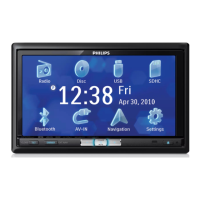
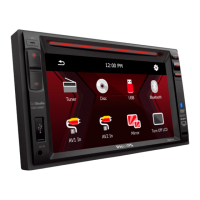
Press to enter the Home screen. Tap
.
Tune in to radio stations
Auto tune
The rst time you tune in to the radio,
start
Auto tune to search for stations.
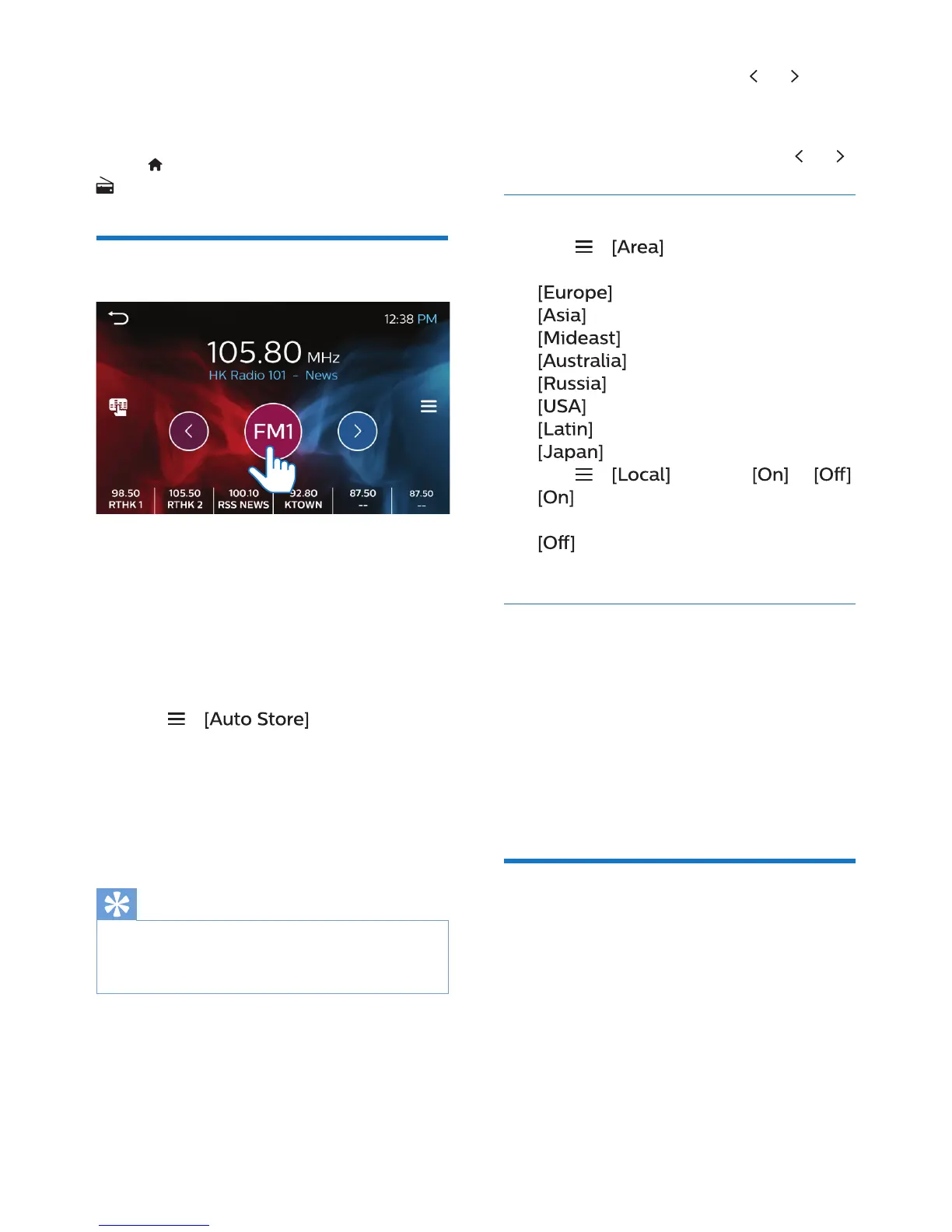
1 Tap FM or AM to select a band.
FM bands: FM1, FM2, FM3
AM band: AM1, AM2
2 Tap > .
» For each band, up to 6 stations
are stored as presets.
» The preset stations are listed at
the bottom of the screen.
3 Tap to select a preset station.
Tip
• When you move to a new place (such as a
new city or country), restart auto tune for
better reception.
Manual tune
Use Manual tune to search for a
frequency or station.
1 On the play screen, tap or .
» You tune in to the next station
from current frequency.
2 For ne tuning, tap and hold or .
Select the tuner sensitivity
• Tap > to select the region
that matches your location.
(Western Europe)
(Asia Pacic)
(Middle East)
(Australia)
(Russia)
(United States)
(Latin America)
(Japan)
• Tap > to select or .
: Search for radio stations with
strong signals only.
: Search for radio stations with
strong and weak signals.
Store preset stations
You can store up to 6 stations in each
band.
1 Tune in to a radio station.
2 On the play screen, tap and hold a
location in the list of presets.
» Current station is saved to the
location.
RDS (Radio Data
System)
RDS (Radio Data System) is a service
that allows FM stations to show
additional information.
When tuning to an RDS station, you can
see the following information on the
screen:
• Station name;


 To Next Page