18 EN
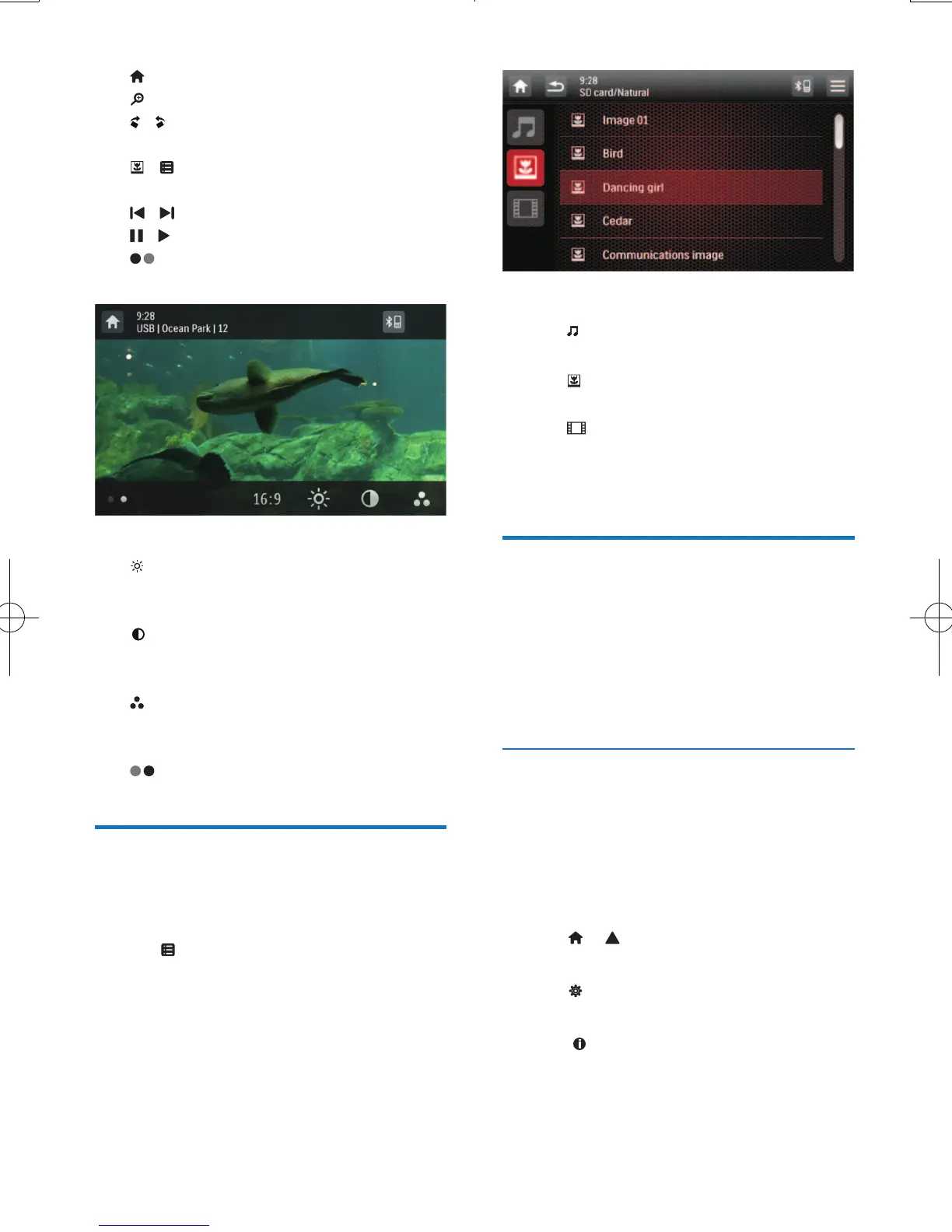
• : Return to the home menu.
• : Zoom in or out of the picture.
• / : Rotate the picture clockwise or anti-
clockwise by 90 degrees.
• / : Return to the list of les or folders
(see 'Browse recorded les' on page 18).
• / : Select the previous or next picture.
• / : Pause or resume the slideshow.
• : Display control icons on the second
page.
• [16:9]/[4:3]: Select an aspect ratio.
• : Tap to display the brightness bar, and
then tap on the bar to adjust the screen
brightness.
• : Tap to display the contrast bar, and
then tap on the bar to adjust the image
contrast.
• : Tap to display the saturation bar,
and tap on the bar to adjust the image
saturation.
• : Display control icons on the rst page.
Browse recorded les
During playing recorded les, you can access
the le list and select les from the list.
1 Tap to access the list of les or folders.
2 Tap an icon to select a le category.
• : Display the list of audio tracks or
folders.
• : Display the list of picture les or
folders.
• : Display the list of video les or
folders.
3 Tap the name of a le to start play.
About DivX® videos
DivX® video is a digital media format
that retains high quality despite of a high
compression rate. You can play DivX® VOD
(Video-on-Demand) videos that are rented or
purchased from online stores. You can also play
non-VOD DivX videos.
Play DivX VOD videos
To play DivX® VOD videos on this product,
you need the DivX® VOD code on this
product, the DivX Player installed on your
computer, and a free DivX Account.
Find the DivX® VOD code on your product.
1 Tap > to access the full menu with all
feature icons displayed.
2 Tap [Settings] to access the system
setup menus.
3 Tap [Info] to access the [Info] menu.
4 Tap [DivX(R) VOD] to display the
registration code.


 To Next Page