9
1 Turn on the TV to the correct viewing channel
for this product.
2 Press SETUP.
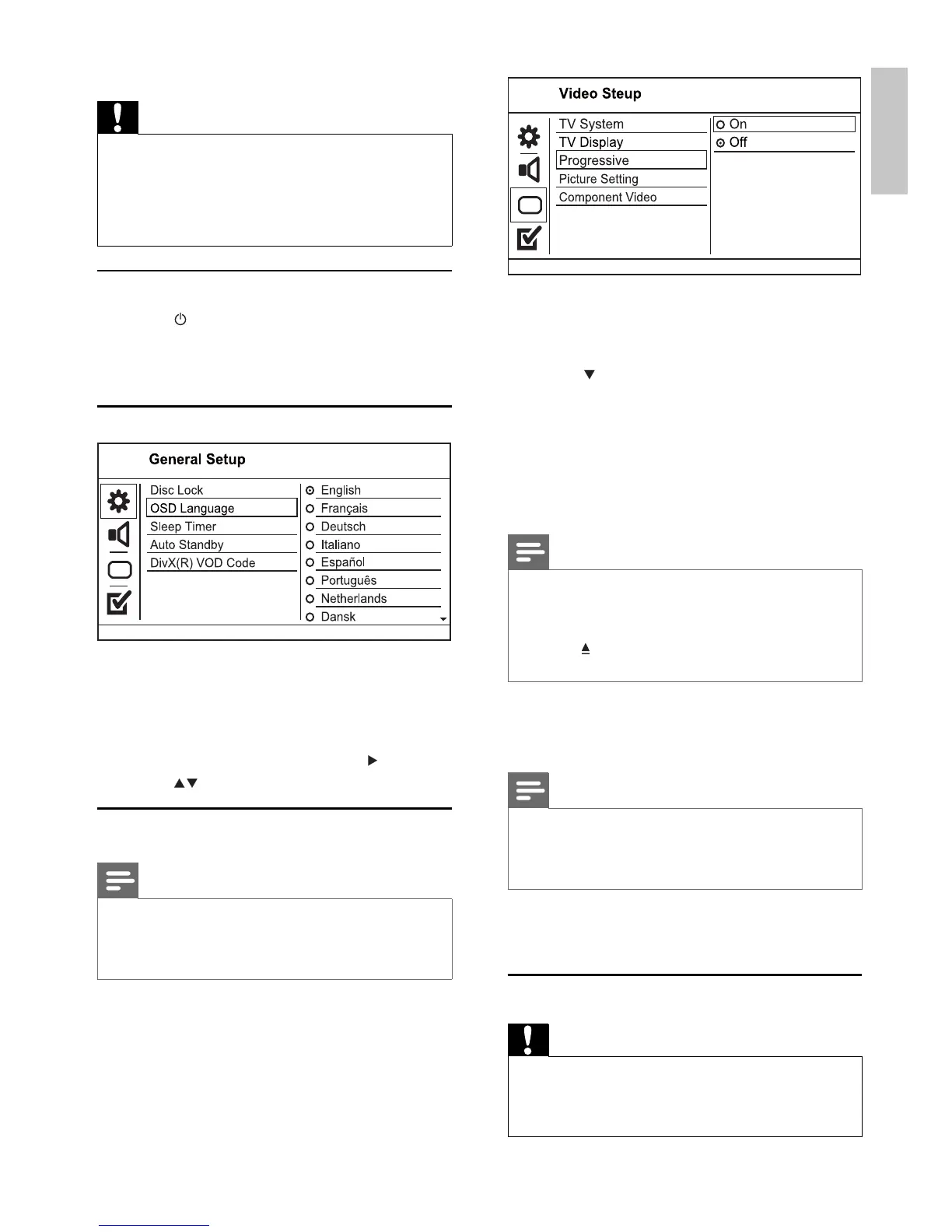
3 Press to select [Video Setup].
4 Select [Component Video] > [Interlaced],
then press OK.
5 Select [Progressive] > [On], then press OK.
A warning message is displayed.»
6 To proceed, select [Ok] and press OK.
The progressive setup is complete.»
Note
If a blank/distorted screen is displayed, wait for 15 •
seconds for the auto recovery.
If no picture is displayed, turn off the progressive scan
•
mode as follows:
1) Press
• to open the disc compartment.
2) Press the
• Numeric button ‘1’.
7 Press SETUP to exit the menu.
8 You can now turn on the progressive scan
mode on the TV (see the TV user manual).
Note
During play, when the progressive scan mode is on for •
both this product and the TV, distorted picture may
display. In this case, turn off the progressive scan feature
on both this product and the TV.
5 Play
Play a disc
Caution
Do not place any objects other than discs into the disc •
compartment.
Do not touch the disc optical lens inside the disc
•
compartment.
3 Close the battery compartment.
Caution
Remove batteries if they are exhausted or if the remote •
control is not to be used for a long time.
Do not mix batteries (old and new or carbon and
•
alkaline, etc.).
Batteries contain chemical substances, so they should be
•
disposed of properly.
Find the correct viewing channel
1 Press to turn on this product.
2 Turn on the TV and switch to the correct
video-in channel (refer to the TV user manual
on how to select the correct channel).
Select menu display language
The language options may vary from •
different regions.
1 Press SETUP.
» [General Setup] menu is displayed.
2 Select [OSD language], then press .
3 Press to select a language, then press OK.
Turn on progressive scan
Note
To use the progressive scan feature, you must connect •
a progressive scan TV with the component video jacks
(see “Connect” > “Connect video cables” > “Option 1:
Connect to the component video jacks” for details).
English
EN


 To Next Page