/00_3139 246 13873
English
13
Connections
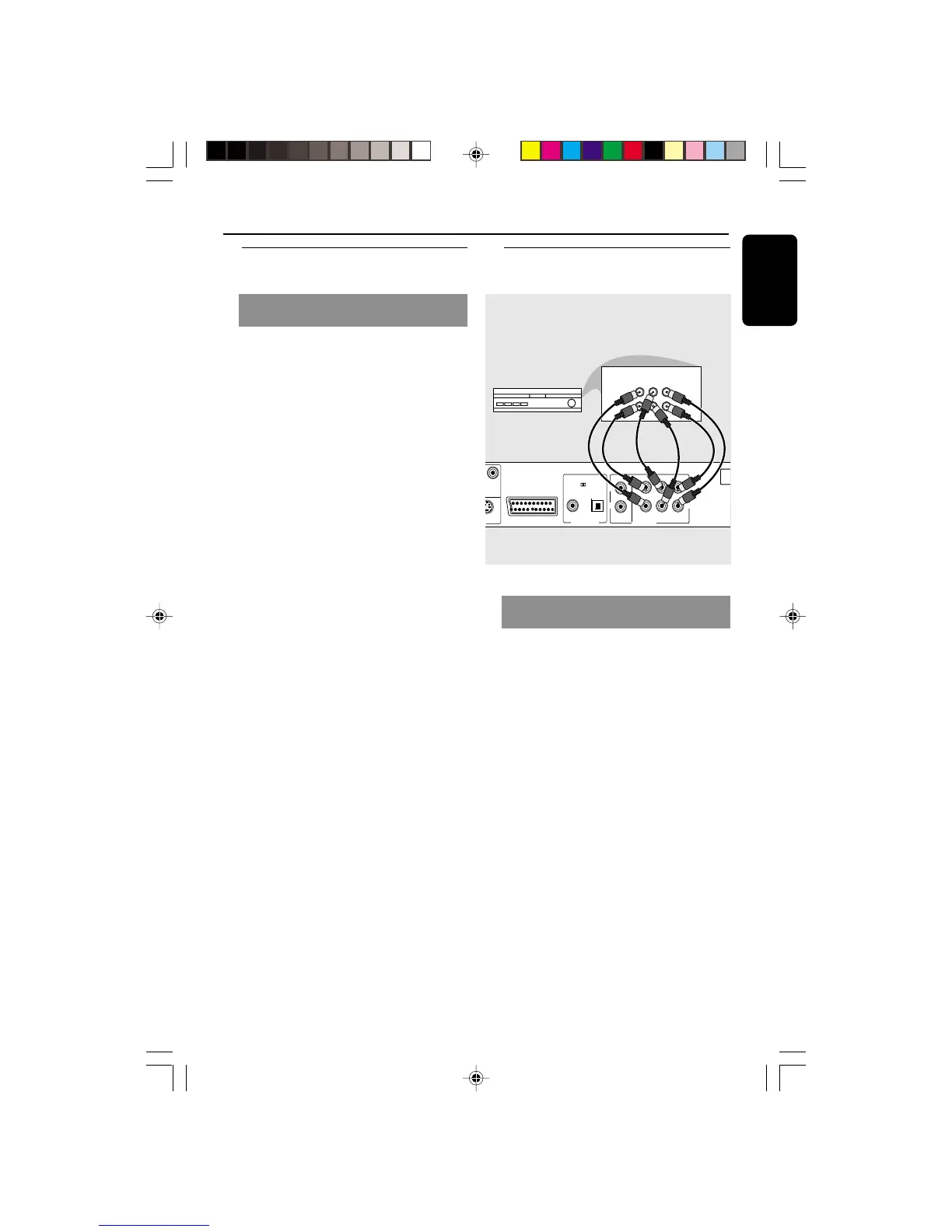
Receiver has multi-channel audio
input jack
1 Select one of the video connections
(CVBS VIDEO IN, S-VIDEO IN, SCART or
COMPONENT VIDEO IN) depending on
the options available on your TV.
2 Set the PROGRESSIVE/INTERLACE
switch to INTERLACE for CVBS or S-
VIDEO connections.
3 Set the PROGRESSIVE/INTERLACE
switch to PROGRESSIVE for
COMPONENT VIDEO IN connection
with a Progressive Scan TV.
4 Use the audio cables (white/red) to
connect AUDIO OUT (Front L&R,
Center, Surr L&R, Sub Woofer) jacks of
the DVD Player to the corresponding
AUDIO IN jacks on the receiver
(cable not supplied).
Optional: Connecting to a Multi-
channel Receiver
● The HDMI is backward compatible with
many DVI devices using an appropriate
adaptor plug.
➜ If a DVI device is connected, an
additional audio cable will be needed for
audio transmission.
➜ Audio transmission is possible when
{HDMI Audio} is switch to on.
➜ This DVD Player will support HDCP
compliance only.
Helpful hint:
– Set the SCAN MODE switch to
PROGRESSIVE.
Optional: Connecting to a HDMI/
DVI Device - cont’d
Using HDMI (High Definition
Multimedia Interface) sockets
01-41 DVP900_00A31 13/01/2005, 09:5713


 To Next Page