21
English
Note:
– Some RDS station may be transmitting a real
time clock at a minute interval. The accuracy of
the transmitted time depends on the transmitting
RDS station.
NEWS/TA (traffic announcement)
(only available in RDS radio station)
Once the News PTY (Programme Type) or TA
(Traffic Announcement) data is detected in a
RDS station, it will switch to TUNER mode
automatically.
IMPORTANT!
You can activate NEWS/TA function in
Standby, Demonstration or any source
mode except Tuner and Eco Power Standby
mode.
To start NEWS/TA function
1
Press NEWS/TA to select NEWS or TA
function.
➜ If NEWS is selected, "NEWS" and
NEWS
will
appear on the display.
➜ If TA is selected, "TA" and
TA
will appear on
the display.
➜ It will scan the radio stations stored in the
first 5 preset and wait for the News Programme
Type/Traffic Announcement data to be available
in any of these RDS radio stations.
● If no RDS station is detected in the first 5
presets, the system will exit NEWS/TA function.
➜ "NO RDS NEWS" or "NO RDS TA" will be
displayed and
NEWS
or
TA
will disappear from
the display.
2
When NEWS or TA transmission is detected, the
system will switch to Tuner mode automatically.
➜
NEWS
or
TA
will start flashing.
Notes:
–You have to exit Tuner mode before selecting
NEWS/TA function.
– While searching NEWS/TA in progress, the
current source activity will remain uninterrupted.
– Before you activate the NEWS/TA feature,
ensure that the first 5 presets have RDS stations.
– The NEWS/TA works only once for each
activation.
– The NEWS/TA will not start if a recording is in
progress.
To cancel NEWS/TA function
● Press NEWS/TA again or press TUNER to
select tuner mode.
● During news bulletin or traffic announcement,
press any other available source keys to execute
the relevant source mode.
Radio Reception
IMPORTANT!
– Before playing a tape, check and tighten
slack tape with a pencil. Slack tape may get
jammed or may burst in the mechanism.
– C-120 tape is extremely thin and is easily
deformed or damaged. It is not
recommended for use in this system.
– Store the tapes at room temperature and
do not put them too close to a magnetic
field (for example, a transformer, TV or
speaker).
Ta pe Playback
1
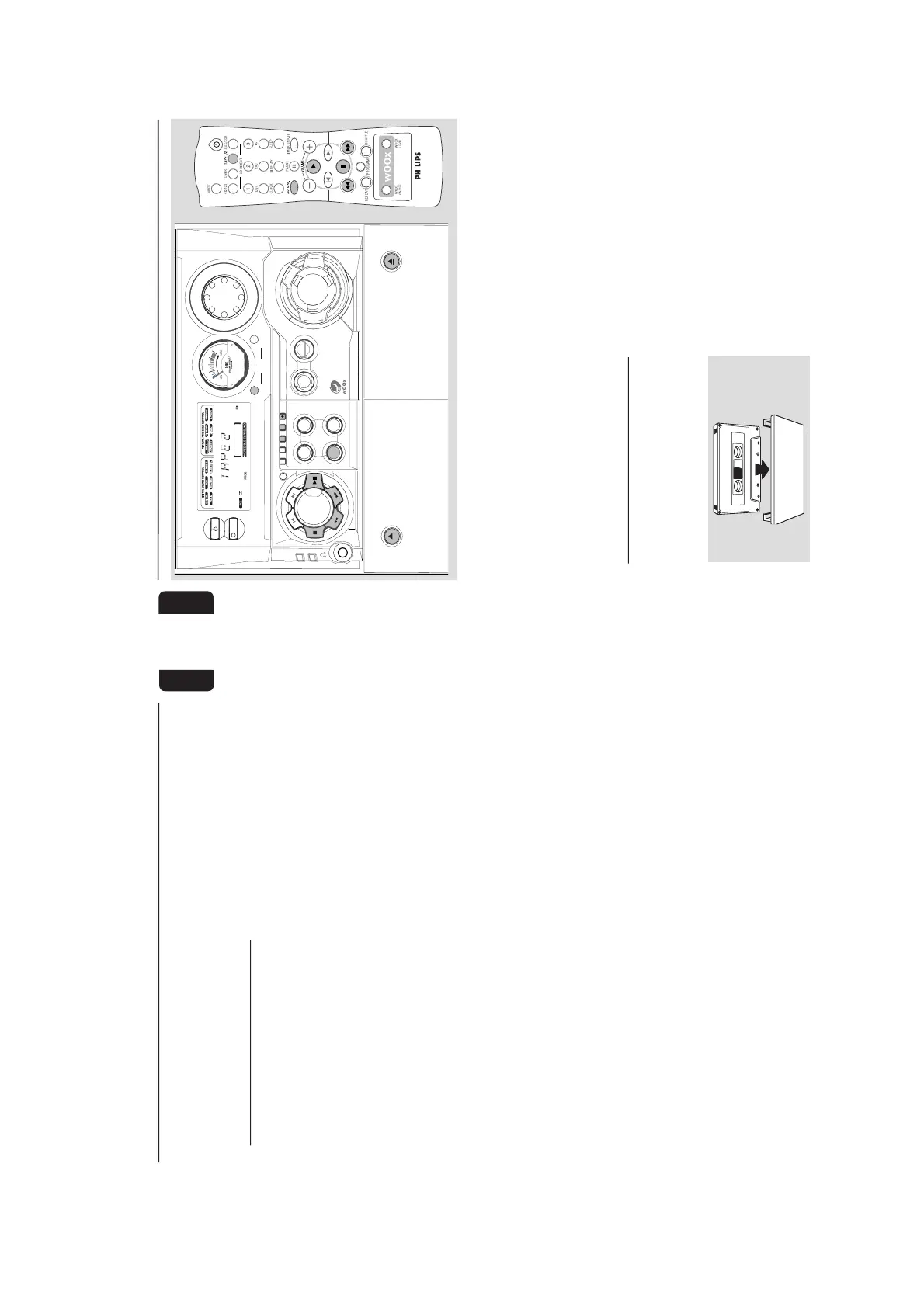
Press çto open the tape deck door.
2
Insert a recorded tape and close the tape door.
● Load the tape with the open side down and the
full spool to the left.
3
Press TAPE (TAPE 1•2) repeatedly to select
tape deck 1 or tape deck 2.
➜ The selected tape deck number is displayed.
4
Press PLAYÉ to start playback.
To stop playback
● Press Ç.
To change the playback mode
● Press AUTO REPLAY repeatedly to select the
different playback modes.
➜ "AUTO REPLAY" ( å ) or "ONCE" will
appear on the display.
AUTO REPLAY …the tape will rewind
automatically at the end of
playback and replay again. It will
replay up to a maximum of 20
times until you press Ç.
ONCE .............. the tape will playback the
selected side once and then stop.
To rewind or fast forward during
playback
● Press and hold à or á until the desired
passage is reached, then release.
➜ The tape continues playing.
● The tape will stop automatically at the end of
the rewinding or fast forwarding.
➜ During searching, the sound is reduced to a
low volume.



 To Next Page