14
6 Service
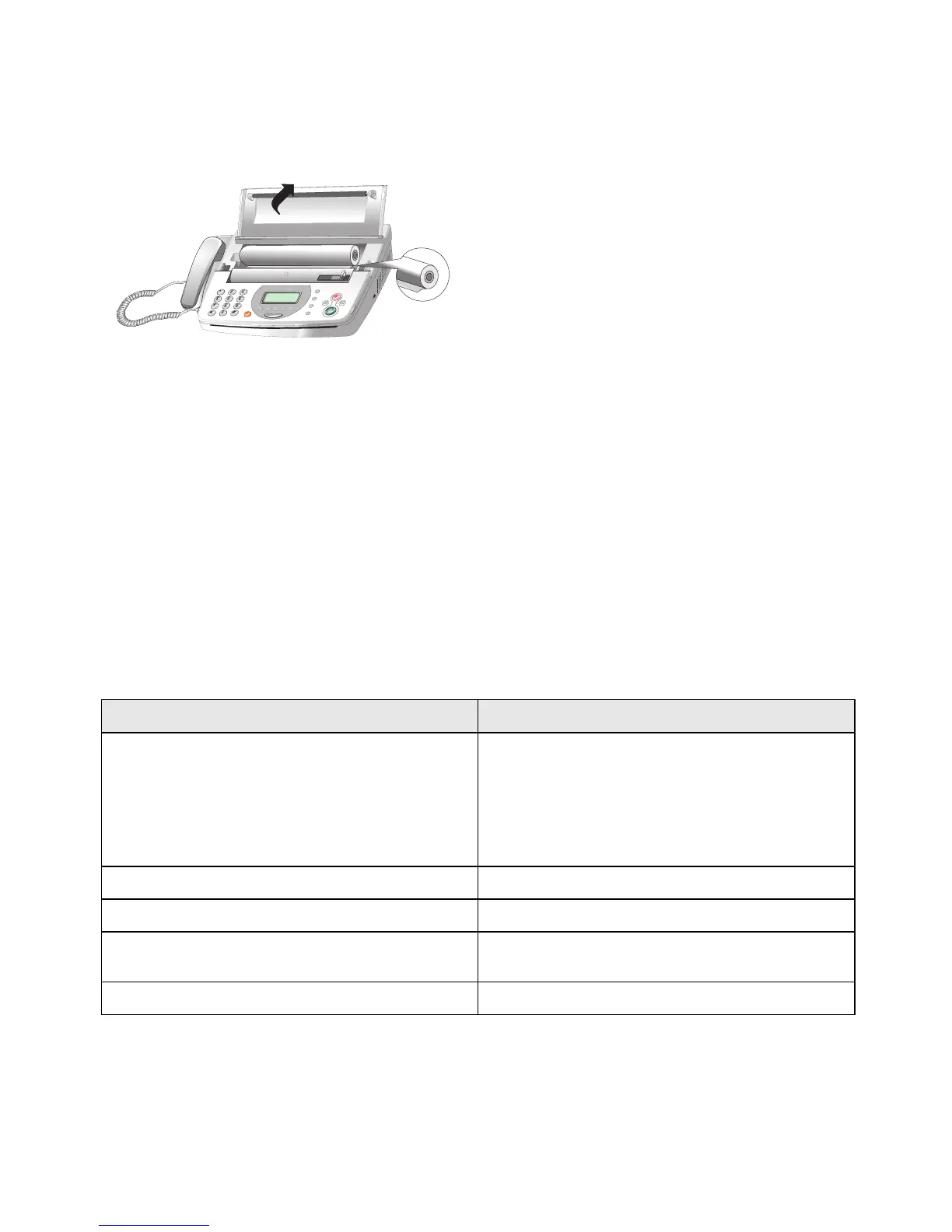
Fixing a paper jam
1 Open the paper tray and remove the jammed paper.
2 Insert the paper roller back again.
Fixing a document jam
1 Should CHECK DOCUMENT!! appear on the display,
open the paper tray as well as the panel.
2 Remove the jammed document.
3 Close the panel and the paper tray.
Cleaning of the roller and the scanner
We recommend the cleaning of the roller and the scanner
every six months.
1 Open the paper tray.
2 Open the panel.
3 Bring the two white side supports of the roller in verti-
cal position, and remove the roller.
4 Clean the surface of the scanner and the roller with a
soft, lint-free cloth.
Cleaning of the thermal print head
We recommend the cleaning of the thermal print head eve-
ry six months, so that the printing quality is maintained.
1 Open the cover for the paper tray.
2 Clean the surface of the thermal print head and the roll-
er with a soft, lint-free cloth.
3 Close the paper tray.
Power Cycling
If a problem occurs that cannot be corrected with the in-
structions in this user manual (see also the help below), fol-
low the steps given here.
1 Pull out the power plug.
2 Wait at least ten seconds, then plug the power plug
back into the socket.
3 If the error occurs again, please contact our technical
customer service or your retailer. Follow the instruc-
tions on the display and on the error report.
Problems when faxing or printing
Faxes sent are of poor quality.
Change the resolution from
STANDARD to FINE or
PHOTO.
Clean the scanner and the document feed slot.
Test the device by making a copy of the document. If the
device is in order, the fax machine of the recipient is defec-
tive.
The device produces black lines when sending or printing. Clean the scanner and the document feed slot.
Copy is blank. Insert the documents face down into the document feeder.
Printing is interrupted. Paper or document jam, no paper. Follow the instructions
on the display and in the error report.
Documents are not properly fed. Clean the scanner and the document feed slot.


 To Next Page